

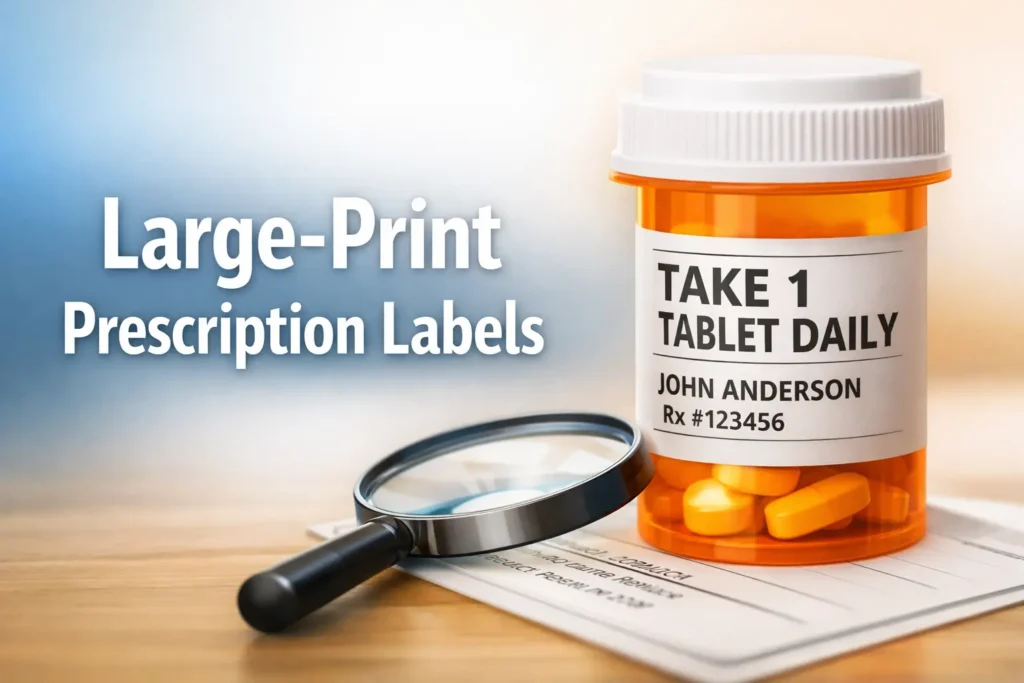
The fastest way to get large-print prescription labels isn’t begging at the counter—it’s flipping the one setting pharmacy systems actually remember.
When the bottle looks like an eye test and the store is loud, most people ask for “bigger letters”… and get a one-time reprint that quietly shrinks again on the next refill, transfer, or auto-renew.
If you’re building a safer system overall (especially for low vision), pair this with a practical low-vision medication management routine so the label upgrade actually sticks in daily life.
This post gives you the exact 20-second script that triggers a profile-level default, plus the quick verification steps that keep it “locked in” at Walgreens, CVS, and Express Scripts.
- Get a saved default (not a favor)
- Prevent the refill “reset” trap
- Upgrade safely if large print still isn’t enough
Table of Contents
Large-print first: the 20-second script that triggers the right setting
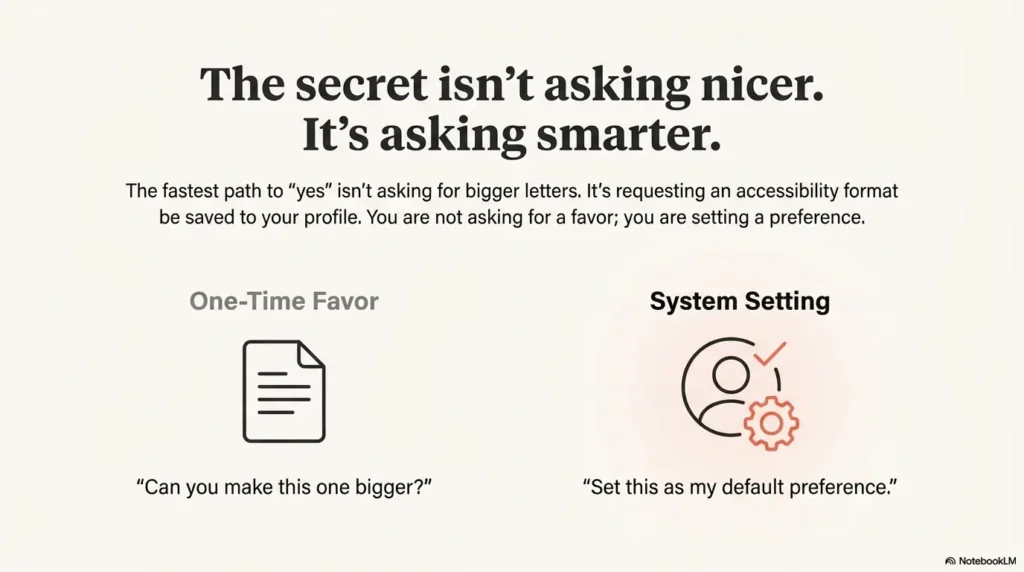
The fastest path to “yes” is asking for a default preference, not a one-time favor. You’re not begging for bigger letters. You’re requesting an accessibility format that can be saved to your profile.
The exact words (bottle + paperwork + all refills)
Use this script exactly, then stop talking (it’s weirdly effective):
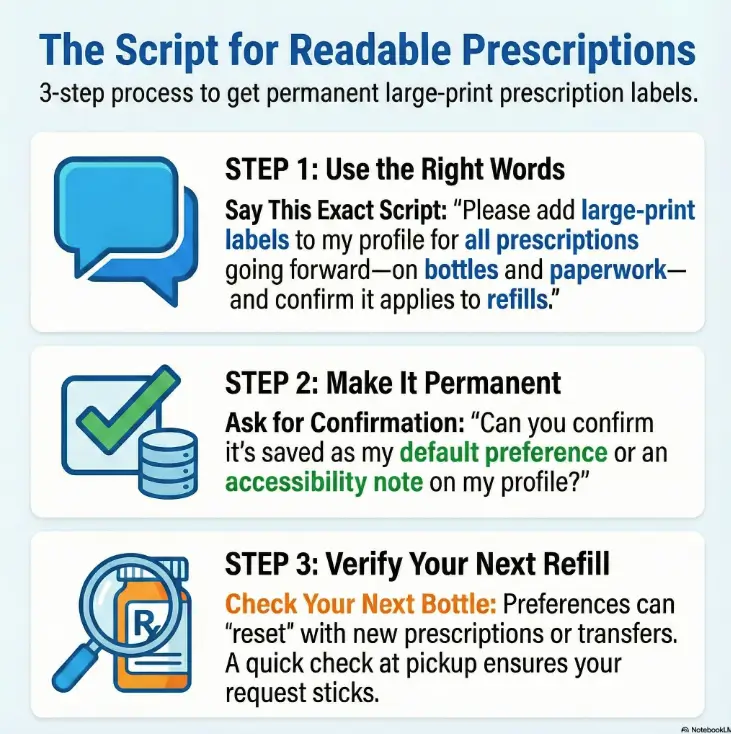
“Please add large-print labels to my profile for all prescriptions going forward—on bottles and paperwork—and confirm it applies to refills and auto-refills.”
That one sentence does three important things: it names the format (“large print”), it asks for a profile-level change, and it includes the two places errors happen—bottles and paper inserts.
The confirmation question that prevents “we’ll try”
Follow immediately with one question that forces a real system check:
“Can you confirm it’s saved as my default preference or an accessibility note on my profile?”
If they can’t confirm where it’s saved, you’re at risk of getting a polite nod… and the same tiny font next month.
Let’s be honest… the first “no” is often a routing problem (not a real limitation)
Sometimes “we don’t do that” means “I don’t know how to do that.” Don’t argue. Re-route:
- Try again with: “Is there a profile note or accessibility setting for label format?”
- Then: “Who’s the best person to help me set that?” (Pharmacist or lead tech, usually.)
- Ask for large print on bottles and paperwork.
- Use the phrase “default preference” or “accessibility note.”
- Verify on the next refill, not “someday.”
Apply in 60 seconds: Paste the script into your phone Notes so you can read it verbatim at the counter.
- Yes/No: Do you (or your caregiver) struggle to read the label under normal lighting?
- Yes/No: Do you take 2+ prescriptions or manage meds for someone else?
- Yes/No: Have you ever hesitated at dosing time because you weren’t sure what the bottle said?
Next step (one line): If you answered “yes” to any, request large-print prescription labels as a saved profile preference today.
Neutral action: Take 2 minutes to place the request, then plan a quick verification on your next refill.
Walgreens labels: where the setting lives and how to lock it in
Walgreens often frames this as a prescription settings update that provides a large-print copy of your prescription information. Translation: there’s usually a configurable pathway—your job is to make sure it’s applied consistently.
Start with “prescription settings” (and what “large-print copy” means)
When Walgreens says “large print,” you may hear “large-print copy of prescription information.” That typically refers to the readable info you need to take meds safely—medication name, directions, warnings, and prescription number—presented in a larger format. In practice, you want the outcome: readable instructions you can trust.
A very normal scene: you’re at pickup, the store is loud, and you don’t want to perform your eyeballs in public. Keep it simple:
- “I need large-print prescription information. Please set it as my default.”
- “Can you confirm it will apply to future refills?”
English/Spanish: ask for the version you’ll actually use
If you prefer Spanish (or you’re helping a family member who does), ask explicitly. Accessibility isn’t only font size—it’s comprehension. It’s okay to be direct:
“Please set large print in Spanish for all prescription instructions.”
Verify on pickup: the 4 items to check before you leave
Don’t wait until you’re home and tired. Do a 15-second check while you still have leverage:
- Medication name: matches what you expect (brand vs generic can look different).
- Strength: the number + unit (mg, mcg) is correct.
- Directions: the “how often/how much” is readable and clear.
- Warnings: “may cause drowsiness,” “take with food,” etc., are visible.
Micro-habit that saves you later: snap a quick photo of the label (only if it’s safe for your privacy). If the next refill shrinks, you can show what you were getting before.
- Your pharmacy name + store number (if known)
- Your date of birth (typical verification)
- A short phrase: “large-print labels as a default preference”
- If mail order: your member ID card nearby
Neutral action: Keep this list in your phone so you can ask once and get it saved correctly.
Express Scripts mail-order: the one call that updates bottles and inserts
Mail order is where people get stuck: the paperwork might be readable, but the bottle label isn’t—or the opposite. The goal is to request large print for the label and for any included medication information so your whole system is consistent. (If you’re managing multiple bottles at home, this pairs well with a simple medication management setup for low vision so the label isn’t your only safety net.)
Say “large print or braille” only if you mean it (and why wording matters)
If you want large print, say large print. If you want braille, say braille. If you want audio/talking labels, ask for that specifically. The wrong wording can route you to the wrong process.
Here’s a clean mail-order script:
“Please mark my account for large-print pill bottle labels and large-print paperwork for all mail-order prescriptions. Can you confirm it applies to all future shipments?”
And yes: they may tell you to call the number on your prescription ID card. That’s normal in the mail-order world—think of it as the doorbell that gets you into the right team.
Ask them to “read back the note” (your quiet proof)
This is the moment you turn a vague promise into a saved setting:
“Can you read back what you entered on my account so I know it’s noted correctly?”
If they read it back and it includes large print, all prescriptions, and future shipments, you’re in good shape.
Delivery-day audit: check before you store bottles
Open the shipment while you’re still standing. Not because you’re suspicious—because you’re practical.
- Confirm the label is readable under normal light.
- Confirm directions aren’t wrapped into tiny lines that blur together.
- Confirm the paperwork matches the bottle directions.
Small but mighty: keep the box for 24 hours. If you need to call back, having the shipment details nearby makes the conversation shorter by about 5 minutes.
CVS reality: what’s typically available (and how to ask without a medical speech)
CVS is a “big system” environment: multiple workflows, different staff roles, and the occasional mismatch between what’s possible and what’s easy. Your secret weapon is a privacy-safe request that doesn’t invite debate.
The privacy-safe line: “I have trouble reading small print”
You don’t need a diagnosis. You don’t need a backstory. Try this:
“I have trouble reading small print. Please set large-print labels as my default for all prescriptions.”
If you’re picking up for a parent or partner, you can keep it equally simple:
“I’m helping manage medications. We need large-print labels on all refills.”
Large print + accessible options (when you should upgrade)
Large print helps a lot—but not always enough. If any of these are true, consider asking about additional accessible options (like talking labels) or a counseling check at pickup:
- You take 5+ medications and bottles look similar.
- You’ve had a near-miss (you almost took the wrong one).
- Your vision fluctuates (migraine days, fatigue, low light).
Think of large print as Tier 1. You’re allowed to move up tiers when your real life demands it. If reading issues are tied to an underlying eye condition or age-related changes, you may also find it helpful to pair this with low-vision reading strategies for seniors with AMD so everyday text doesn’t become a daily battle.
Here’s what no one tells you… some services differ by delivery vs in-store workflows
In-store pickup and mail-service pharmacies can operate differently, even under the same brand umbrella. If you use both, ask for your preference in both places. It’s not you being “extra.” It’s you preventing the “why did this change?” spiral.
- Use the phrase “I have trouble reading small print”.
- Ask for a default preference on your profile.
- Request consistency across pickup and delivery if you use both.
Apply in 60 seconds: If you use multiple pharmacies, write down which one fills which meds so you can set preferences everywhere.
Transfer trap: why large-print requests “disappear” after a refill (and how to prevent it)
This is the part nobody warns you about: even when large print is available, it can “reset” when your situation changes. Not because anyone is trying to make your life harder—because pharmacy systems are built around prescriptions, not around your future self trying to read them at 11 p.m. If late-night dosing is part of your routine, consider pairing this with low-vision nighttime bathroom safety so the “11 p.m. problem” has fewer hazards attached.
The three reset triggers: transfer, new Rx number, new fulfillment channel
If your labels suddenly shrink again, one of these usually happened:
- Transfer: you moved a prescription to a different store or chain.
- New Rx number: your prescriber issued a new prescription (even for the same medication).
- Channel switch: you went from in-store pickup to mail order (or vice versa).
Quick reality check: you didn’t “fail” to request it. The system just didn’t carry it the way you assumed it would.
The preventative ask: “Make it my default for all future prescriptions”
Any time you transfer or start a new medication, use this one-liner:
“Please confirm my large-print preference is applied to this new prescription as well.”
That’s it. No speeches. No awkward apology. You’re protecting your medication routine.
Curiosity gap: the hidden place preferences get saved (and why staff miss it)
Some settings are saved per prescription; some are saved per patient profile; some are saved in a note field that doesn’t automatically trigger printing templates. That’s why two employees can give two different answers and both be sincere.
Show me the nerdy details
Pharmacy systems often store data in layers: patient profile preferences, prescription-specific flags, fulfillment-channel settings (retail vs mail), and printer template rules. If your request is entered as a “note,” it may not trigger the printing workflow unless it’s also tied to the label format setting. That’s why asking “Is it saved as my default preference?” is more reliable than asking “Can you make it bigger?”
Short Story: The refill that turned into a tiny-font trap (120–180 words) …
Short Story: You finally got the large-print label you needed. It felt like a small miracle—directions you could read without squinting, warnings you didn’t have to guess. Two months later, your doctor renews the prescription and the new bottle shows up with the old microscopic font. You stare at it, annoyed and oddly embarrassed, like you’re asking for something “extra.”
But here’s what actually happened: the system treated the renewal as a new item, and your accessibility request didn’t automatically attach. You do the brave, boring thing—you call. You say the same sentence as before: “Please apply my large-print preference to this prescription and save it as my default.” The person on the phone pauses, then says, “Oh—yes, I can add that.” Next refill? Large print again. The win wasn’t fighting. It was asking in the one way the system understands.
Enter three numbers. You’ll get a simple risk level and a matching verification habit.
Neutral action: Use your risk level to pick one verification habit and do it consistently for a week.
Common mistakes: the ones that quietly make labels stay small
These mistakes are sneaky because they feel reasonable in the moment. They also produce the exact outcome you don’t want: a one-time fix that never sticks.
Mistake #1: “bigger letters” (why “large print labels” works better)
“Bigger letters” is human. Pharmacy systems are not. “Large-print labels” (or “large-print prescription information”) is the phrase most likely to match an actual setting, workflow, or accessibility option.
Mistake #2: fixing today’s bottle instead of your profile
A reprint can solve today. A profile preference solves your year.
If you’re time-poor, this is the sentence that protects you from re-living the same conversation:
“Please add this as my default preference for all future prescriptions.”
Mistake #3: forgetting paperwork (mail order especially)
Some people read the bottle just fine once it’s large print, but the included medication info is still tiny. Others rely on the insert and don’t want to hunt for a magnifier. Ask for both: bottle + paperwork. Consistency reduces mistakes.
Curiosity gap: why “we don’t offer that” can be technically true—for that employee
Sometimes the employee you asked doesn’t have the permissions, training, or familiarity. That’s not your cue to give up—it’s your cue to escalate politely:
- “Could I speak with the pharmacist or lead tech about accessibility label options?”
- “Is there a patient profile note field for label format?”
- Say “large print”, not “bigger letters.”
- Ask for a default preference, not a one-time reprint.
- Include paperwork if you use mail order or inserts.
Apply in 60 seconds: If you hear “no,” re-ask using “accessibility setting” and request the pharmacist.
Don’t do this: risky workarounds that can hide safety information
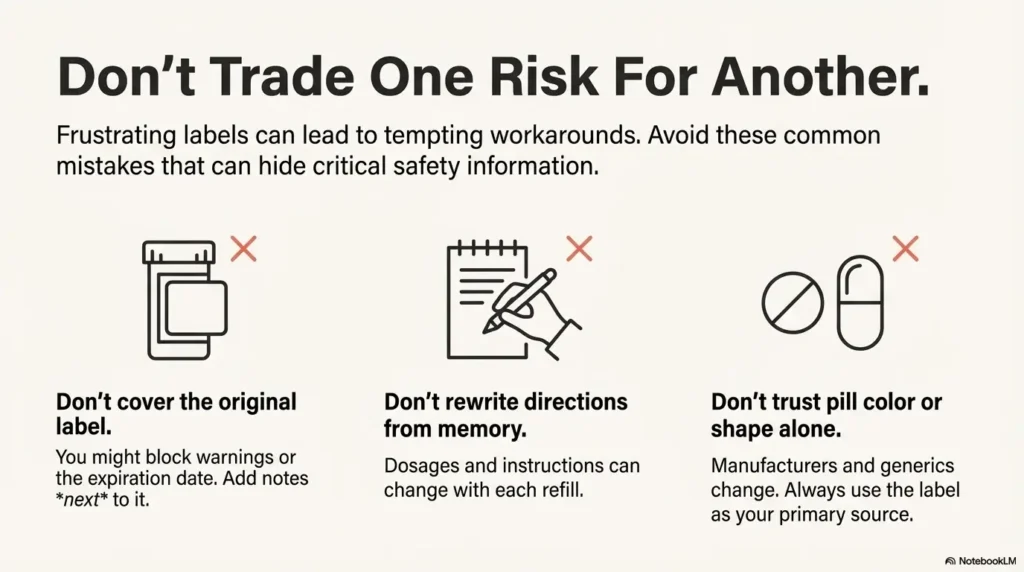
When you’re frustrated, DIY solutions look tempting. But a prescription label is safety-critical. The goal is readability without creating a new problem.
Don’t cover the pharmacy label (what you might block)
Covering the label with your own sticker can hide warnings, expiration info, or auxiliary instructions. If you must add something, add it next to the label, not on top of it.
Don’t rewrite directions from memory (why changes are common)
Directions change. Strength changes. “Take 1 daily” becomes “take 2” after a dosage adjustment. Even a small mismatch can cause a big headache (sometimes literally). If anything looks different, call and verify.
Don’t trust pill color/shape alone (what to do instead)
Manufacturers change. Generics rotate. Pills can look different month to month even when the medication is correct. Use two identifiers:
- Readable label (large print or accessible format)
- A second system: med card, talking label, or pharmacist verification at pickup
If large print still isn’t enough: upgrade options that reduce errors
Large print is a great start. But if your vision fluctuates, you manage multiple bottles, or you’ve had close calls, it’s smart—not dramatic—to add a second layer.
Talking labels: when audio beats bigger type
Talking labels (audio-enabled devices or services) can reduce errors when reading is inconsistent. If large print still feels like “I’m guessing,” audio can give you certainty—especially for look-alike bottles.
Low-tech fail-safes that don’t interfere with the original label
Here are low-risk additions that keep the pharmacy label visible:
- Medication card: one index card per medication with name + dose + timing.
- Bin tag: a large-print label on the bin/shelf, not the bottle.
- Weekly organizer: only after you’ve confirmed directions for that week.
If lighting is the real bottleneck (you can read large print in daylight, but not at night), it’s worth improving the environment—start with glare-free under-cabinet lighting for low-vision cooking so “reading the label” doesn’t depend on perfect conditions.
Curiosity gap: the “one extra step” caregivers skip that prevents mix-ups
If you help someone else with medications, your best protection is a shared verification ritual: once per refill cycle, you and the person (or you and another caregiver) confirm medication name, strength, and directions together. It takes 3 minutes. It can prevent days of confusion. For a more complete, repeatable setup, consider building a simple low-vision medication management system that includes where bottles live, how refills get checked, and how changes get recorded.
Choose Large Print if: you can read reliably with bigger text, and your routine is stable (1–3 meds).
Choose Talking Labels if: reading fluctuates, bottles look similar, or you manage 4+ meds.
Choose Both if: you want redundancy—large print for quick checks, audio for certainty.
Neutral action: Pick the simplest option that makes you feel confident at dosing time.
When to seek help: label confusion that shouldn’t wait
This section is here for one reason: medication mistakes can happen when labels aren’t readable, and you deserve a clear “what now?” plan that doesn’t shame you.
Call the pharmacist now if you’re uncertain about name, strength, or directions
- You’re not sure whether you have the right medication.
- The strength looks different than usual.
- The directions changed and you can’t confirm why.
Pro move: Ask them to read the directions out loud and confirm the strength. It’s faster than guessing.
Seek urgent care for severe symptoms (breathing trouble, fainting, severe confusion)
If you feel severely unwell after a potential medication error—difficulty breathing, fainting, severe confusion—seek urgent medical help. Don’t “wait it out” to prove you’re tough.
Poison Control: the fastest safety backstop (US: 1-800-222-1222)
If you’re worried you took the wrong dose or medication, Poison Control can help you decide what to do next. Keep the bottle nearby when you call. It reduces the back-and-forth.
Next step: do this in 2 minutes (and confirm it worked)
If you do nothing else, do this one thing today: request large print as a saved preference, then verify it on your next refill. That’s the whole game. If you’re also adjusting your home environment for safety (especially with low vision), a broader home safety checklist for wet AMD can help reduce “small preventable risks” across the house—not just at the pharmacy counter.
Call or visit and say the script (copy/paste)
Use the exact script from the first section. If you’re nervous, read it off your phone. Nobody minds. In fact, it often makes the interaction faster.
Ask the confirmation question: “Is it saved as my default preference?”
If the person helping you can’t confirm, ask for the pharmacist or lead tech and repeat the question. Calm voice. Short sentence. No apology.
Set a reminder: verify on the next refill/pickup/shipment
Set a reminder for your next refill date with one line: “Check large print at pickup.” This prevents the common scenario where you notice the tiny font only when you’re already home and exhausted.
FAQ
Do pharmacies offer large-print prescription labels?
Many pharmacies and mail-order plans offer large print (or a large-print copy of prescription information) as an accessibility option. Availability and implementation can vary by location and workflow, which is why asking for a saved default preference matters.
How do I request large-print labels at Walgreens?
Ask to update your prescription settings to include large print and confirm it’s set as your default. At pickup, verify the medication name, strength, directions, and warnings are readable before you leave.
Can Express Scripts provide large-print pill bottle labels?
Mail-order services commonly route these requests through member services, often using the phone number on your prescription ID card. Ask for large print on both bottle labels and included paperwork, and ask them to read back the note on your account.
How do I request large print at CVS without oversharing?
Use a privacy-safe line: “I have trouble reading small print. Please set large-print labels as my default preference for all prescriptions.” You don’t need to provide a diagnosis.
Do I need proof of disability to request large print?
In many cases, no. You can request an accessible format because you have difficulty reading small print. If a process requires verification for account changes (especially for someone else), they’ll guide you through what’s needed.
Will large-print preferences apply to auto-refills and new prescriptions?
Often, but not always. Preferences can “reset” during transfers, when a new prescription number is issued, or when you switch fulfillment channels (pickup vs mail order). That’s why it’s smart to verify on the next refill and re-confirm after changes.
What if the pharmacy says they can’t do large print?
Ask to speak with the pharmacist or lead technician and rephrase: “Is there an accessibility setting or profile note for label format?” Sometimes the capability exists but the first person you asked doesn’t have the right workflow access.
What if large print still isn’t readable for me?
Consider adding a second layer: talking labels/audio support, a medication card system, or a quick pharmacist verification at pickup. The goal is confidence and safety, not perfection—and if screens are part of your day-to-day reading load too, you may also benefit from reducing strain with digital eye strain tips for seniors.
Conclusion: The curiosity loop from the top is simple: yes, you can usually get large print—if you ask in the system’s language. Your two-part plan is: (1) request large-print prescription labels as a saved default preference, and (2) verify on the next refill before you leave the counter (or before you store mail-order bottles). If you want a 15-minute win, paste the script into your phone, make one call, and set one reminder: “Check large print at pickup.”
Last reviewed: 2026-01.