
Senior login safety guide
How Seniors Can Avoid Mistyping Verification Codes
Without Getting Locked Out
A verification code should feel like a small key, not a tiny thunderstorm. Yet for many older adults, those six digits arrive in a cramped text message, expire too quickly, hide behind another app, or appear just when a bank login is already making the room feel warmer.
This guide is for the real moment: glasses on, phone in hand, cursor blinking, family member nearby trying not to hover. We will make the code easier to read, easier to enter, harder to share with scammers, and less likely to trigger the dreaded “too many attempts” message.
The goal is not to turn every senior into a cybersecurity technician. The goal is calmer access to banking, healthcare portals, Medicare-related accounts, email, shopping apps, and family services, with fewer mistakes and more dignity.
Read codes clearly
Use larger text, steady lighting, and chunking so digits stop swimming around the screen.
Avoid lockouts
Request one code, use the newest message, check before submitting, and do not race the timer.
Block code scams
Know why a real code belongs on a login screen, not in a caller’s ear or a stranger’s text thread.
Small promise: by the end, you will have a one-minute code routine that feels less like panic and more like turning a well-labeled key. 🔐
Snapshot
This article is for older adults and caregivers who struggle with one-time verification codes during account sign-ins. It solves the practical problems of tiny text, expiring codes, wrong screens, scam pressure, and repeated lockouts. Next, you will learn a calm routine for reading, checking, entering, and protecting codes without giving up independence.
Table of Contents
Safety First: A Verification Code Is Not a Customer Service Password
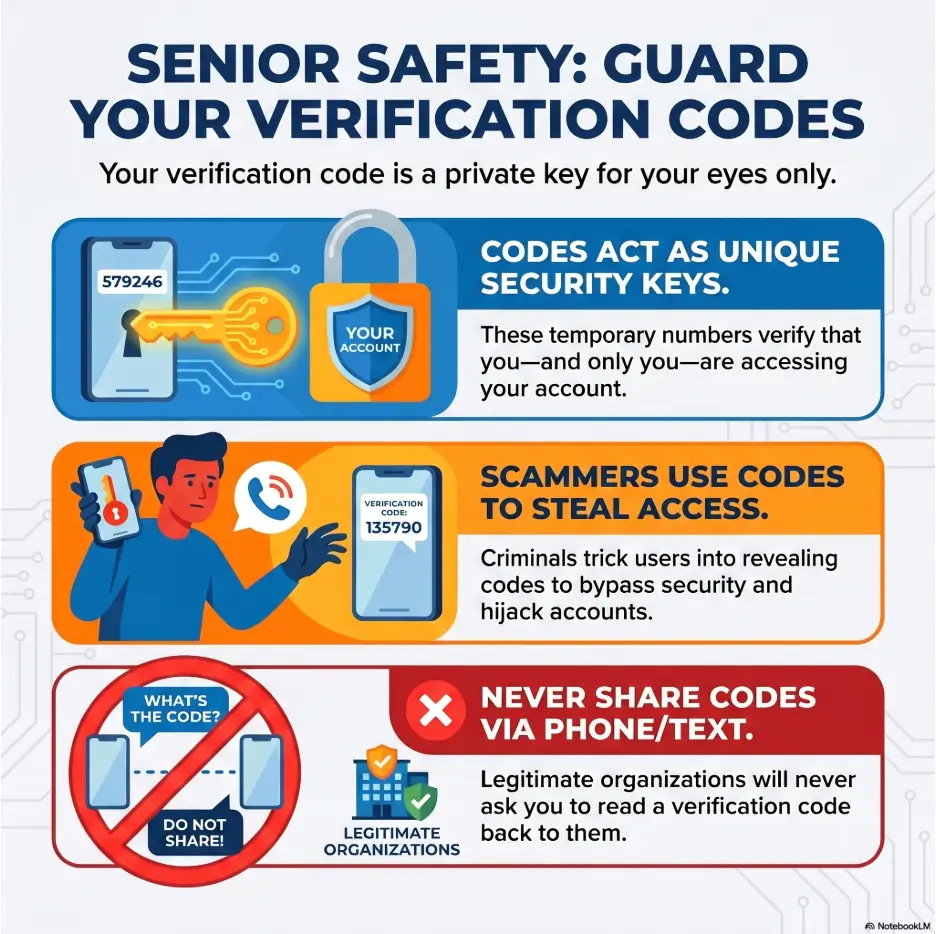
Verification codes protect private accounts. They can guard a checking account, prescription portal, email inbox, Social Security account, shopping profile, cloud photo album, or Medicare-related login. That is why a small six-digit number deserves more respect than it seems to ask for.
The most important rule is simple: a verification code is for the login screen. It is not for a caller, a text sender, an online seller, a “support agent,” a delivery message, or a friendly stranger who claims they need it to help you.
A real bank, government office, healthcare provider, pharmacy, email company, or delivery service should not ask you to read back a code that was sent to your phone or email. If someone asks for it, pause. That pause may be the small hinge that keeps a much larger door closed.
Why this guide treats mistyping and scams together
Mistyping a code and sharing a code with a scammer may seem like different problems. In real life, they often live in the same messy moment.
A senior may be trying to log into a bank app while a phone call claims there is fraud. A caregiver may be helping with a medical portal while old text messages are stacked on the screen. A delivery message may arrive just as an online shopping account sends a real code. The mind sees numbers, urgency, and authority, then tries to move too fast.
This article slows the whole scene down. It is about accurate typing, yes, but also about deciding whether the code should be used at all.
What this article cannot do
This guide is educational and practical. It is not legal, financial, medical, or identity-theft recovery advice. If an account may already be compromised, contact the company directly through its official website, app, card, statement, or known phone number.
For banking, credit card, investment, retirement, healthcare, or government accounts, do not keep experimenting if something feels wrong. Stop, save the message, and use official support.
Key takeaway
A verification code should be typed only into the account screen you personally started. If a person asks you to say, text, forward, or paste the code to them, stop.
Code Confusion Starts Before Typing
Many seniors do not mistype verification codes because they are careless. They mistype because the login process is poorly suited to human attention. One screen asks for the code. Another screen receives it. A timer counts down. A small keyboard appears. A message preview covers the top of the phone. Then the app refreshes, because of course it does.
The first fix is not faster fingers. It is orientation. Before typing anything, the senior should know three things: which account requested the code, where the code arrived, and which screen is waiting for it.
Know which door the code came through
Verification codes may arrive by text message, email, automated phone call, authenticator app, or security key. Some accounts also send a push notification asking the user to approve a login or match a number.
For seniors, the difficult part is often not the code itself. It is the device dance. The bank page may be open on a laptop. The code may arrive on a phone. The email code may hide under a promotion tab. The authenticator app may show a fresh number every few seconds.
Use a plain sentence before entering the code: “I am signing into my pharmacy account on the tablet, and the code came by text on my phone.” This sounds almost too simple, but it stops the mind from mixing doors.
Check the account name before the numbers
A code from a bank, email provider, pharmacy portal, shopping app, or Medicare-related account may look similar. The sender name and message wording matter.
Before reading the digits, look for the account name. Does the text mention the same company you are trying to sign into? Did you start that login yourself? Does the timing make sense?
If the code came unexpectedly, do not enter it anywhere. An unexpected code may be harmless, such as someone typing the wrong phone number. It may also mean another person is trying to get into the account.
Use a “one login at a time” rule
Older adults often run into trouble when several digital tasks are stacked together: checking email, ordering medication, paying a bill, and responding to a text. Verification codes do not behave well in crowded rooms.
A safer habit is to finish one login before starting another. Close extra browser tabs. Put the phone on the home screen before beginning. If a caregiver is helping, say the account name out loud before the code is requested.
This turns a tangled ball of string into a single thread. One account. One code. One screen. One decision.
| Before typing, ask | Why it matters | Safe action |
|---|---|---|
| Did I start this login? | Unexpected codes can signal a mistake or attempted access. | If no, ignore the code and check the account later through the official app or website. |
| Which account sent this? | Similar messages can lead to entering the wrong code. | Match the company name to the login screen. |
| Where did the code arrive? | Codes can arrive by text, email, app, or call. | Open the correct message or app before typing. |
| Am I using the newest code? | Older codes may stop working after a new one is requested. | Use the most recent message only. |
Make the Code Big Enough to Behave
Tiny numbers are troublemakers. They blur at the edges, especially on a bright phone in a dim room or a small screen held at arm’s length. For seniors with aging eyes, low vision, dry eye, cataracts, macular degeneration, or glare sensitivity, a six-digit code may look less like information and more like bird tracks in wet sand.
The good news is that most phones already include settings that make codes easier to read. The trick is turning them on before the next important login, not during a stressful one.
Increase phone text size before the next login
Larger text makes verification codes easier to read in text messages, email previews, and app screens. It can also reduce mistakes with digits that resemble letters or other numbers, such as 1 and 7, 0 and O, 5 and S, or 8 and 3.
For iPhone and Android users, font size and display size settings are often available in accessibility or display menus. A caregiver can help set a comfortable size once, then leave it in place. This is not a luxury setting. It is a safety rail.
For a deeper phone setup, see this related guide on choosing the best phone font size for seniors. A larger font can make everything from verification codes to appointment texts less fussy.
Use screen zoom for one-time codes
Screen zoom is different from general font size. It lets the user temporarily magnify part of the screen. This can be helpful when a code appears in a message bubble, email subject line, or authenticator app with small digits.
The best time to learn zoom is during a calm practice session, not while a real banking code is counting down. Practice by zooming in on a harmless text message, then zooming back out.
For some seniors, zoom feels strange at first because the screen moves differently. Give it three or four tries. New gestures can feel like trying to fold a fitted sheet, then suddenly the corners make sense.
Control glare and brightness
Brightness has a sweet spot. Too dim, and digits blur. Too bright, and glare turns the screen into a tiny interrogation lamp. The right setting depends on the room, the device, and the person’s eyes.
A simple setup helps: sit near steady light, avoid direct window glare, clean the screen, and keep reading glasses nearby. If the senior often struggles with small print, the related guide on nutrition labels for aging eyes offers useful ideas that transfer surprisingly well to phone screens: contrast, lighting, and reducing visual clutter.
Key takeaway
Do not wait until a bank or health portal code appears to adjust visibility. Set larger text, learn zoom, clean the screen, and choose steady lighting before the next high-stakes login.
The Two-Digit Trick That Reduces Errors
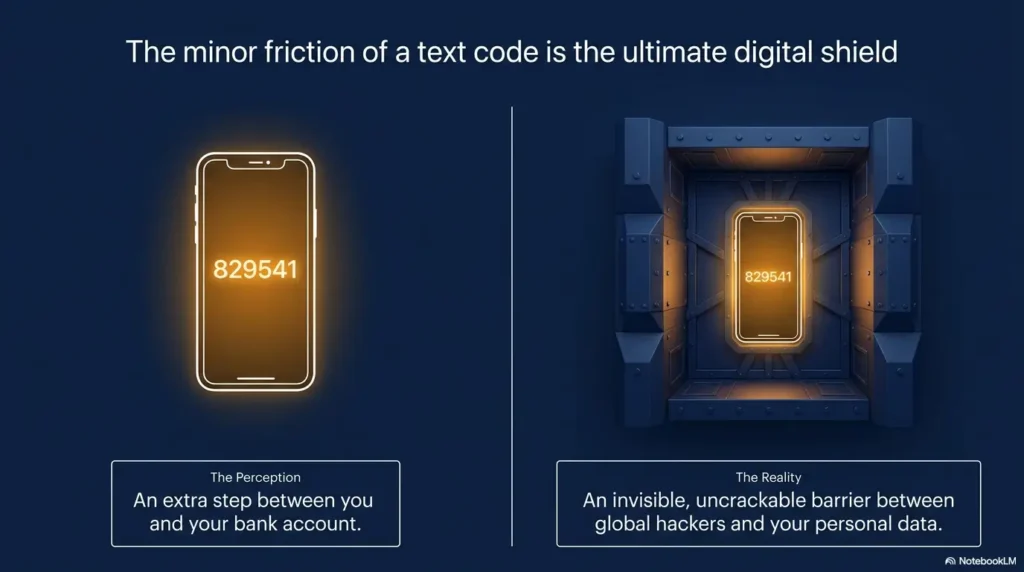
Most verification codes are short, but short does not always mean easy. Six digits can still slip around in working memory, especially when the user must look back and forth between phone and computer.
The two-digit trick is one of the simplest ways to reduce errors. Instead of treating 493817 as one long number, read it as 49, 38, 17. Three small chunks are easier to hold than one slippery string.
Read six-digit codes as three small chunks
When a code arrives, pause and group it mentally. A code like 704219 becomes 70 42 19. A code like 118604 becomes 11 86 04. This works because the mind can handle small bundles more easily than a loose scatter of digits.
If the code is eight digits, use four chunks of two. If it is five digits, try two digits, two digits, then one digit. The exact grouping matters less than avoiding a breathless string.
Say the chunks softly before typing
A quiet verbal check can catch reversals before they become failed attempts. The senior can whisper, “Seventy, forty-two, nineteen,” then type. Caregivers should avoid barking numbers across the room. That turns the code into bingo night with financial consequences.
For privacy, do not read banking, medical, or email codes loudly in public spaces. At home, a soft voice is usually enough to strengthen attention without broadcasting the code.
Match each chunk after typing
After entering the code, do not press submit immediately. Compare the typed code to the message in pairs. First pair. Second pair. Third pair.
This two-second review can prevent a fifteen-minute lockout. It also helps seniors feel less at the mercy of the screen. The screen asks. The senior checks. Then the senior decides.
Mini practice card
- Look at the code once: 493817.
- Break it into pairs: 49 38 17.
- Say it softly: “forty-nine, thirty-eight, seventeen.”
- Type it slowly.
- Check each pair before pressing submit.
Short Story: The code that waited for Evelyn
Evelyn used to dread logging into her insurance account. The code arrived on her phone, the login page sat on her laptop, and every attempt felt like carrying soup across a carpeted room.
Her son started to read the numbers to her, but that made her feel watched. So they changed the routine. He sat beside her, not behind her, and only said, “Pairs first.”
The next code was 628914. Evelyn touched the message with one finger and said, “Sixty-two, eighty-nine, fourteen.” She typed, checked the pairs, and pressed continue.
The screen opened. No lecture. No rescue mission. Just a small victory, quiet enough to keep.
Do Not Chase the Timer Like a Fire Drill
Many verification codes expire after a short time. That timer is meant to improve security, but it can also turn a calm person into a finger-jabbing raccoon. The more urgent the screen feels, the more likely mistakes become.
The safer habit is to treat expiration as a reset option, not a disaster. If the code is old, crowded by newer messages, or nearly expired, request a fresh one and start again.
Expiring codes create panic mistakes
A timer changes the emotional weather of a login. Seniors may rush, skip the account-name check, or press submit before reviewing. Caregivers may become impatient without meaning to. The whole room starts leaning toward the screen.
When that happens, pause. A failed code is usually less useful than a fresh code entered calmly. Most accounts allow the user to request another code after a short wait.
Request a new code when the old one feels stale
If the message arrived several minutes ago, or if you already requested another code, do not guess. Use the newest code. Older codes may no longer work, even if they still sit politely in the message list.
One helpful phrase is: “Newest message only.” If there are three codes, ignore the first two. Open the newest one and delete or archive old messages later, after the login is complete.
Do not press “send code” repeatedly
Repeated code requests create a pileup. The phone may receive multiple messages, sometimes delayed or out of order. Then the senior has to solve a tiny mystery while a login screen taps its foot.
A better rule is: request once, wait, then use the newest message. If no code arrives after a reasonable wait, check whether the phone has signal, the email inbox is open, or the account has the correct contact information.
| Timer situation | Common reaction | Safer response |
|---|---|---|
| Code just arrived | Rush to type immediately | Read account name, chunk digits, enter carefully |
| Code is almost expired | Race the clock | Request a new code and start fresh |
| Several codes arrived | Try each one | Use the newest code only |
| No code arrived | Press send again many times | Wait, check signal or inbox, then request once more |
Show me the nerdy details
Verification codes are usually a form of multi-factor authentication. They add a second proof beyond a password, often something you have, such as access to a phone, email inbox, authenticator app, or security key.
Codes expire because a short life reduces the chance that an old code can be reused later. That helps security, but it can increase typing pressure. The practical answer is not to hurry. It is to make the code easier to read, use the newest one, and enter it only into the account screen you opened yourself.
Some methods are stronger against phishing than regular text codes. Security keys and certain app-based approvals can offer better protection for sensitive accounts, but they should be chosen based on comfort, support, and the account’s risk.
Copy-and-Paste Can Help, But Only When Safe
Copy-and-paste can be a wonderful bridge for seniors who struggle with small keyboards or shaky fingers. It removes the need to retype every digit. But it is not automatically safe. A copied scam code is still a scam code, only wearing a nicer hat.
The question is not “Can I copy the code?” The question is “Did I request this code from the real account screen?” If yes, copy-and-paste can reduce errors. If no, stop.
Use copy-and-paste from trusted messages
If the senior started the login, the message comes from the expected company, and the code is being pasted into that company’s real app or website, copying can be helpful. It may be especially useful for people with tremor, arthritis, low vision, or difficulty switching attention between screens.
On many phones, the user can press and hold the code, then choose copy. Some devices even suggest the code above the keyboard. That autofill suggestion can be useful when it appears during a login the senior started.
Avoid copying codes from suspicious texts
Scam texts often imitate trusted names. They may mention a locked account, suspicious charge, delivery problem, refund, prize, or urgent verification. The message may include a link and tell the user to enter a code there.
Do not use links from suspicious messages. Instead, open the company’s official app, type the known website address, or call the number printed on a card, bill, or statement. The suspicious message should not be the map.
Clear the clipboard when privacy matters
After copying a sensitive code, some people prefer to copy something harmless afterward, such as the word “done,” so the code is no longer sitting on the clipboard. This is a small privacy habit, not a magic shield, but it can be useful on shared devices.
More importantly, do not paste codes into notes, messages, social media chats, or emails. A verification code should live briefly, do its job, and vanish like a match flame.
Common Mistakes That Cause Lockouts
Account lockouts are usually not caused by one giant mistake. They come from a chain of small, understandable errors. The code is old. The screen is wrong. The password field gets confused with the code field. The user presses submit too quickly. Then the account says, in its cold little robot voice, that there have been too many attempts.
The goal is to break the chain before it reaches the lockout.
Mistake: typing the code into the wrong app
This happens when several apps are open. A senior may receive a code for an email account, then accidentally type it into a shopping app. Or the phone may switch back to a different login screen after the user checks messages.
The fix is to say the account name before entering the code. “This is for my bank.” “This is for my pharmacy.” “This is for my email.” That sentence gives the brain a label before the fingers begin.
Mistake: confusing password fields with code fields
A password is something the user created earlier. A verification code is temporary and usually arrives during the login. Some screens ask for both, one after the other, which can be confusing.
Look for clues. Password fields may say “password,” “current password,” or “enter your password.” Code fields may say “verification code,” “one-time code,” “security code,” or “enter the code we sent.”
If the screen asks for a password and the senior only has a new text message code, stop and read the field label again. Typing the code into a password field can cause a failed login, then another, then another.
Mistake: requesting too many codes at once
When a code does not arrive instantly, many people press “resend.” Then they press it again. A minute later, three codes arrive like impatient guests at the same door.
Use the newest code. If the newest code still fails, stop for a moment instead of trying every old number. The account may require a short wait, or the login may need to restart.
Mistake: pressing submit before checking
Submit buttons are seductive. They promise relief. But pressing too soon can turn one tiny reversal into a lockout.
Build a mandatory pause into the routine. Enter the code, compare it in pairs, then submit. That pause is not hesitation. It is quality control.
Mistake checklist
- Do not enter a code before confirming the account name.
- Do not use an older code if a newer one has arrived.
- Do not type a code into a password field.
- Do not request several codes in a row.
- Do not press submit until the typed code has been checked in pairs.
The Scam Rule Seniors Should Memorize
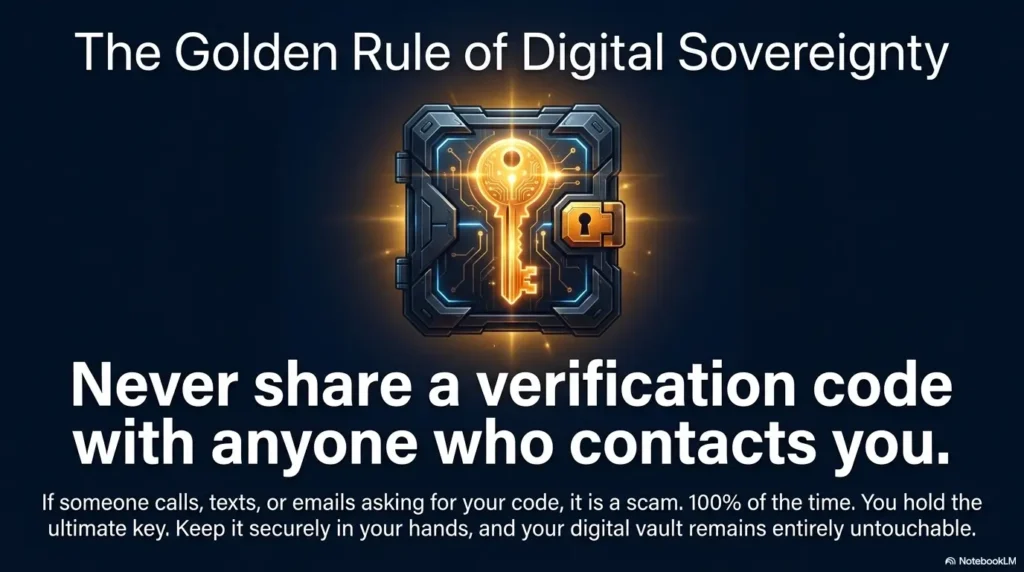
The simplest scam rule is this: never share a verification code with a person. Not by phone. Not by text. Not by email. Not in a marketplace chat. Not with someone claiming to be tech support. Not with someone who says the code proves your identity.
Codes are not conversation pieces. They belong on secure login screens.
Urgency is the scammer’s favorite drumbeat
Scammers often create pressure because pressure shortens judgment. They may say your account will close, your card was charged, your package is stuck, your computer has a virus, or your grandchild needs immediate help.
Then they ask for the code. They may say it is needed to cancel a charge, verify a refund, unlock an account, or prove that you are the rightful owner. The words change. The trick stays the same.
Unexpected codes are stop signs
If a code arrives when the senior did not request it, do not enter it, forward it, or read it aloud. Treat it as a stop sign. Someone may have typed the wrong information, or someone may be testing the account.
The senior can open the account later by using the official app or website, not the link in the message. If the account is sensitive, change the password and review recent activity through official support channels.
Family members need the rule too
Caregivers sometimes ask seniors to read codes aloud because it feels efficient. The intention may be kind, but the habit can blur an important boundary. If seniors get used to giving codes to helpful people, scammers have less work to do.
A safer caregiver phrase is: “I’ll sit here while you enter it.” The senior keeps the code private. The helper supports the process without becoming the code collector.
Key takeaway
A scammer does not need your password if they can talk you into giving away the code. The safest sentence is: “I do not give verification codes to people.”
Create a Calm Login Station
A calm login station sounds fancy, but it can be as simple as a chair, a lamp, reading glasses, a charger, and a small note card. The idea is to remove small irritations before they become big mistakes.
Verification codes often fail in cluttered moments. The phone battery is low. The senior cannot find glasses. The TV is loud. A caregiver is standing behind the chair. The account password is written somewhere, possibly in a drawer guarded by old coupons.
A calm station gives the login process a home.
Use one device for the code and one for the login
When possible, open the login page on a tablet or computer and receive the code on the phone. This lets the senior see the login screen on a larger display while keeping the code visible on the phone.
This two-device approach can reduce app switching, especially for seniors who lose their place when moving between screens. It is also helpful for medical portals, insurance accounts, and banking sites where the login page may be visually crowded.
Keep glasses, charger, and notes nearby
Good login habits are boring on purpose. Keep reading glasses close. Charge the phone before important account tasks. Use a simple note card with the routine, not a page full of passwords.
If reading glasses are part of the problem, this related article on a reading glasses setup for seniors can help create a more reliable place for close-up tasks.
Remove background distractions
TV noise, family chatter, ringing phones, and incoming notifications make code entry harder. Verification codes like a quiet room. They are fussy little houseplants of attention.
Before starting a sensitive login, silence the TV, sit down, and avoid multitasking. Caregivers should resist the temptation to talk through every step while the senior is reading the code. Quiet can be a tool.
The Calm Code Flow
1. Prepare
Glasses, light, charger, correct login screen.
2. Request once
Wait for the newest code. Do not create a pileup.
3. Read in pairs
Turn 493817 into 49 38 17.
4. Check, then submit
Match the pairs before pressing continue.
Accessibility Settings Worth Turning On
Accessibility settings are not special treatment. They are good design finally remembering that people have real eyes, real hands, and real mornings. For seniors entering verification codes, a few settings can reduce mistakes before they happen.
The best settings depend on the phone and the person. Start with the least disruptive changes: larger text, bold text, screen zoom, voice reading, and password manager autofill.
Larger text and bold text
Larger text helps codes, contact names, message previews, and field labels. Bold text can add needed contrast, especially for seniors who struggle with thin digital fonts.
Do not make the text so large that the screen becomes harder to navigate. The best size is the one the senior can read without squinting while still seeing enough of the screen to understand what is happening.
Voice reading for codes
Some phones can read selected text aloud. This may help seniors who can see the code but hesitate over certain digits. It can also help when glare or fatigue makes reading unreliable.
Use voice reading in a private setting. Do not have a phone speak sensitive codes in a waiting room, store line, bus, or shared hallway. Privacy still matters, even when the voice is robotic and oddly cheerful.
Password manager autofill
A trusted password manager can fill saved usernames and passwords, which reduces the number of steps before the verification code appears. This matters because many mistakes happen after the senior is already tired from typing a password.
For seniors, a password manager should be set up carefully, with recovery options documented and a trusted person involved only when appropriate. The goal is fewer handwritten password scraps, not a new maze with a prettier gate.
Message organization for appointment and portal codes
Healthcare portals, hospital systems, and appointment reminders often send codes or login links. Seniors who receive many medical texts may struggle to find the newest message quickly.
If medical texts are part of the challenge, the guide on how to help seniors find hospital appointment texts pairs well with this routine. Finding the right message is half the battle.
Caregiver Help Without Taking Control
Caregiver help is delicate. Too little help leaves the senior alone with a confusing screen. Too much help turns every login into a supervised exam. The sweet spot is support that preserves ownership.
The caregiver’s job is not to become the senior’s hands, eyes, memory, and password vault by default. The job is to make the process safer and calmer while keeping the senior involved.
Sit beside, not over
Standing behind someone while they type can feel intimidating, even when the helper means well. Sitting beside the senior changes the emotional shape of the moment. It says, “We are solving this together,” not “I am grading you.”
Let the senior hold the device when possible. Let the senior read the account name. Let the senior enter the code. Help with lighting, screen size, and navigation, but avoid grabbing the phone unless asked.
Write a simple sign-in checklist
A one-page checklist can reduce repeated explanations. Keep it short, large-print, and free of passwords. Tape it near the computer or keep it in a folder labeled “Account Help.”
The checklist should focus on process: open the correct account, request one code, find the newest message, read in pairs, enter carefully, check before submit, never share codes with people.
Large-print sign-in checklist
- Open the official app or website.
- Say the account name out loud.
- Request the code one time.
- Find the newest code message.
- Read the code in pairs.
- Type slowly or paste only if safe.
- Check every pair before submit.
- Never give the code to a person.
Use shared recovery options carefully
Some families add a caregiver’s phone number or email as a recovery option. Sometimes this is appropriate. Sometimes it creates confusion, privacy problems, or overdependence.
For sensitive accounts, the senior should clearly agree before a caregiver becomes part of recovery. Banks, healthcare providers, and government services may have formal permission processes. Respect those boundaries. Convenience is not the same as consent.
If the senior’s phone itself is too cluttered, consider simplifying it first. This article on how to simplify an older parent’s phone can make verification codes easier because there are fewer apps, alerts, and visual traps competing for attention.
Key takeaway
Good caregiver help makes the senior more confident next time. If the helper becomes the only person who can complete the login, the system is still fragile.
When to Seek Help or Stop
Some code problems are ordinary. A code expires. A digit gets reversed. A phone has poor signal. But some situations deserve a full stop, especially when money, medical records, identity documents, or government benefits are involved.
Stopping is not failure. It is a security skill. The bravest click is sometimes no click at all.
Stop after repeated lockouts
If the account keeps rejecting codes, do not keep guessing. Repeated attempts may extend the lockout or trigger fraud controls. Wait, then use official recovery instructions.
Use the company’s official website, app, printed statement, card, or known phone number. Do not call numbers from suspicious texts. Do not click links from unexpected messages that arrived with a code.
Contact the bank immediately for money-related codes
If a banking, payment, credit card, investment, retirement, or shopping account code was shared with another person, contact the financial institution quickly. Use the number on the back of the card or the official app.
Also review recent account activity. If there are unfamiliar transactions, ask about freezing the card, changing the password, updating recovery information, and adding stronger authentication.
Get help after unexpected medical portal codes
Healthcare portals can contain appointments, test results, billing information, medication lists, and private messages. If a medical portal code arrives unexpectedly, do not ignore the possibility that someone is trying to access the account.
Contact the provider’s patient portal support through the official website or paperwork. Ask whether there were recent login attempts and whether the password or recovery options should be updated.
Report scam attempts when needed
If a senior was pressured to share a code, send money, buy gift cards, install software, or move funds, get help. Keep messages, phone numbers, emails, screenshots, and transaction details if it is safe to do so.
For older adults in the United States, the National Elder Fraud Hotline can be a useful starting point. Family caregivers can also help document what happened without shaming the person who was targeted.
Key takeaway
For financial, healthcare, government, or identity accounts, repeated code failures are a signal to stop and use official support. Do not let frustration do the typing.
FAQ
Why do seniors mistype verification codes so often?
Verification codes are small, temporary, and often split between devices. Seniors may be reading a phone while typing on a computer, dealing with glare, trying to beat a timer, or switching between apps. The problem is usually the process, not the person.
What is the easiest way to prevent code mistakes?
Use larger text, read the code in two-digit chunks, type slowly, and check the code before pressing submit. The best simple routine is: request once, use the newest code, read in pairs, check, then submit.
Is it safe to copy and paste a verification code?
It can be safe when the senior personally started the login, the code came from the expected company, and the code is pasted into the official app or website. It is not safe to copy codes from suspicious or unexpected messages.
What should I do if I entered the wrong code too many times?
Stop trying for a few minutes and follow the account’s recovery instructions. Request a fresh code only once. For banking, healthcare, government, or payment accounts, use official support instead of guessing repeatedly.
Why did I receive a verification code I did not request?
Someone may have typed your phone number or email by mistake, or someone may be trying to access your account. Do not share, enter, or forward the code. Open the account later through the official app or website if you want to check security.
Should seniors use text codes or an authenticator app?
Text codes are familiar and easy for many seniors. Authenticator apps or security keys may offer stronger protection for some accounts, but they require setup and comfort. The best choice depends on the account’s sensitivity, the senior’s confidence, and available caregiver support.
Can a family member ask for my verification code?
A family member can sit with you while you enter the code, but the safer habit is not to text, say, or forward codes to anyone. Keeping that boundary makes scam calls easier to reject later.
Why does the newest code matter?
When several codes are requested, older codes may stop working. Using the newest message helps prevent failed attempts and reduces confusion. Avoid pressing “send code” repeatedly, because that creates a messy stack of numbers.
Make a One-Minute Code Routine Today
The best verification code routine is short enough to remember when the screen feels bossy. It should not require a manual, a lecture, or a family committee. It should fit on a note card.
Here is the routine: prepare the screen, request one code, confirm the sender, use the newest message, read in pairs, enter slowly, check before submit, and never share the code with a person.
That is the whole quiet machine. No drama. No racing. No guessing through a pile of old codes.
The 15-minute setup
Set a timer for 15 minutes and make the next login easier before it happens. Increase phone text size. Turn on bold text if helpful. Clean the screen. Put reading glasses near the usual chair. Write “codes in pairs” on a small note. Decide which official apps or websites should be used for banking, healthcare, email, and shopping.
Then practice with a fake six-digit number on paper, not a real account. Try 27 64 93. Try 80 15 42. The point is to build the rhythm before real pressure arrives.
The note card version
Verification Code Routine
- Open the official app or website.
- Request the code one time.
- Check the account name.
- Use the newest code only.
- Read the code in pairs.
- Type or paste carefully.
- Check before submit.
- Never share codes with people.
This note card is intentionally plain. It does not include passwords. It does not include account numbers. It is a process card, not a secret vault.
A calm promise for the next login
Verification codes will probably never become charming. They are small, temporary, and a little bossy by design. But they can become manageable.
With larger text, better lighting, fewer distractions, two-digit chunks, and a hard rule against sharing codes with people, seniors can sign in with fewer mistakes and less embarrassment. Caregivers can help without taking over. Accounts can stay safer. The tiny key can finally act like a key.
Last reviewed: 2026-06