
Hiding in Plain Sight: A Caregiver’s Guide to Finding Senior Hospital Texts
The hospital text is usually not lost. It is hiding in plain sight, tucked between a pharmacy coupon, a grandchild’s soccer photo, a delivery code, and one mysterious message from a five-digit number that looks like it was sent by a vending machine with office hours.
If you are trying to help seniors find hospital appointment texts, the job is not just “check the phone.” It is a small care-access task. A missed reminder can mean arriving at the wrong building, forgetting fasting instructions, missing a ride window, or losing a hard-to-get appointment slot.
This guide gives caregivers, adult children, spouses, and senior-support volunteers a calm way to search Messages, check spam filters, confirm through a patient portal, and avoid suspicious links. The method is practical, privacy-respecting, and built around one principle: verify the care details without turning someone’s phone into a crime scene investigation.
What You Will Learn:
- Find appointment texts faster on iPhone and Android.
- Protect dignity by asking permission before handling the phone.
- Spot scam warning signs before a link causes trouble.
- Create a simple system so the next reminder is easier to find.
Fast Answer
To help seniors find hospital appointment texts, start by checking the phone’s Messages app, searching the hospital name, clinic name, doctor’s name, short codes, and words like “appointment,” “confirm,” “reminder,” or “portal.” Then check blocked numbers, spam filters, notification settings, and the patient portal. If the appointment cannot be verified, call the hospital directly using the official number on its website or paperwork.
Table of Contents
Who This Helps, And Who Needs More Support
This guide is for practical phone help, not medical judgment. It fits the kitchen-table moment: a senior has a working phone, can unlock it, and says, “I know they texted me, but I can’t find it.” The helper’s role is to make the device less noisy, not to interpret symptoms or change care plans.
Many seniors can use their phone well enough for calls, photos, and family texts, yet still struggle with search bars, hidden folders, short codes, notification filters, and portal messages. That gap is not failure. It is modern design doing what modern design often does: hiding the door handle inside the wallpaper.
Best For Seniors Who Can Use Their Phone With Light Guidance
This method works best when the senior can unlock the phone, recognize the hospital or clinic name, and participate in the search. You might sit beside them, read only appointment-related messages, and help them type search terms.
For older adults with low vision, shaky hands, or screen glare sensitivity, phone navigation may also need a few accessibility supports. A larger text setting, calmer lighting, or an anti-glare screen protector for easier phone reading can turn the task from tense to tolerable.
Not Enough For Urgent Symptoms Or Confusing Medical Instructions
If the issue involves chest pain, breathing trouble, stroke symptoms, severe bleeding, fainting, sudden confusion, or medication instructions that seem unclear, stop searching and seek urgent help. A missing text is not the main event when the body is waving a red flag.
For procedure prep, fasting, medication holds, contrast dye instructions, lab timing, or transportation rules, confirm directly with the clinic or patient portal. Phone archaeology is useful. It is not a nurse line with a keyboard.
The Quiet Risk: “I Never Got The Text”
“I never got the text” often means “I did not see the text when it arrived.” It may be buried under pharmacy refill alerts, family group chats, package notices, two-factor codes, weather warnings, and the daily confetti cannon of modern notifications.
That distinction matters. If the text arrived, you can usually find it, save the sender, pin the conversation, and prevent the same scramble next time.
- Search before assuming the message never arrived.
- Call the clinic if the appointment is soon or instructions are unclear.
- Keep the senior involved so the process protects dignity.
Apply in 60 seconds: Ask, “Can we search only for appointment messages together?”
Start With Permission, Not The Phone
The first step is not opening Messages. It is asking. Phones are tiny museums of private life: conversations, photos, bank codes, grief, jokes, old voicemails, and grocery lists that somehow become family documents.
Say, “Would you like me to help you look for the hospital message?” Then wait. If the answer is yes, ask them to unlock the phone and stay beside you. That small pause keeps the task collaborative instead of invasive.
Ask Before Touching The Device
Use plain language. “I’ll only search for the hospital name and appointment words.” This reduces anxiety and gives the senior a clear boundary.
If the person has vision loss or hand tremor, let them choose the level of help. They may want you to type while they watch. They may want to hold the phone while you tell them what to tap. Some people prefer voice commands. Control matters, especially when health care already makes people feel processed like paperwork.
Keep Private Details Private
Do not scroll through unrelated threads. Do not comment on family messages. Do not open photos. Do not read banking codes, Medicare numbers, or personal conversations aloud.
A good helper narrates the task, not the private life around it: “I’m searching for ‘appointment’ now.” “I see one message from the clinic.” “I’m not opening other conversations.” Small sentences build trust.
Let’s Be Honest: The Phone Is Also A Diary
People may feel embarrassed when they need help with a phone. They may worry that a child or neighbor will notice unread messages, financial reminders, or family tension. That emotional layer is real.
Keep your voice boring in the best way. Calm. Specific. Almost librarian-level. The less drama you bring, the more likely they will ask for help again before a missed appointment becomes a care problem.
Decision Card: Helper Holds The Phone vs Senior Holds The Phone
| Option | Best When | Trade-Off |
|---|---|---|
| Senior holds the phone | They can tap and read with guidance | Takes longer, but preserves control |
| Helper holds the phone | Vision, tremor, or dexterity makes tapping difficult | Faster, but privacy boundaries must be spoken clearly |
Neutral action line: Choose the approach that keeps the senior most comfortable while still confirming the appointment.
Search The Messages App Like A Detective, Not A Panicked Squirrel
Panic scrolling wastes time. Searching works better. Most appointment reminders can be found by typing a few careful words into the Messages search bar.
On iPhone, open Messages and use the search field at the top. On many Android phones, open Google Messages or the default texting app and tap the search icon. The exact buttons vary, but the idea is the same: search the message body and sender names, not just the visible list of conversations.
Search These Words First
Start broad, then narrow. Try these words one at a time:
- appointment
- reminder
- confirm
- cancel
- reschedule
- check-in
- portal
- MyChart
- hospital
- clinic
- lab
- imaging
- surgery
- billing
- the doctor’s last name
- the health system name
If the senior has low vision, ask whether reading glasses, better light, or a magnifier would help. Some families already use a doctor appointment note-taking system for seniors, which can make the search faster because the clinic name and doctor name are written in one place.
Try The Short Code Trail
Hospitals often send automated reminders from short codes, which are five- or six-digit numbers. They may not show the doctor’s name. They may not show the hospital’s friendly public name. They may look suspicious at first glance.
Do not assume every strange sender is fake. Also do not assume it is safe. The middle path is better: search the message content, then verify the appointment through an official channel if the text asks for a login, payment, or personal information.
Check Recent, Pinned, And Unknown Sender Tabs
Some iPhones filter messages from people who are not in Contacts. Some Android devices sort spam, blocked, archived, or business messages into separate areas. If the hospital number was never saved, the message may sit outside the familiar conversation list.
Look for tabs or filters labeled Unknown Senders, Spam & Blocked, Archived, or Recently Deleted. The phone may not be hiding the appointment maliciously. It may simply be filing it with the confidence of a clerk who has never met a worried patient.
Show me the nerdy details
Text messages can be ordinary SMS, MMS, RCS, or app-based portal notifications. Hospitals may use scheduling vendors, automated reminder platforms, or health system-wide messaging tools. That means the sender name, phone number, and wording can differ from the clinic name a patient remembers. Searching message text, checking filtered folders, and confirming in the portal covers more ground than scanning the visible conversation list.
The 5-Step Appointment Text Trail
Get permission before touching the phone.
Use appointment, clinic, doctor, and portal terms.
Check spam, unknown senders, archived, and deleted areas.
Compare the text with the patient portal or paperwork.
Call the official clinic number if anything feels uncertain.
The “Wrong Name” Problem: Hospitals Don’t Always Text Like Humans
A senior may say, “Search St. Mary’s,” while the reminder came from a parent health system, a scheduling vendor, a specialty department, or a portal brand. Health care names can be a family tree with too many branches.
That is why searching only one name can fail. Use the hospital name, clinic name, health system name, department name, doctor name, and portal name.
Look For Health System Names, Not Just Hospital Names
Many hospitals belong to larger networks. The appointment may be at a familiar local clinic, but the text may use the name of a larger system such as Kaiser, Providence, HCA, Ascension, CommonSpirit, AdventHealth, or another regional network.
If the senior has paperwork from a past visit, check the logo at the top. The name printed there may be the name used in the text.
Search The Doctor, Department, And Portal Brand
Try department words: cardiology, radiology, oncology, orthopedics, ophthalmology, lab, imaging, infusion, outpatient surgery, physical therapy, or primary care.
Also search portal names such as MyChart, FollowMyHealth, Healow, Athena, or the hospital’s own portal label. The text may not say, “Your appointment is Tuesday.” It may say, “You have a new message in your portal.” That is less cozy, but often useful.
Here’s What No One Tells You: The Message May Sound Like Billing
Some appointment reminders look dry and administrative. They may mention registration, intake forms, pre-visit check-in, insurance verification, or account access. To a tired patient, that can sound like billing noise.
Do not ignore a message just because it lacks bedside manner. Automated health care texts are rarely poets. Their charm budget is about three cents.
Quote-Prep List: What To Gather Before Calling The Clinic
- Patient’s full name and date of birth
- Clinic or department name
- Doctor or provider name, if known
- Any appointment date or time found in texts, email, voicemail, or paperwork
- Insurance card, Medicare card, or patient ID only if the official clinic asks through a verified call
- List of questions: arrival time, location, prep instructions, and whether a driver is needed
Neutral action line: Gather the basics before the call so the senior does not have to hunt while on hold.
Don’t Delete, Block, Or Reply Too Fast
When a text looks odd, the instinct is to delete it, block it, or answer it with a full paragraph. Resist all three until you know what it is.
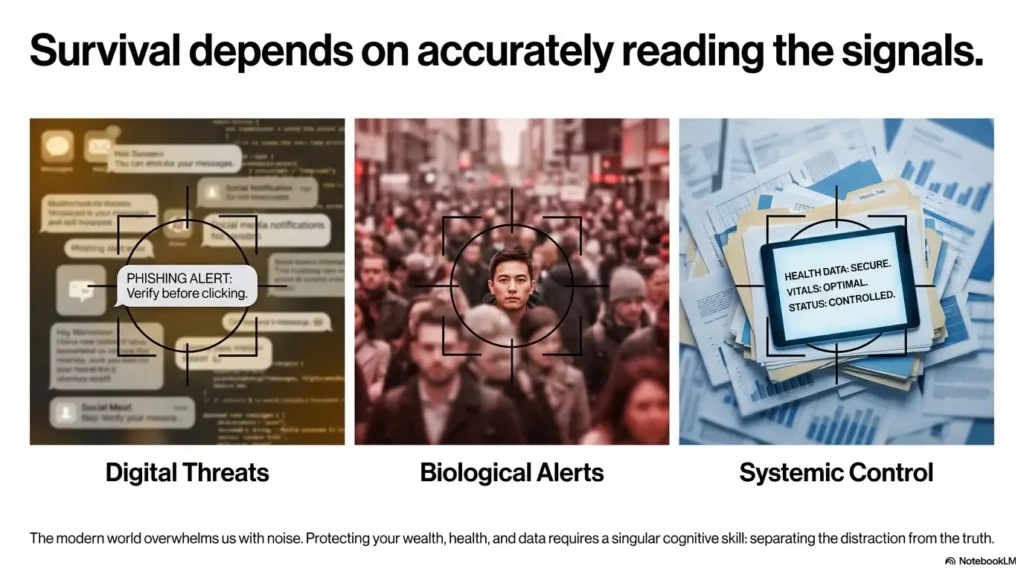
A hospital reminder can look generic. A scam can look official. The safest approach is to preserve the message, avoid sharing sensitive details, and verify through an official source.
Mistake: Deleting “Unknown” Texts Before Checking Them
Deleting first and asking questions later turns a small task into a tiny paper chase without the paper. If the text might be related to care, leave it in place until the appointment is confirmed.
Some phones have Recently Deleted areas, but not all deleted texts are easy to recover. If the senior is unsure, take a breath before swiping. The thumb is fast. Regret is faster.
Mistake: Blocking Short Codes After One Annoying Reminder
Blocking an automated sender may stop future appointment reminders, check-in links, cancellation notices, lab alerts, or procedure prep messages. If the sender is truly spam, blocking can help. If it belongs to the hospital, blocking can make the next appointment harder to manage.
Before blocking, verify whether the number appears in prior appointment messages or on the hospital’s communication preferences page.
Mistake: Replying With Personal Medical Details
Do not text symptoms, insurance numbers, Medicare details, Social Security numbers, payment card information, or full medication lists unless the channel is clearly verified and intended for secure communication.
The Federal Trade Commission regularly warns consumers to be cautious with unexpected texts that pressure people to click links, pay money, or reveal personal data. Health care language can make scams feel urgent, which is exactly why seniors need a pause button.
Check Spam, Filters, And Blocked Numbers Before Giving Up
If the appointment text is not in the main message list, check the phone’s side rooms: spam, blocked, archived, unknown senders, recently deleted, and notification settings.
This is where many “missing” messages quietly sit, wearing a little hat that says, “I was sorted by software.”
iPhone Places To Check
On an iPhone, start with Messages search. Then look for message filtering if enabled. Unknown senders may be separated from known contacts. Also check Recently Deleted messages if the phone supports it.
Next, review blocked contacts. If a hospital short code or clinic number was blocked by accident, future reminders may not appear. Also check Focus modes, Do Not Disturb, and notification settings for Messages.
For seniors with glare sensitivity or difficulty reading small phone text, pairing this with iPhone scan settings for low vision tasks can help with paperwork, appointment cards, and printed instructions after the text is found.
Android Places To Check
On Android, the exact menus vary by phone and messaging app. In Google Messages, check the search bar, Spam & blocked, archived conversations, and blocked numbers. Some phones or carriers also have spam protection that may filter business messages.
Then check notification categories. A text can arrive without a sound or banner if a category is silenced. That is how a phone can technically receive the message while the senior understandably believes nothing came.
The Tiny Toggle That Causes Big Trouble
Notification settings can be the villain in a very small cape. A phone may allow messages but silence alerts. Or it may hide notifications on the lock screen. Or Focus mode may quiet everything during certain hours.
If the senior relies on sound, vibration, or lock-screen alerts, test with a family text after changing settings. Do not assume a toggle worked. Phones enjoy making us prove things.
- Check spam and unknown sender areas.
- Review blocked numbers before assuming the hospital never sent anything.
- Test notifications with a simple family message.
Apply in 60 seconds: Search “appointment,” then check Spam & blocked or Unknown Senders immediately after.
Patient Portals Are The Backup Map
When the text trail gets messy, the patient portal can confirm the core details: date, time, location, provider, arrival instructions, and pre-visit tasks. The text may be only the doorbell. The portal is often the room behind it.
Use the official portal app or website from the hospital’s paperwork or official website. Do not use a random text link if the sender seems unfamiliar or urgent.
Match The Text Against The Portal
Once you find a likely text, compare it with the portal. Check the appointment date, time, clinic location, provider name, and reason for visit. Watch for multiple buildings on the same campus. “Suite 300” and “Tower 3” can turn a calm morning into a parking-lot opera.
If the senior keeps a printed appointment calendar, compare that too. A low-vision calendar system for appointments can be especially useful when text reminders, portal messages, and paper instructions all compete for attention.
Use The Portal Message Center Carefully
Some updates arrive only inside the portal message center. The text may simply say there is a new message. That means the important details are not in the text at all.
Look for messages from scheduling, nursing staff, pre-admission testing, radiology, lab services, or the doctor’s office. If the message includes prep instructions, read them slowly and consider writing them down in one place.
When The Portal Password Becomes The Real Appointment
Sometimes the hardest part is not finding the text. It is logging into the portal. Password resets, verification codes, expired links, and forgotten usernames can become their own little maze.
Use only official password reset steps from the hospital portal. Avoid letting a browser save passwords on a shared or public device. If portal access fails, call the clinic. The appointment should not depend on winning a duel with a login screen.
Short Story: The Text Under The Pharmacy Coupon
Marian, 78, was certain her imaging center had never texted. Her daughter sat beside her at the kitchen table, asked permission, and searched “radiology.” Nothing. Then they searched “confirm.” A short-code message appeared under a pharmacy discount, a delivery notice, and a birthday photo from a nephew. The sender did not say the imaging center’s name. It used the parent health system’s initials, which Marian did not recognize.
The text had the date, but not the fasting instructions. Instead of tapping the link, they opened the official portal from Marian’s saved bookmark and found the full prep note. No food after midnight. Bring insurance card. Arrive 30 minutes early. The lesson was not that Marian was bad with phones. The lesson was that modern medical communication often arrives wearing a disguise. A calm search, one verified portal login, and a written note saved the morning.
Confirm The Appointment Without Getting Scammed
Appointment texts are useful. Fake texts are also common. The safer habit is simple: if a message asks for money, login credentials, Medicare details, or personal information, verify before tapping.
This does not mean every link is dangerous. It means a senior should not be forced to decide trustworthiness under pressure while holding a phone with tiny print and a blinking deadline.
Use Official Numbers, Not Random Text Links
Call the number from the hospital’s official website, printed paperwork, insurance card, patient portal, or prior appointment documents. Do not call a number only because it appeared in a suspicious text.
If you use the hospital website, type the address yourself or search the hospital name carefully. Ads, lookalike pages, and unrelated directories can confuse the path. For medical billing or identity questions, official channels matter.
Watch For Payment Or Identity Red Flags
Be cautious if a text asks for gift cards, cryptocurrency, wire transfers, full Social Security numbers, full Medicare numbers, payment under threat, or urgent action with frightening language. Real clinics may ask patients to update forms or make payments, but pressure plus sensitive data is a warning bell.
If the senior has low vision, read the link domain aloud before opening it. Better yet, do not open it. Go to the official portal separately.
A Good Rule: Verify Before You Tap
Use this household rule: appointment time, maybe tap later; money or identity, verify first. That little rhyme will not win a literary prize, but it may stop an expensive mistake.
The U.S. Department of Health and Human Services has long emphasized protecting health information, and the FTC warns consumers to report suspicious messages. For families, the practical version is: keep medical details inside verified systems whenever possible.
Safety Checklist: Is This Hospital Text Safe Enough To Use?
- Yes/No: Does the message match a known appointment, doctor, clinic, or portal?
- Yes/No: Does it avoid asking for full Social Security, Medicare, or payment card details?
- Yes/No: Does it avoid threats, panic language, or strange payment methods?
- Yes/No: Can you verify the same appointment in the official portal or by calling the clinic?
- Yes/No: Is the sender already saved or seen in prior hospital messages?
Neutral action line: If two or more answers feel uncertain, use the official portal or call the clinic before tapping.
Build A Simple “Medical Texts” System For Next Time
The best appointment text search is the one you do not have to repeat under stress. A simple system can make the next reminder easier to recognize, easier to find, and easier to verify.
Keep it humble. No grand dashboard. No color-coded command center unless the senior loves that sort of thing. A few saved contacts and one written appointment card are enough for many households.
Create A Contact For The Hospital Or Clinic
Save official numbers with clear names:
- “Dr. Patel Cardiology Scheduling”
- “Mercy Hospital Main Line”
- “Radiology Check-In”
- “Pharmacy Refill Line”
- “Patient Portal Help Desk”
Use numbers from official paperwork, the portal, or the hospital website. If a text sender is verified, save it with a clear label too. This reduces the “weird number” problem next time.
Pin The Hospital Conversation
Many phones let users pin or star important conversations. Pinning the hospital or clinic thread keeps it near the top of Messages. That helps seniors who do not want to search every time.
If the senior also struggles with medication labels, appointment prep, or printed instructions, a broader low-vision medication safety routine can help connect phone reminders to the daily care tasks that follow.
Make A One-Page Appointment Card
Create one simple note, either on paper or in the phone’s Notes app:
- Hospital or clinic name
- Portal name
- Doctor or department
- Scheduling phone number
- Appointment date and time
- Arrival time
- Location and parking note
- Transportation plan
- Prep instructions to confirm
For seniors with vision changes, paper systems can still be powerful. Large print, bold headings, and contrast matter. The same principle behind large-print prescription labels for safer reading applies here: the best system is the one the person can actually read on a tired morning.
- Save official clinic numbers as contacts.
- Pin important medical threads when possible.
- Keep one appointment card for time, place, and prep.
Apply in 60 seconds: Save one official scheduling number with a clear contact name today.
Common Mistakes That Make Appointment Texts Harder To Find
Most problems come from reasonable assumptions. The senior searches the doctor’s name. The helper expects the hospital name. Everyone assumes no notification means no message. Meanwhile, the appointment text is sitting quietly under a short code, looking like a tax form with thumbs.
Searching Only The Doctor’s Last Name
The reminder may come from the hospital system, department, scheduling vendor, or portal brand instead of the doctor. Search the doctor’s name, yes, but do not stop there.
Try department words and generic appointment terms. A message that does not contain “Dr. Smith” may still contain “orthopedics,” “check-in,” or “arrival.”
Assuming No Notification Means No Message
Notifications may be muted, hidden, filtered, silenced by Do Not Disturb, or tucked behind Focus modes. The phone may have received the text without making a sound.
This is common for seniors who rely on audible alerts. If sound is important, test notification settings after any change.
Mixing Up Texts, Emails, Portal Alerts, And Robocalls
Hospitals often use several channels at once. One message may confirm the appointment. Another may contain prep instructions. A voicemail may mention arrival time. The portal may hold the final version.
The clue trail can look like breadcrumbs dropped by a very bureaucratic bird. Gather them into one note before the appointment day.
Trusting A Text Link Without Verifying It
Do not let convenience outrun caution. A link that looks official may still be fake. A link that is real may still be unnecessary if the same task can be done through the official portal.
For seniors managing eye conditions, medications, or repeated specialist visits, appointment logistics can already be tiring. A one-page medication list template can reduce the number of separate facts they must carry in memory when confirming appointments.
When To Seek Help Instead Of Searching Longer
There is a point where more searching becomes less helpful. If the appointment is soon, the instructions are unclear, or symptoms are involved, shift from phone search to direct help.
Care access beats digital neatness. You can organize the phone later. The appointment clock will not admire your search technique.
Call The Clinic If The Appointment Is Today Or Tomorrow
If the appointment is today or tomorrow, call the clinic or scheduling line using an official number. Confirm date, time, location, provider, arrival instructions, and whether forms or a driver are needed.
If the clinic is closed, check the portal and voicemail. Some systems have after-hours lines, but not all can answer scheduling questions.
Contact The Hospital If Prep Instructions Are Missing
For surgery, imaging, fasting, lab work, medication holds, anesthesia, contrast dye, or transportation requirements, do not guess. Call the clinic or use the official portal message center.
Prep instructions can affect whether the appointment can happen. Missing them is not a small paperwork issue. It can mean rescheduling, extra costs, or a very long morning in uncomfortable shoes.
Get Urgent Help For Symptoms, Not Text Problems
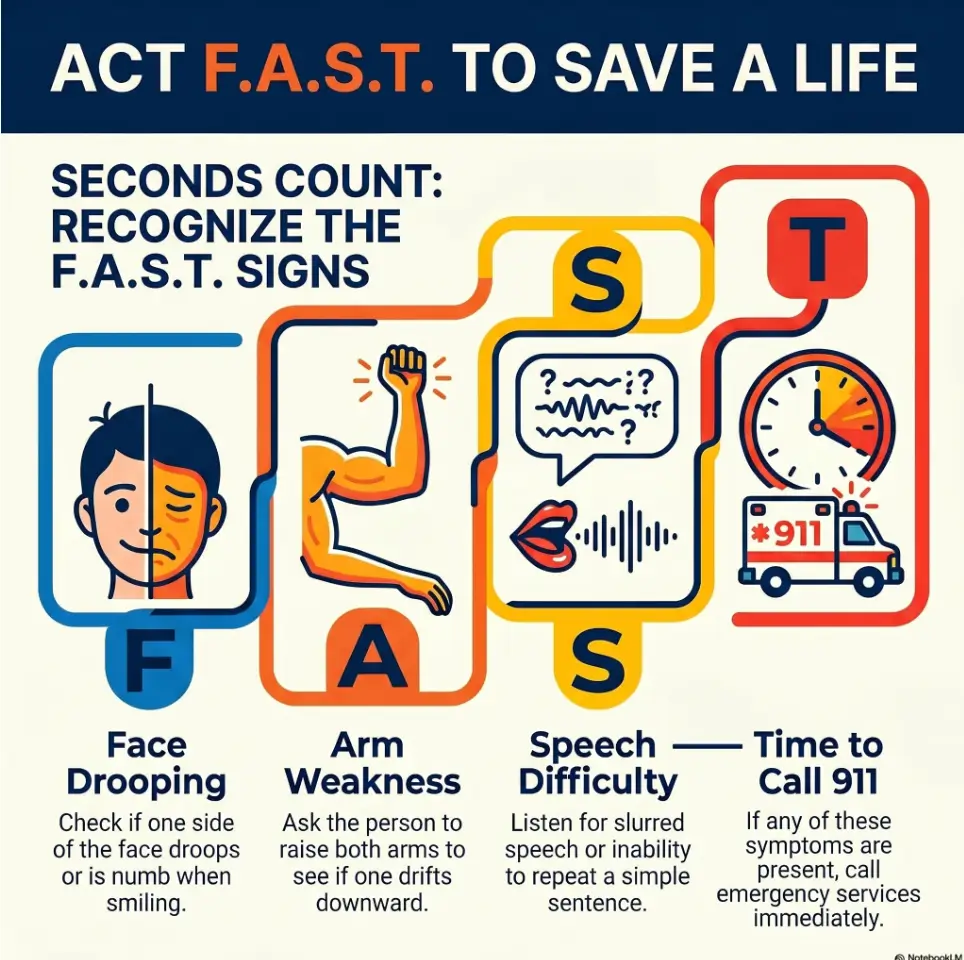
Chest pain, breathing trouble, stroke signs, severe bleeding, fainting, sudden confusion, or other emergency symptoms require urgent care. Call 911 in the United States or use local emergency services.
The Centers for Disease Control and Prevention describes stroke warning signs as sudden symptoms such as face drooping, arm weakness, speech trouble, vision trouble, dizziness, or severe headache. If symptoms appear, do not keep searching for messages.
- Call the clinic for appointments happening today or tomorrow.
- Confirm prep instructions directly for procedures and imaging.
- Use emergency care for urgent symptoms, not message searching.
Apply in 60 seconds: If the visit is within 24 hours, call the official clinic number now.
FAQ
How do I find old hospital appointment texts on an iPhone?
Open the Messages app and use the search bar at the top. Search the hospital name, clinic name, doctor name, department, and words like appointment, confirm, reminder, portal, check-in, lab, imaging, or surgery. Also check Unknown Senders if filtering is turned on, Recently Deleted if available, blocked contacts, and notification settings.
How do I find hospital texts on an Android phone?
Open the texting app, such as Google Messages, and use the search icon. Search appointment terms, clinic names, health system names, and portal names. Then check Spam & blocked, archived conversations, blocked numbers, and notification categories. Some Android phones and carriers use extra spam protection, so filtered messages may not appear in the main inbox.
Why do hospital texts come from weird numbers?
Many hospitals use automated reminder systems, scheduling vendors, short codes, or health system-wide messaging platforms. The sender may be a five- or six-digit number instead of the clinic’s regular phone number. That is why searching message content often works better than looking only for a familiar sender.
What should I do if a senior accidentally deleted an appointment text?
Check Recently Deleted if the phone supports it. Then check the patient portal, email, voicemail, printed paperwork, and calendar notes. If the appointment still cannot be verified, call the hospital or clinic using the official number from the website, portal, or paperwork.
Is it safe to click a hospital appointment text link?
Sometimes, but verify first if the link asks for payment, login details, Medicare information, a Social Security number, or sensitive personal data. Safer options include opening the official patient portal separately or calling the clinic using a known official number.
Can I help my parent access hospital texts without violating privacy?
Yes, if you have permission and keep the task limited. Ask before touching the phone, search only appointment-related terms, avoid reading unrelated conversations, and let your parent stay involved. Consent and limited viewing are the difference between help and intrusion.
What if the hospital text never arrived?
Confirm the senior’s mobile number with the clinic, ask whether SMS reminders are enabled, check blocked and spam settings, and review the patient portal. Some hospitals also send email, voicemail, or portal-only messages, so the appointment details may exist outside the texting app.
Should seniors save hospital numbers as contacts?
Yes. Saving official hospital, clinic, pharmacy, and portal support numbers makes future messages easier to recognize. Use clear labels such as “Cardiology Scheduling” or “Hospital Portal Help.” Only save numbers verified through official paperwork, the portal, or the hospital website.
What if the senior has low vision and cannot read the appointment text?
Use larger text, better lighting, screen magnification, or a trusted helper who reads only the appointment-related message. For repeated visits, consider a large-print appointment card and a consistent phone routine. If reading screens is becoming harder overall, an eye care professional or low-vision occupational therapist may suggest practical adaptations.
Next Step: Do A 3-Minute Appointment Text Check Today
The missing hospital text is rarely a grand mystery. More often, it is a small design problem wrapped around a care problem. The phone sorted something strangely. The hospital used a name the patient did not recognize. A notification arrived silently. A portal message held the real instructions.
Now you have a calmer path: ask permission, search the right words, check filters, verify through the portal or official phone number, and build a tiny system for next time.
Search Five Words
Open Messages and search these five terms: appointment, confirm, reminder, hospital, and the clinic name. If nothing appears, add the doctor’s name, department, portal name, and health system name.
Save One Contact
Find the main clinic or hospital scheduling number from an official source and save it with a clear label. If the senior has several specialists, start with the next upcoming appointment. One clean contact is better than a heroic plan that never happens.
Confirm One Upcoming Date
Before closing the phone, verify the next appointment date, time, location, and arrival instructions. Write them on a one-page appointment card or in a simple note. The next morning will thank you, quietly, probably near the coffee maker.
If the senior also manages vision changes, medications, or multiple care visits, combine this routine with questions to ask a low-vision occupational therapist so everyday health tasks become easier, not heavier.
Do this within 15 minutes: Sit beside the senior, get permission, search five appointment words, and save one official clinic number. That is enough to turn a buried text into a confirmed plan.