
Designing for Tired Eyes: Accessible Digital Organizing
A tiny file name can turn an ordinary Tuesday into a paper-chase with a glowing screen. One minute someone needs a Medicare card, a medication list, or last year’s tax form. The next minute they are staring at “IMG_4837,” squinting, guessing, and quietly losing patience.
How to organize digital files for seniors with poor vision is not really a neatness project. It is a safety project, a stress-reduction project, and sometimes a dignity project. Phones, tablets, cloud folders, screenshots, scans, downloads, and email attachments can become a digital attic where important documents go to wear disguises.
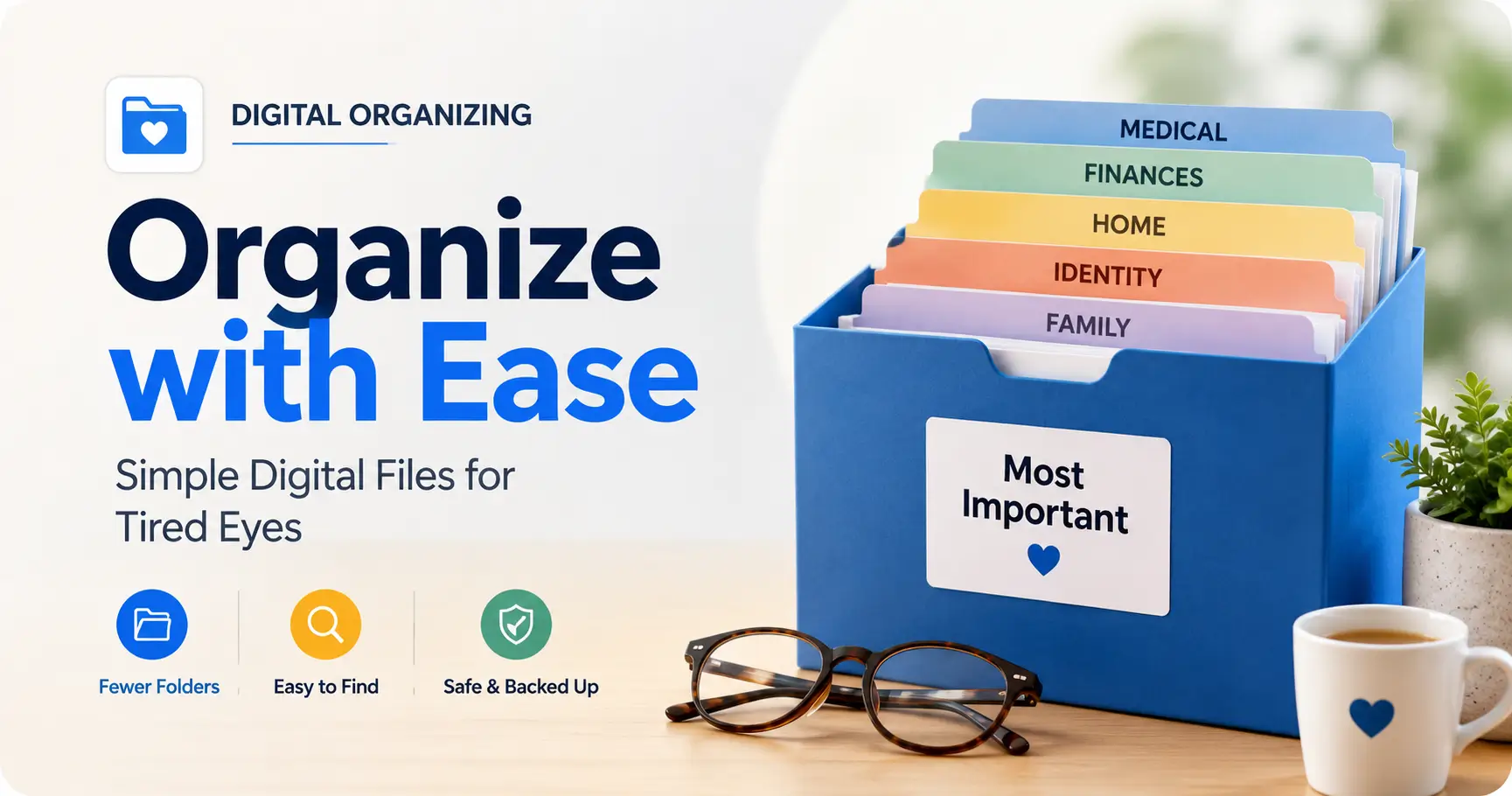
The fix is not a perfect filing system. Perfect systems often behave like museum glass: impressive, polished, and hard to touch. This guide gives you a simpler setup built around large labels, fewer folders, clear file names, backups, voice search, shortcuts, and one “Most Important” folder for stressful days.
A Clearer System at a Glance
The easiest way to organize digital files for seniors with poor vision is to use large, plain folder names, color contrast, fewer folder layers, automatic backups, and one easy-to-find emergency folder. Avoid tiny labels, vague names, and folder trees that require detective work before breakfast.
- Use life categories: Medical, Money, Home, Identity, Family.
- Use plain file names: “2026 Medicare Card” beats “Scan Final 2.”
- Use shortcuts: Put the most-used folders where eyes land first.
- Use backup: A phone should not be the only copy of important documents.
Table of Contents
Safety / Disclaimer
This guide is for practical digital organization, not medical, legal, financial, or cybersecurity advice. Seniors with significant vision loss, memory changes, fraud risk, missing legal papers, identity theft concerns, or urgent paperwork needs may need help from a trusted family member, low-vision specialist, attorney, tax professional, financial professional, or local senior-support organization.
If a document affects health care, insurance, taxes, benefits, housing, banking, estate planning, or legal rights, treat it as important even if the file name looks boring. The most dangerous digital file is often the one that appears harmless until someone needs it in a waiting room, pharmacy line, bank lobby, or hospital admissions desk.
Start With the Real Problem: It Is Not “Messy Files”
Poor vision turns tiny digital clutter into a daily obstacle
For someone with strong vision, a cluttered desktop may be annoying. For a senior with poor vision, it can be a locked drawer with no handle. Small icons, gray text, low contrast, glare, and file names that begin with “IMG” all demand extra effort.
That effort adds up. A person may avoid opening the laptop, put off paying a bill, skip uploading a form, or ask for help more often than they want to. The emotional cost is real. Nobody enjoys feeling outsmarted by a folder called “New Folder 4.”
The goal is finding, not perfect filing
A good digital file system should answer one question: “Can the right person find the right document quickly on an ordinary day?” Not a perfect day. Not a day with fresh coffee and saintly patience. An ordinary day, when the phone rings and the prescription number is needed now.
That is why this system favors big categories, readable names, and shortcuts over elegant complexity. It may offend a professional archivist. That is fine. The archivist is not the one trying to find a Medicare card while the printer coughs like an old accordion.
Why “just make folders” often fails seniors
Many people start by creating too many folders. Medical becomes Doctors, then Eye Doctor, then 2026, then Tests, then Scans, then Old Scans. The file is technically organized, but practically buried.
For low vision, depth is the enemy. Each click asks the eyes and memory to do more work. A shallow system is easier to learn, easier to repair, and easier for caregivers to understand without a treasure map.
The 10-second rule: if it cannot be found fast, the system is too clever
Use the 10-second rule. If a senior cannot find a frequently used document within about 10 seconds after opening the main folder, simplify. Rename it. Move it higher. Make a shortcut. Put it in “Most Important.”
- Use fewer folders before adding more.
- Make names readable before making categories clever.
- Test the system on a tired day, not a perfect one.
Apply in 60 seconds: Ask, “What file do we look for most often?” and move that file closer to the top.
Who This Is For, and Who Needs a Different Setup
Best for seniors who use a phone, tablet, laptop, or desktop
This setup works best for seniors who can still use a device with some confidence, even if reading small labels is difficult. It also helps people who switch between a phone and computer and never know where a file actually went.
It is especially useful when files live in several places: Downloads, Photos, email attachments, iCloud, Google Drive, OneDrive, Dropbox, and the mysterious corner of the computer where old PDFs gather dust and attitude.
Helpful for adult children organizing a parent’s documents
Adult children often want to help without taking over. That boundary matters. A respectful system should let the senior participate, recognize folder names, and understand where important documents live.
For related home routines, a simple low vision filing system can pair nicely with digital folders. Paper and digital systems should speak the same language. If the paper folder says “Medical,” the digital folder should not say “Health Administrative Archive.” That phrase needs a cup of tea and a nap.
Not enough for advanced vision loss, dementia, or active fraud concerns
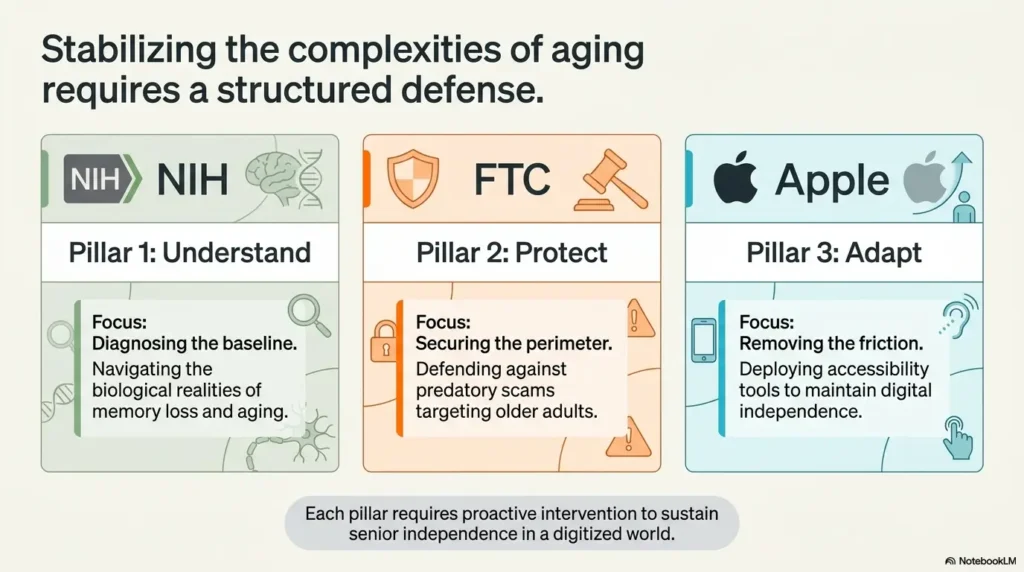
If the senior cannot reliably identify documents, remember where files are stored, or recognize scam messages, a basic folder system may not be enough. In that case, use shared access carefully, consider trusted contacts, and ask appropriate professionals for help.
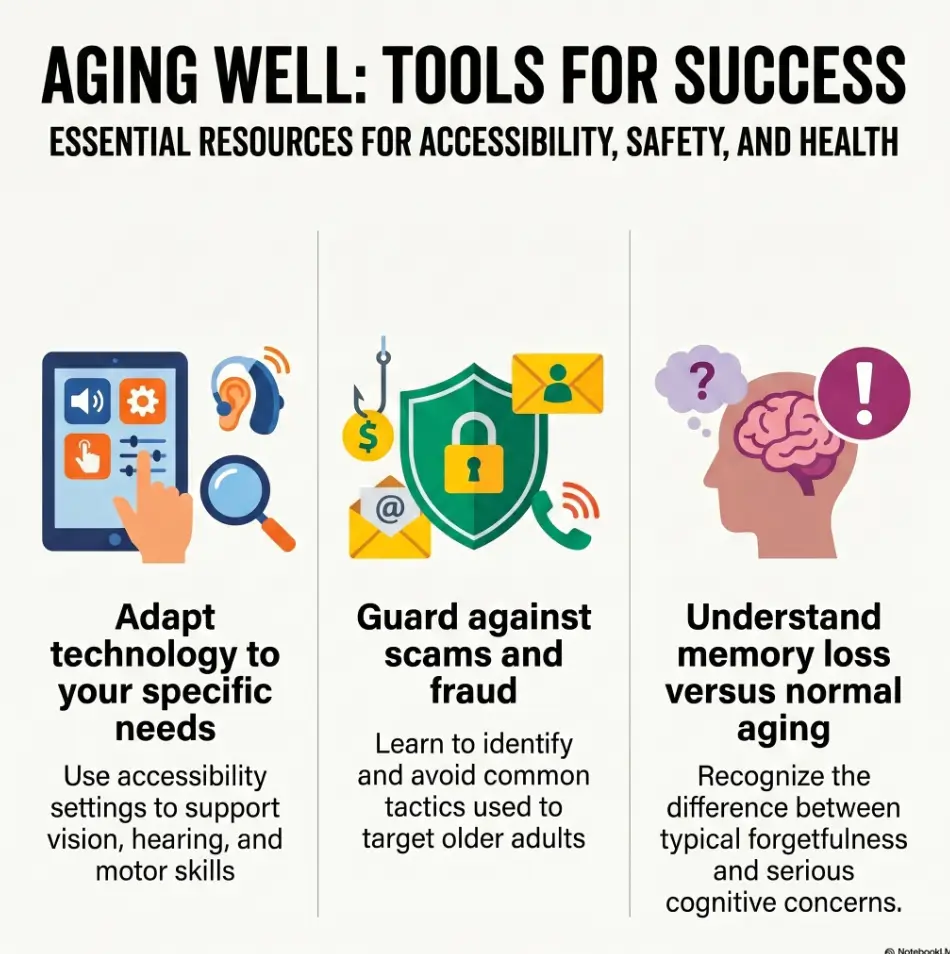
The Federal Trade Commission regularly warns consumers about scams, identity theft, and impersonation. Seniors are often targeted because urgent messages can sound official and frightening. Organization helps, but it does not replace fraud awareness.
When a shared family system may be safer than a solo system
A shared system can help when several people coordinate appointments, bills, benefits, or caregiving. It should be built with consent, clear boundaries, and limited access. Not everyone needs every document.
A good rule: share what helps care and safety, not what satisfies curiosity. Family systems work best when they feel like railings, not surveillance cameras.
Decision Card: Solo Folder vs Shared Family Folder
| Choose | Best when | Trade-off |
|---|---|---|
| Solo system | The senior manages files independently. | More privacy, but more risk if files are lost. |
| Shared family system | Caregivers help with appointments, bills, or emergencies. | More backup, but access must be limited and respectful. |
Neutral action: Decide who needs access before moving sensitive files into a shared folder.
Build the “Big Five” Folder System First
Start with five folders. Not fifteen. Not a folder family reunion. Five.
These categories match the way people actually search under pressure: health, money, home, identity, and family. They are broad enough to reduce clicking, but specific enough to prevent the dreadful everything-pile.
Medical: insurance cards, prescriptions, test results, provider notes
The Medical folder should hold insurance cards, Medicare information, medication lists, appointment notes, lab results, discharge papers, and provider instructions. For low-vision households, a one-page medication list template can be especially useful because medication details often need to be found quickly.
Keep file names plain: “2026 Medication List,” “2026 Medicare Card,” “Dr Lee Eye Visit March 2026,” or “Blood Test Results April 2026.” The word “medical” does not need to appear in every file if the folder already says Medical.
Money: bank, tax, retirement, Social Security, Medicare paperwork
The Money folder is for documents tied to income, taxes, bank accounts, retirement accounts, Social Security, Medicare, insurance payments, and benefits. IRS-related documents deserve especially clear names because tax season already has enough theater.
Use years when sorting matters: “2025 Tax Return,” “2026 Social Security Letter,” “2026 Bank Statement January.” Avoid names like “Important money thing.” It may feel accurate, but future-you will mutter.
Home: lease, mortgage, utilities, repairs, warranties
The Home folder holds lease or mortgage documents, utility records, repair receipts, appliance warranties, insurance policies, and service contacts. If a senior lives alone, this folder can prevent frantic searching when a pipe leaks, a refrigerator quits, or a utility company asks for an account number.
Identity: driver’s license, passport, birth certificate, legal documents
The Identity folder should be treated carefully. It may include scans of identification, passport, birth certificate, marriage certificate, powers of attorney, or other legal documents. Store sensitive files only where privacy and security are appropriate.
For legal originals, digital copies are often convenient but may not replace paper originals. When in doubt, ask the relevant agency, attorney, or professional before relying on a scan.
Family: contacts, caregiving notes, photos, emergency instructions
The Family folder can hold emergency contacts, caregiving notes, pet care instructions, family phone lists, and selected photos. If a senior uses a written emergency card, a digital version can match the same information. The wallet card emergency info template for low vision is a practical companion because emergency information should not live only behind a passcode.
The Big Five Folder Map
Insurance, prescriptions, test results, doctor notes.
Taxes, banking, benefits, retirement, Medicare.
Utilities, repairs, warranties, lease or mortgage.
ID, passport, certificates, legal papers.
Contacts, caregiving notes, emergency instructions.
Name Files So Eyes Do Less Work
Use plain names: “2026 Medicare Card” beats “IMG_4837”
The file name is the front door. If the door has no number, everyone wanders around the block.
Use names that a real person would say out loud: “Medicare Card,” “Medication List,” “Eye Doctor Notes,” “Tax Return,” “Water Bill,” “Passport Scan.” This helps visual scanning, voice search, and caregiver support.
Put the date first only when sorting matters
Dates are helpful for recurring documents. For example, “2026-04 Bank Statement” sorts neatly by month. But not every file needs a date first. “Medicare Card 2026” may be easier for voice search because the key phrase comes first.
Use the same pattern inside each folder. In Medical, you might use “Doctor Name Topic Month Year.” In Money, you might use “Year Document Type.” Consistency is a small kindness with a long afterlife.
Add one human clue: doctor, bank, bill, receipt, policy
A good file name often needs one clue beyond the date. “2026-03 Receipt” is still foggy. “2026-03 Pharmacy Receipt” is clearer. “2026-03 Eye Drops Pharmacy Receipt” is better if eye medication costs need tracking.
For pharmacy documents, pairing digital organization with low vision medication safety habits can reduce mix-ups. The file system should support real routines, not sit politely in a corner like furniture nobody uses.
Don’t do this: tiny abbreviations only one person understands
Avoid private abbreviations unless everyone involved knows them. “RX,” “SSA,” and “IRS” may be fine for some people. “MOMDOC2_FINAL_REALLYFINAL” is not fine for anyone, including the computer, which probably sighs electrically.
File Naming Cheat Sheet
| Bad name | Better name | Why it works |
|---|---|---|
| IMG_4837 | 2026 Medicare Card | The purpose is visible immediately. |
| Scan | 2026 Eye Doctor Referral | Adds topic and year. |
| Bill New | 2026-05 Electric Bill | Sorts by month and tells what it is. |
Neutral action: Rename the five most important files before organizing anything else.
The “Most Important” Folder Seniors Actually Use
Why one emergency folder beats twenty perfect folders
The “Most Important” folder is the front porch light. It is not the whole house. It simply helps someone find urgent documents when stress makes everything blurrier.
This folder should sit at the top of the desktop, phone files app, cloud drive, or tablet home screen. Use a plain name: “Most Important.” Not “Critical Administrative Emergency Master Repository.” That name wears a tie to breakfast.
What belongs inside: medical, legal, money, contacts, passwords location note
Put only the documents that would matter quickly during an appointment, hospital visit, insurance issue, bank problem, travel issue, or caregiving handoff. Good candidates include:
- Current medication list
- Insurance card or Medicare card
- Emergency contacts
- Primary doctor and pharmacy information
- Key financial contact information
- Power of attorney location note, if applicable
- Password manager location note, not a plain password list
For appointments, the doctor appointment note-taking system can help turn scattered medical details into a cleaner routine before and after visits.
What does not belong: every bill ever created since dial-up internet
The “Most Important” folder should not become a second junk drawer. If everything is urgent, nothing is urgent. Keep old bills, receipts, and statements in their main folders or archives.
A useful emergency folder is small enough to scan in one glance. Ten files may be plenty. Twenty may be too many. One hundred is no longer a folder. It is a haunted warehouse.
Let’s be honest: the folder is for stressful days, not tidy days
During stressful moments, people do not behave like calm librarians. They click too fast, forget names, misread icons, and open the wrong app. The “Most Important” folder respects that human truth.
Short Story: The Folder on the Desktop
Marjorie’s daughter spent a Saturday organizing every document into perfect folders. Medical had subfolders. Money had subfolders. Home had subfolders. It looked beautiful, like a tiny courthouse built inside a laptop. Two weeks later, Marjorie called from the pharmacy. The clerk needed her updated insurance card. She knew it was “somewhere in the blue folder,” but the screen glare was bad and the file names were small.
So they changed the system. One folder named “Most Important” went on the desktop. Inside were seven files with large, plain names. The next month, at an eye appointment, Marjorie opened the folder herself and found her medication list in seconds. The lesson was not that the first system was foolish. It was that beauty is not the same as mercy. A folder should meet a person where the day actually hurts.
- Keep only urgent documents inside.
- Use large, obvious file names.
- Put the folder shortcut where it is seen first.
Apply in 60 seconds: Create a folder named “Most Important” and add only one medication list today.
Make Folders Easier to See Before You Add More Folders
Increase icon size on desktop and file apps
Before reorganizing anything, adjust visibility. Bigger icons, larger text, stronger contrast, and less glare can make the same system feel newly possible.
On many computers, you can increase desktop icon size, change display scaling, or switch file views from tiny lists to larger icons. On phones and tablets, look for display size, text size, bold text, contrast, and accessibility settings.
Use high-contrast folder colors when the device allows it
Color can help, but it should never be the only clue. Use color plus a plain name. For example, a blue folder named “Medical” and a green folder named “Money” is better than five colored folders with mysterious names.
For the physical home, high-contrast tactile tools can also support organization. A guide to bump dots vs tactile tape may help if the same senior struggles with appliances, folders, drawers, or labels.
Keep folder names short enough to read at a glance
Long folder names often get cut off on phones. Keep top-level folders short: Medical, Money, Home, Identity, Family, Most Important. Short names enlarge well, wrap less, and reduce visual clutter.
Place the most-used folders at the top, not alphabetically buried
Alphabetical order is not sacred. If “Most Important” needs to appear first, rename it “1 Most Important.” If Medical is used weekly, put it near the top. Filing should serve life, not the alphabet’s ancient monarchy.
Use Fewer Layers: The Anti-Maze Method
One folder deep is friendly; five folders deep is a cave system
A shallow folder system is easier for low vision because it reduces clicking and searching. Aim for one main folder and one subfolder only when truly necessary. For example, Medical may contain “Current” and “Archive,” not twelve nested categories.
Use “Current,” “Archive,” and “To Review” instead of endless categories
These three labels solve many problems. “Current” means active. “Archive” means keep, but not daily. “To Review” means someone needs to decide what this file is.
That last folder is important. Without “To Review,” uncertain files drift into random places. With it, the system has a safe waiting room.
Keep receipts separate from critical documents
Receipts multiply like pantry moths. Keep them away from emergency documents. Use a simple Receipts folder inside Money or Home. If you never need a receipt again, delete it when safe. If it supports taxes, warranties, insurance, or reimbursement, name it clearly.
Here’s what no one tells you: neat systems can still be unusable
A system can look organized and still be hard to use. This is common when an adult child builds folders based on how they think, not how the senior searches.
Ask the senior what words they naturally use. Do they say “eye doctor” or “ophthalmologist”? “Bank papers” or “statements”? “Medicare card” or “insurance card”? Use their words whenever possible.
Show me the nerdy details
Digital retrieval depends on recognition, recall, and friction. Recognition means seeing a label and knowing what it is. Recall means remembering the exact name or location. Friction means every extra click, tiny label, nested folder, or low-contrast screen element that slows the task. For low-vision users, systems should favor recognition over recall. That is why large folder names, shallow folder trees, consistent naming patterns, pinned shortcuts, and voice-search-friendly labels work better than complex folder architecture.
Photos, Screenshots, and Scans Need Their Own Rescue Plan
Create one folder called “Scanned Documents”
Scans often begin as photos. A senior may photograph an insurance card, a prescription label, a bill, or a doctor’s note. The trouble begins when those images stay in the photo roll among grandchildren, flowers, receipts, cats, and one accidental picture of the ceiling fan.
Create a folder called “Scanned Documents.” Move important scans there. Rename them before they disappear into the velvet fog of the camera roll.
Rename important screenshots immediately
Screenshots are useful, but only if they can be found. A screenshot of a confirmation number should become “2026-05 Pharmacy Order Confirmation” or “2026 Flight Confirmation Chicago.” Do it immediately if possible.
The best time to rename a screenshot is before the next twelve screenshots arrive wearing identical coats.
Delete blurry duplicates before they become digital fog
Poor vision and small screens make duplicates more likely. A person may take five photos of the same card to get one readable image. Keep the clearest version and delete the rest.
For paper labels and printed information, tools that read text aloud can be useful. A guide on how to read labels aloud can support seniors who need help identifying paper documents before scanning or naming them.
Use scanning apps carefully, especially for IDs and financial papers
Scanning apps can sharpen edges, crop documents, and create PDFs. That is helpful. But sensitive documents need caution. Identification, tax forms, bank papers, and legal documents should not be uploaded into random apps without understanding privacy settings.
When possible, use trusted built-in tools from the phone’s operating system or a reputable cloud service. For highly sensitive records, ask a trusted professional what storage approach is appropriate.
Scan-Safety Checklist
- Yes/No: Is the image readable at a larger size?
- Yes/No: Did you rename it in plain language?
- Yes/No: Is it stored in the correct folder, not only Photos?
- Yes/No: Is the document sensitive enough to need stronger privacy?
- Yes/No: Is there a backup copy if the phone is lost?
Neutral action: Scan one important document, rename it, and move it to the right folder before scanning another.
Cloud Storage Without Confusion
Pick one main home: iCloud, Google Drive, OneDrive, or Dropbox
The cloud is useful when it behaves like one home. It becomes confusing when the same file lives in three cloud services, two devices, one email thread, and a downloads folder that has not seen daylight since 2022.
Pick one main home for important files. For Apple households, that may be iCloud Drive. For Gmail users, Google Drive may feel natural. Microsoft users may prefer OneDrive. Dropbox can work well for shared folders. The best choice is the one the senior can actually open.
Avoid saving the same file in three different places
Duplicates create doubt. Which Medicare card is current? Which tax return is final? Which medication list is safe to print? Duplicates are not backups if nobody knows which one is right.
Use one active copy and one backup system. If you need a duplicate for sharing, name it clearly: “Medication List Shared Copy 2026-05.”
Turn on automatic backup for photos and key documents
A phone can be lost, dropped, stolen, damaged, or quietly retired by a bowl of soup. Important files should not live only on one device.
Automatic backup can protect photos and documents, but check what is actually being backed up. Photos may sync while files do not. Some apps save locally unless told otherwise. A backup that never backs up is just a lullaby.
Don’t do this: rely only on a single phone
A single phone is convenient until it is gone. Keep critical documents accessible from another trusted device or account. Also consider paper copies for essential emergency documents.
- Choose one main file home.
- Limit duplicates of active documents.
- Confirm backup settings before trusting them.
Apply in 60 seconds: Open the senior’s main cloud app and confirm whether the “Most Important” folder appears there.
Voice Search, Shortcuts, and Favorites Are Accessibility Tools
Add shortcuts to the home screen or desktop
Shortcuts are not laziness. They are ramps. Put “Most Important,” Medical, and Money where they can be opened without digging through apps.
On a computer, that may mean desktop shortcuts. On a phone or tablet, it may mean pinning a folder, adding a files widget, or placing the cloud storage app on the first screen.
Use voice commands to search for “Medicare card” or “tax return”
Voice search can help when typing is hard or screen labels are small. It works best when file names use normal words. “Find Medicare Card” has a better chance than “Find IMG underscore 4837.”
For seniors who already use voice features, hands-free texting for low vision may offer useful habits that transfer to file search, reminders, and caregiver communication.
Pin the folders seniors open every week
Favorites, pins, starred folders, and quick access areas are powerful because they reduce the path. Put weekly folders there. Remove folders that are no longer used. A crowded favorites list becomes another junk drawer, but now with a velvet rope.
Pattern interrupt: the best folder is sometimes no folder at all
Sometimes the best solution is not another folder. It is a shortcut, a pinned note, a home-screen widget, or a printed copy taped inside a cabinet door. Digital organization should serve the task, not win a filing contest.
For daily routines, a low vision calendar system for appointments can work alongside digital folders so dates, notes, and documents do not become separate little kingdoms.
Common Mistakes That Make Digital Files Harder to Find
Mistake 1: using vague names like “New,” “Scan,” or “Documents”
Vague names are the fog machines of file management. They create drama, but not clarity. Rename important files as soon as possible.
Mistake 2: creating too many categories too soon
Start broad. Add subfolders only when a folder becomes genuinely crowded. A system that begins with too many categories often collapses because nobody remembers the difference between them.
Mistake 3: organizing by app instead of life need
Do not organize around where the file came from. Organize around why it matters. A medical bill downloaded from email belongs with Medical or Money, not in an eternal “Email Attachments” swamp.
Mistake 4: ignoring screen size, contrast, and font settings
For poor vision, display settings are part of the filing system. Increase text size. Use bold text if helpful. Reduce glare. Adjust contrast. If screen strain is a regular problem, the guide to digital eye strain in seniors may help build a more comfortable setup.
Mistake 5: letting downloads become the junk drawer of doom
Downloads folders collect everything: PDFs, forms, coupons, images, statements, and suspicious files named by systems that appear to dislike humans. Clean Downloads monthly. Move important items. Delete obvious clutter when safe.
15-Minute Cleanup Timer
Result: Enter a few numbers to see your cleanup progress.
Neutral action: Use this only as a gentle progress check, not a productivity contest.
When to Seek Help
Files are missing and bills, insurance, or medical care may be affected
If missing documents could affect medication, health care, insurance coverage, housing, taxes, or benefits, get help sooner rather than later. Waiting can turn a small file problem into a larger life problem.
For Medicare, Social Security, tax, and banking issues, use official contact channels. Avoid phone numbers from random emails or pop-ups. A clean folder system helps because official documents can be checked against suspicious messages.
The senior cannot safely identify scams or fake documents
If the senior clicks unfamiliar links, trusts urgent messages, or cannot tell real documents from fake ones, organization alone is not enough. Consider browser safeguards, account alerts, trusted contacts, and education from reputable consumer-protection sources.
Vision loss is worsening or screen use causes strain
If screen use causes headaches, eye strain, fatigue, or avoidance, consider a low-vision evaluation, occupational therapy support, or accessibility coaching. A low vision OT questions checklist can help families prepare for practical conversations about devices, documents, lighting, and routines.
Legal, tax, estate, or benefits paperwork needs professional review
Digital folders can store legal and financial documents, but they cannot interpret them. Estate documents, tax returns, powers of attorney, benefit appeals, insurance disputes, and bank issues may require professional review.
Memory changes make file management unreliable
If memory changes affect daily tasks, file organization should become simpler and more shared. Use visible shortcuts, fewer documents, and clear caregiver roles. Keep paper backups for the most important items.
- Get help when missing files affect care, money, or housing.
- Use official channels for benefits, taxes, and fraud concerns.
- Adjust the system when vision or memory changes.
Apply in 60 seconds: Write down one trusted person or professional to call if an urgent file cannot be found.
FAQ
What is the easiest way for seniors to organize digital files?
The easiest method is to create a small set of large, plain folders: Medical, Money, Home, Identity, Family, and Most Important. Then rename important files with human-readable names such as “2026 Medicare Card” or “Medication List May 2026.” Keep the system shallow, visible, and backed up.
How should I name digital files for an older adult with poor vision?
Use plain words, one useful clue, and a date when needed. Good examples include “2026 Tax Return,” “Medicare Card 2026,” “Eye Doctor Notes March 2026,” and “Electric Bill May 2026.” Avoid abbreviations, tiny codes, vague names, and file names that only one person understands.
Is Google Drive or iCloud better for seniors?
The better choice is usually the one the senior already understands. iCloud may be easier for Apple users. Google Drive may be easier for Gmail and Android users. OneDrive may suit Microsoft users. Pick one main storage home, reduce duplicates, and confirm backup settings.
How many folders should a senior have?
Start with five main folders plus one emergency folder. More can be added later, but too many folders often make files harder to find. A senior with poor vision usually benefits from fewer folders, larger labels, and shortcuts to the most-used locations.
What documents should seniors keep in an emergency folder?
An emergency folder may include a medication list, insurance card, Medicare card, emergency contacts, primary doctor information, pharmacy information, key financial contacts, and a note explaining where legal or password-manager information is stored. Do not overload it with old bills or every receipt.
How can I make computer folders easier to see?
Increase icon size, enlarge display text, use high contrast, reduce glare, choose large icon view, and keep folder names short. Place important folders at the top of the desktop or quick access area. Color can help, but each folder still needs a clear text label.
Should seniors keep paper copies too?
For critical documents, yes, paper copies can still be useful. Some originals may be legally important, and some emergency information should be available even if a phone is locked, lost, or out of battery. Keep paper and digital folder names consistent so both systems are easy to match.
How do I help a parent organize files without taking over?
Use their words, ask what they search for most often, and build the system together. Avoid silently moving everything. Create a small “Most Important” folder first, explain where it lives, and write down the simple naming rules. Respect privacy while making safety documents easier to find.
Next Step: Create One Folder Today
Make a folder called “Most Important”
Do not begin with a full digital overhaul. Begin with one folder. Name it “Most Important.” Put it on the desktop, home screen, or main cloud drive where it can be seen immediately.
Add five documents only: ID, insurance, medication list, emergency contacts, key financial contact
Choose five files that would matter during a stressful day. If a document does not exist yet, create a simple note. A typed emergency contact list is better than a perfect file that remains imaginary.
Rename each file in plain language
Use clear names: “Medication List May 2026,” “Medicare Card 2026,” “Emergency Contacts,” “Primary Doctor and Pharmacy,” and “Key Financial Contact.” Large, plain names reduce guessing.
Put the folder shortcut where it can be seen immediately
The shortcut is part of the system. Without it, the folder may become another hidden room. Put it where the senior naturally begins: desktop, tablet home screen, phone files app, or cloud drive favorites.
The opening problem was not a messy computer. It was the little moment of helplessness that arrives when an important file hides behind tiny text and vague names. A safer system gives that moment fewer places to grow. It does not need to be beautiful. It needs to be findable.
Within the next 15 minutes, create the “Most Important” folder and add one current medication list or emergency contact file. That small act is a lantern. Tomorrow, add one more document. The folder will become less of a project and more of a promise.
Last reviewed: 2026-05.
Tags: low vision, digital organization, senior technology, caregiver tools, accessible file management
Meta description: A clear, low-vision-friendly digital file system for seniors using big folders, plain names, backups, and emergency shortcuts.