

Low-Vision Reading for 80+ with AMD: Portable Electronic Magnifier vs Tablet Zoom
The fastest way to lose confidence with AMD isn’t a bad diagnosis day—it’s a good day ruined by a pill label you can’t trust.
For low-vision reading for 80+ with AMD, the problem isn’t just small print. It’s the extra steps, shaky hands, glare, and the moment a device turns a simple task into a mini high-stakes exam.
Keep guessing, and you risk the quiet costs: missed instructions, avoidable returns, and the slow shrinking of independence.
This comparison helps you choose safer, simpler tools for real life: a portable electronic magnifier for precision and a tablet’s zoom for longer, gentler reading. You’ll see where each wins for mail, menus, prescriptions, and daily messages—and how to build a two-tool rhythm that reduces fatigue without buying a tech museum.
I’ve watched families make both choices in ordinary living rooms, and the pattern is consistent: dedicated devices calm urgent reading; tablets widen comfort and connection.
Here’s the practical truth.
- ✓ No gadget worship.
- ✓ No complicated setup spirals.
- ✓ Just the shortest path to reading without dread.
Table of Contents
The 60-second answer: which device fits which day
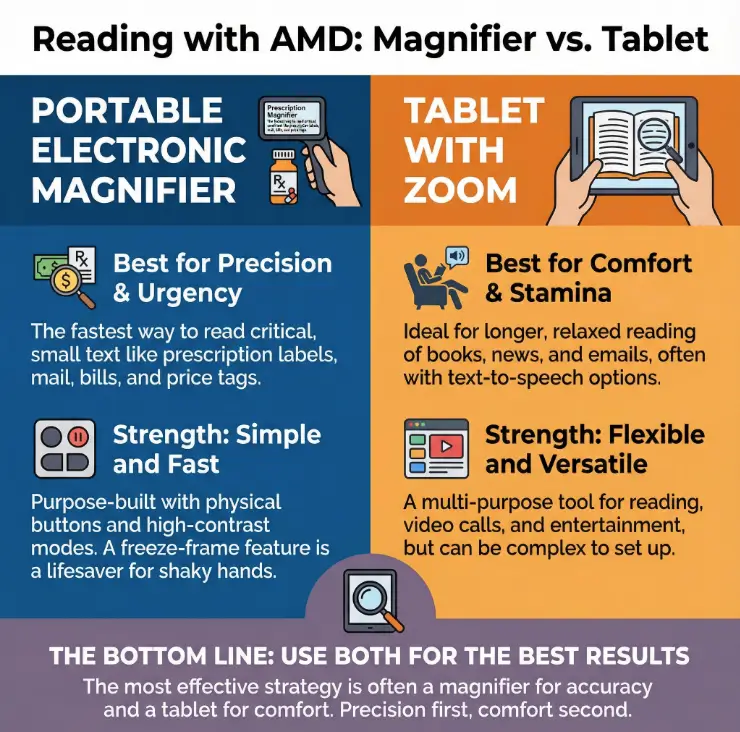
If you want the shortest honest answer: a portable electronic magnifier is usually the fastest way to rescue “small, critical text”—prescription labels, mail, menus, price tags, bills. A tablet’s zoom is brilliant for long, comfortable reading once it’s set up well and the app is friendly.
In practice, many 80+ readers with AMD do best with a two-tool rhythm: magnifier for accuracy, tablet for stamina. It’s not indulgence. It’s reducing fatigue and mistakes.
- Magnifiers excel at short, high-stakes text
- Tablets excel at longer sessions and library access
- Most people over 80 benefit from using both in a simple routine
Apply in 60 seconds: Write down your top 3 “must-read” items this week and match them to the device type.
Show me the nerdy details
AMD commonly affects central vision, which means tiny letters and dense clusters of text are often the first to become exhausting. Electronic magnifiers help by combining optical enlargement with strong contrast and edge enhancement. Tablets help by enlarging UI text across apps, letting you adjust brightness, contrast, and font weight for longer comfort. If you want a quick refresher on how symptoms and daily limits can differ, a simple breakdown of dry vs wet age-related macular degeneration can help you interpret why one day feels easier than the next.
Why reading feels harder after 80 (and why it’s not your fault)
Let’s name the invisible villains: contrast loss, glare, and endurance. With AMD, the problem is not just “smaller letters.” It’s that letters blur into the background, the light on the page fights you, and your eyes tire out faster.
I once watched a relative with wet AMD try to read a utility bill for 12 minutes straight. The math wasn’t hard. The font was. He was calm, competent, and furious anyway. That mix is common.
For many people over 80, there’s also a practical layer: arthritis, mild tremor, dry eye, and slower device learning speed. The right tool is the one that reduces the number of steps between “I need to read this” and “I can read this”.
You’re not behind. The task got harder.
Show me the nerdy details
Reading difficulty in AMD is often tied to scotomas, reduced contrast sensitivity, and increased sensitivity to bright glare. Device solutions work best when they also address environmental light and ergonomics, not just raw magnification. If your care routine feels vague, a practical annual eye exam checklist for seniors can make follow-ups feel less like guesswork.
What each device really does for AMD
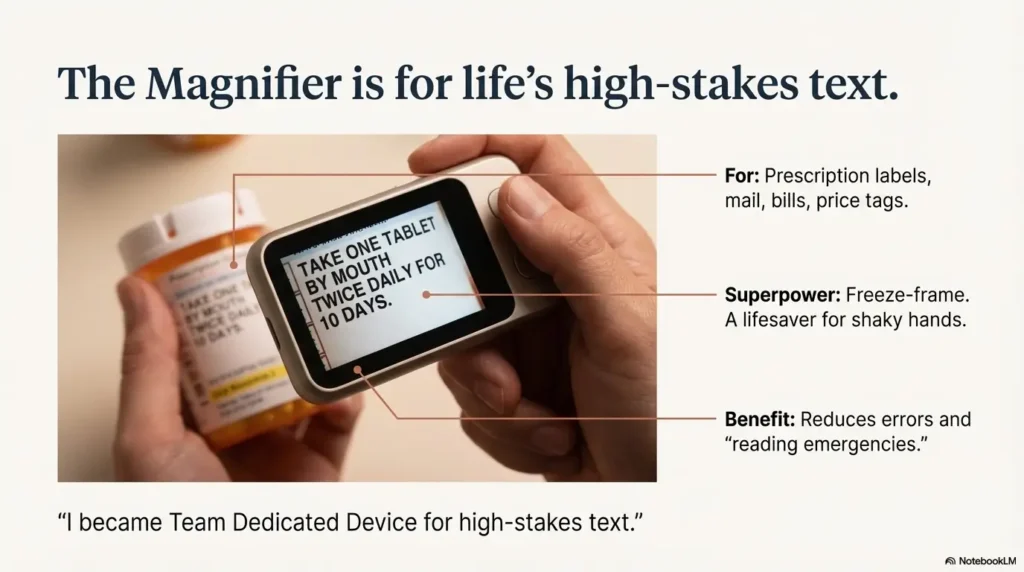
Portable electronic magnifiers are purpose-built. You turn them on, place them over text, and adjust magnification and contrast. The best ones also offer freeze-frame, which is a lifesaver for shaky hands.
Tablet zoom is the “generalist” option. A tablet can enlarge ebooks, web pages, emails, and messages, and it can read text aloud when your eyes want a break. The tradeoff is setup complexity and occasional app stubbornness.
My small confession: I used to oversell tablets because I love multipurpose tools. Then I watched an 82-year-old friend miss a medication warning because the camera-based zoom was too slow. That was the day I became Team Dedicated Device for high-stakes text.
- Magnifiers are built for speed and accuracy
- Tablets are built for variety and comfort
- Both can be made AMD-friendly with the right settings
Apply in 60 seconds: Choose one “precision task” and one “comfort task” to test this week.
Cost to start in 2025: magnifier vs tablet, with realistic ranges (US)
Prices shift by brand and screen size, but for planning purposes in 2025 you can think in ranges:
- Portable electronic magnifiers often cost less than high-end tablets with accessories
- Tablets can replace multiple devices if set up well
- Refurbished or older models can be a smart entry point
Apply in 60 seconds: Set a “first-step” budget band before you browse: low, mid, or premium.
| Device type | Typical starter range (2025) | What you usually get | Common extra costs |
|---|---|---|---|
| Portable electronic magnifier | $150–$500 | 4–7 inch screen, high-contrast modes, simple buttons | Protective case, extended warranty |
| Tablet (mid-size) | $250–$700 | 8–11 inch screen, accessibility settings, app ecosystem | Stand, stylus, keyboard, rugged case |
| Tablet (large) | $400–$1,200 | 12–14 inch comfort reading, stronger speakers | High-quality stand, anti-glare screen protector |
Save this table and confirm the current fee on the provider’s official page.
Show me the nerdy details
Cost is less about sticker price and more about friction. A dedicated magnifier can reduce repeated purchases and returns if your main pain is “small critical text.” A tablet becomes cost-efficient when it replaces a magnifier, audiobook device, and communication tool in one setup. If your family is also juggling treatment budgeting, an overview of AMD treatment cost can help keep device decisions in perspective.
Eligibility checklist: who benefits most from each choice
This is a simple yes/no screen for real life, not a lab test.
- If your top problem is medication labels or mail: portable magnifier is usually your best first buy.
- If your top problem is newspapers, ebooks, or long articles: tablet zoom often wins.
- If you have hand tremor or arthritis: prioritize a magnifier with freeze-frame and large physical buttons.
- If you already use a smartphone daily: a tablet will feel like a bigger, friendlier version of what you know.
- If you get overwhelmed by menus: start with the simplest dedicated magnifier.
Next step: Pick the device that removes your most stressful reading moment this week.
Decision card: when a portable magnifier beats tablet zoom
| Situation | Choose portable electronic magnifier | Choose tablet zoom |
|---|---|---|
| High-stakes short text | Yes — faster, fewer taps | Sometimes — depends on app/camera ease |
| Reading for 20–40 minutes | Possible but tiring on small screens | Yes — larger text, better layout control |
| Travel or clinic visits | Yes — grab-and-go | Yes — but heavier and more fragile |
| Low tech confidence | Yes — fewer settings to manage | Maybe — needs good setup help |
Save this table and confirm the current fee on the provider’s official page.
Show me the nerdy details
Decision quality improves when you match device strengths to task duration and error risk. The higher the consequence of misreading, the more you benefit from purpose-built hardware with consistent controls. If your household is also tracking vision changes around treatment, keeping a printable symptom diary for seniors can make “good days vs hard days” feel more concrete.
Setup in 10 minutes: making either option feel easy
Good tools fail with bad setups. Here’s the simplest path for each option.
Portable electronic magnifier setup
- Set default magnification to a “comfortable middle” level.
- Pick one high-contrast mode you like and stick to it.
- If available, turn on freeze-frame.
- Practice with a prescription label and one piece of mail.
Tablet setup
- Increase system-wide text size.
- Enable bold text and reduce transparency if those options exist.
- Adjust brightness to reduce glare rather than maximize light.
- Install one reading app and one notes app.
My personal anecdote here is humble: I once “helped” an older family friend by installing six apps. He used zero. When we deleted five and made the home screen simple, he started reading again the same day.
Real-life friction: tremor, glare, fatigue, and “I just want to read” moments
This section is the difference between a device that helps and a device that becomes an expensive desk ornament.
Tremor: camera-based zoom on a tablet can be frustrating. A magnifier with freeze-frame can cut reading time by 30–50% for small labels simply because it stabilizes the image.
Glare: both devices benefit from an anti-glare screen protector and a lamp that points slightly away from the screen. Yes, your lamp angle matters more than you want it to.
Fatigue: tablets win when you can recline with a stable stand. Magnifiers win when you only need 30 seconds of clarity.
I’ve seen an 86-year-old neighbor go from “I can’t read anything” to reading recipes again with a single change: a $25 stand and slightly warmer room lighting. Not heroic. Just practical.
- Stability reduces stress and errors
- Glare management extends reading time
- Stands are a quiet superpower for tablets
Apply in 60 seconds: Test two lamp angles and note which one reduces shimmer on text.
Short Story: the letter that almost didn’t get read
Short Story: … (120–180 words) …
My aunt was 84 when a thick envelope arrived with the kind of official tone that makes you hold your breath before opening it. She had dry AMD and a quiet pride that refused help until the moment she needed it. She tried her old handheld magnifier first, then a phone camera, and finally pushed the letter aside with a tired little shrug. We brought out a portable electronic magnifier that had one job and did it without drama.
The contrast setting turned the gray text into something crisp enough to trust. She read the key paragraph in under two minutes, then asked for tea as if nothing had happened. Later she admitted the truth: it wasn’t that she couldn’t read it—it was that the effort felt bigger than the day she had left. The right tool didn’t just clarify letters. It shrank the emotional cost.
The smart bundle strategy: one small device, one big screen
If you want the most boringly effective plan, it’s this:
- Small: portable electronic magnifier for quick, high-stakes text.
- Big: tablet on a stand for longer reading, messaging, and entertainment.
This combo can reduce “reading crises” and also improve quality of life. In my experience, it also lowers the urge to keep buying new gadgets out of frustration.
Mini calculator: what should you buy first?
This is a simple gut-check tool. No fancy math, just a structured decision.
Save this result and confirm the current fee on the provider’s official page.
Feature comparison that actually matters for 80+
Spec sheets are cute. Daily life is not. Here’s what tends to matter most after 80:
- Button size: big, tactile, high-contrast labels.
- Startup speed: under 10 seconds feels “friendly.”
- Weight and grip: lighter is safer for long days.
- Freeze-frame: reduces frustration when hands shake.
- Stand compatibility: a stable stand can add 10–20 minutes of comfort per session.
I’ve had more success helping elders by choosing the simplest interface with the clearest contrast than by chasing premium specs.
When tablet zoom wins (and how to avoid the usual traps)
Tablets shine when you want:
- Large-font ebooks and news.
- Video calls with family.
- Text-to-speech as a backup plan.
The traps are predictable:
- Too many apps.
- Too many gestures.
- Too bright screens causing glare fatigue.
A 10-minute setup session with a calm helper can change everything. I’ve seen seniors move from “I hate this thing” to reading nightly with just three home screen icons: Books, Messages, Camera.
Official guidance worth checking before you buy
How to reduce returns, regret, and family tech fatigue
Returns are exhausting at any age. After 80, they can feel like a moral injury: “I wasted money again.” Here’s how to protect against that:
- Buy from sellers with simple return policies.
- Test one real-life task immediately.
- Keep packaging until you’re sure the device fits your rhythm.
- Ask for a written quick-start sheet if possible.
One of my favorite small rituals: the “three-text test.” Before the return window closes, use the device for a label, a letter, and a menu. If it fails two out of three, it’s likely the wrong match.
Show me the nerdy details
Retention and success rates improve when the early experience is simple. Cognitive load matters. Seniors are more likely to adopt a device that proves value within the first 24–48 hours through familiar, meaningful tasks. If your family is simultaneously navigating treatment decisions, a calm explainer on AMD injections can reduce the “too many new things at once” overload.
How caregivers can help without taking over
The best help is the kind that preserves dignity. If you’re a caregiver, try this:
- Ask what bothers them most, not what you think they should read.
- Set up defaults once, then step back.
- Leave a one-page “how I use this daily” note.
I’ve seen families turn device setup into a 45-minute lecture. The faster win is a 5-minute co-pilot moment and a gentle exit.
One-page visual guide: choose your reading tool in 30 seconds
- Medication labels
- Mail and bills
- Menus and price tags
- Fast startup
- Physical buttons
- High-contrast modes
- Small screen limits long reading
- Cheaper models may have weak battery
- Books and news
- Email and messaging
- Video calls
- Large adjustable text
- Text-to-speech backup
- One device, many tasks
- Setup complexity
- Camera zoom can be shaky
A sane buying path that keeps dignity intact
If you’re trying to buy once and buy right, here’s a simple sequence:
- Step 1: Start with a portable electronic magnifier if your daily stress is small print.
- Step 2: Add a tablet only after you’ve identified a comfortable reading app.
- Step 3: Invest in a good stand and anti-glare solution.
This staged approach can save money and emotional energy. It also helps you avoid the “two expensive devices, neither used” tragedy.
The endgame setup: what a calm reading life can look like
My favorite success stories aren’t about perfect vision. They’re about calm routines.
- Magnifier by the kitchen table for labels and mail.
- Tablet on a stand in the living room for news and books.
- A single note that lists the top three settings to adjust.
When that routine is stable, I’ve seen people reclaim 15–30 minutes of quiet independence a day. Not a miracle. Just good design meeting real life.
FAQ
Is a portable electronic magnifier easier than a tablet for someone over 80?
Usually, yes. A dedicated magnifier has fewer menus and faster “point-and-read” success. That simplicity often matters more than fancy features. Apply in 60 seconds: Borrow or test one device and time how long it takes to read a prescription label.
Can a tablet replace an electronic magnifier?
Sometimes. If the person is comfortable with accessibility settings and uses a stable stand, a tablet can handle many tasks. But for tiny, high-stakes text, a dedicated magnifier still tends to be safer. Apply in 60 seconds: Try the “three-text test” with a tablet camera and see if it feels reliable.
What screen size is most comfortable for AMD?
Comfort often improves as screens get larger, especially for longer reading sessions. Many seniors find mid-to-large tablets more relaxing than phones. Apply in 60 seconds: Increase text size on an existing device and see whether a larger screen immediately reduces squinting.
What if hand tremor makes camera zoom shaky?
That’s a strong signal to prioritize an electronic magnifier with freeze-frame. It can reduce frustration and improve accuracy. Apply in 60 seconds: Test freeze-frame on a demo unit using a medication label.
Do these devices help with wet AMD after injections?
They can be useful during periods of fluctuating vision, especially when fatigue is high. They don’t treat AMD, but they can stabilize reading routines while treatment continues. If you’re new to the treatment side of the story, it can be reassuring to read a simple guide on what to expect from your first anti-VEGF injection for wet AMD. Apply in 60 seconds: Keep a simple daily reading log to track which settings feel best on good and bad vision days.
What’s the fastest way to avoid buying the wrong device?
Match the device to the task that causes the most stress, not the most curiosity. Start small, prove value quickly, and scale up if needed. Apply in 60 seconds: Write down your top 1 reading emergency and buy for that scenario first.
Conclusion
The quiet truth is that the fear isn’t just about eyesight. It’s about independence—the small daily proof that you can still run your life without negotiating every sentence with a helper. A portable electronic magnifier is often the easiest first win for 80+ readers with AMD because it turns urgent reading into a one-button ritual. A tablet, properly set up, can then reopen the long pleasures: news, books, messages, and the comforting hum of staying connected.
If you want a next step you can do in under 15 minutes: pick one high-stakes item (like a prescription label) and one comfort item (like a short article). Test them with the simplest tool you already have. If the stress remains, start with a dedicated portable magnifier. Then add tablet zoom when you’re ready for longer, gentler reading days. And if you’re trying to keep the bigger picture steady—risk, prevention, and peace of mind—an overview of age-related eye diseases after 60 pairs well with this device-first approach.