
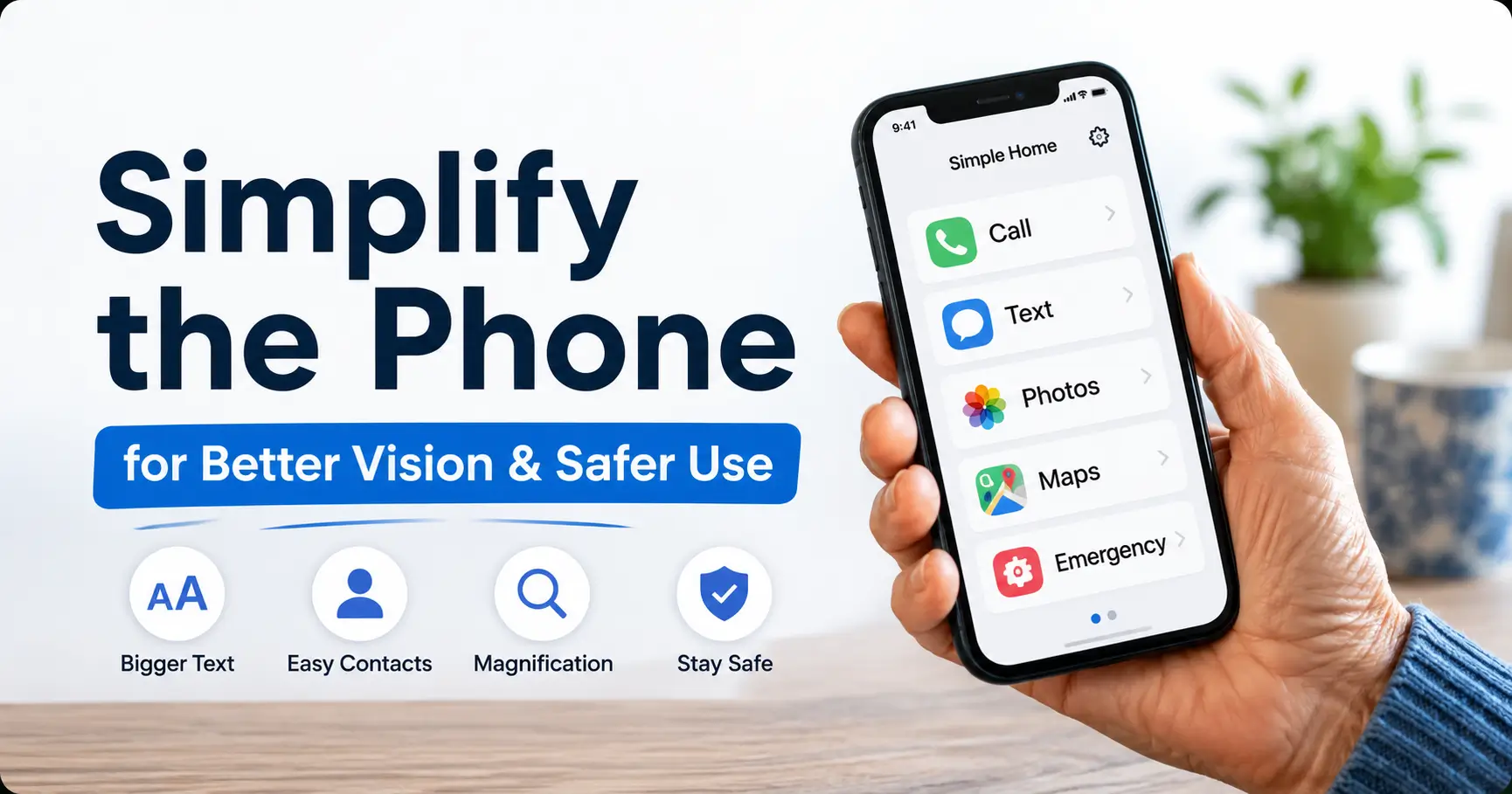
The phone was supposed to make life easier. Then the text got smaller, the icons multiplied, and the alerts began chirping like tiny kitchen timers.
If you are trying to simplify an older parent’s phone for poor near vision, the best first move is not buying a new device. It is making the phone behave like a useful tool again: larger text, clearer contrast, fewer choices, trusted contacts, easy magnification, and a calm routine for calls, texts, photos, maps, and emergencies.
The stakes are practical. A confusing phone can mean missed appointments, wrong taps, scam messages, medication mix-ups, or a parent who quietly stops using the device they need most.
Good news: iPhone and Android already include powerful accessibility settings. The trick is using them in the right order:
- Start with the screen.
- Then the home screen.
- Then contacts.
- Then the safety habits that keep the whole thing from turning into a pocket-sized opera.
Phone Simplification Snapshot
The fastest useful setup: increase text size, turn on bold text, use a plain wallpaper, keep only essential apps on the first home screen, add favorite contacts with photos, enable magnification, and practice one call, one text, and one emergency step.
- Best first change: larger readable text.
- Best clutter fix: one simple home screen.
- Best safety habit: pause before tapping links about money, passwords, delivery problems, or urgent accounts.
- Best backup: a paper card with the three most-used steps.
Table of Contents
Safety / Disclaimer
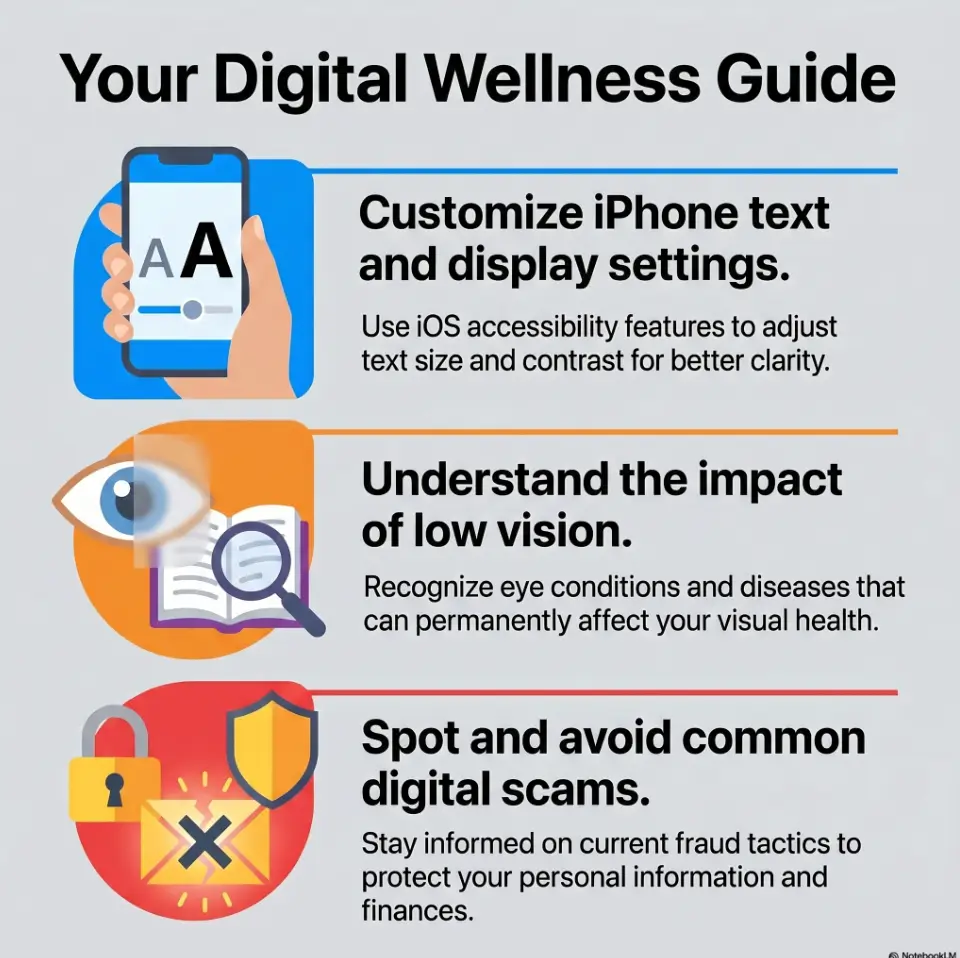
This guide is for practical phone setup, not medical diagnosis. Poor near vision may be a common age-related focusing problem, but it can also overlap with cataracts, glaucoma, diabetic retinopathy, macular degeneration, medication side effects, stroke-related vision changes, or sudden eye changes.
Do not treat phone settings as a substitute for eye care. If your parent has sudden blurry vision, new flashes, new floaters, a curtain-like shadow, eye pain, sudden double vision, sudden vision loss, or new trouble walking safely, contact an eye care professional or urgent medical service promptly.
The National Eye Institute explains that low vision is more common in older adults because many eye diseases become more common with age. Aging alone is not a full explanation for serious vision loss.
- Sudden vision changes deserve urgent attention.
- Repeated phone mistakes may reflect vision, hearing, memory, medication, or dexterity issues.
- A comprehensive eye exam can catch problems a phone screen cannot explain.
Apply in 60 seconds: Ask whether the near-vision problem is gradual, sudden, or changing quickly.
Start With the Real Job: What Does Your Parent Actually Need the Phone to Do?
Before you touch settings, pause. The goal is not to build the prettiest phone. The goal is to make the phone useful for the person holding it.
A phone for an older adult with poor near vision should not feel like a tiny Times Square. It should feel like a well-lit kitchen drawer: the scissors are where they belong, the tape is not hiding under batteries from 2009, and nobody has to mutter at the universe before making one phone call.
Pick the “daily five” before touching settings
Ask your parent what they truly use the phone for. Not what the phone can do. Not what a younger family member thinks it should do. What they actually need.
The daily five might be:
- Calling family.
- Reading and sending text messages.
- Checking doctor appointment reminders.
- Using the camera or magnifier to read labels.
- Opening maps, weather, or pharmacy apps.
For another parent, the daily five might include church group texts, rideshare, banking alerts, photos of grandchildren, or video calls. The phone should follow the life. Not the other way around.
The phone is not a trophy case
Many phones become museums of good intentions. There is the meditation app from January, the grocery coupon app that requires a password shaped like a riddle, four weather apps, three pharmacy apps, and a mysterious icon nobody remembers installing.
That is not accessibility. That is a junk drawer with a screen.
For near-vision support, fewer choices usually beat more features. Every unnecessary icon creates one more small object to identify, one more label to read, and one more opportunity to tap the wrong thing.
Who this is for / not for
This guide is useful when your parent can still use a touchscreen with support but struggles with small print, low contrast, tiny icons, glare, clutter, or multi-step tasks.
It is not enough by itself if your parent has sudden vision loss, repeated scams, severe memory changes, unsafe driving, major tremor, frequent falls, or trouble recognizing familiar people and places. In those cases, phone cleanup may still help, but it should sit beside medical, vision, safety, and caregiving support.
Money Block: The Daily-Five Phone Setup Checklist
Use this yes/no checklist before changing settings.
- Yes / No: Can your parent name the five phone tasks they use most?
- Yes / No: Are those five tasks visible on the first home screen?
- Yes / No: Are favorite contacts easier to find than random apps?
- Yes / No: Can your parent make a call without searching through multiple screens?
- Yes / No: Can your parent enlarge small print using a tool they have practiced?
Neutral action line: If you answer “no” twice, simplify the home screen before adding anything new.
Make Text Bigger Without Breaking the Phone
Text size is the first lever because it changes the thing your parent is fighting most: readable words. But bigger is not always better. At a certain point, enormous text can push buttons off-screen, hide menus, or turn one simple message into a scroll marathon.
The goal is comfortable reading at the normal distance your parent holds the phone. Not maximum size. Maximum size sounds helpful until the “Continue” button disappears like a shy cat under the sofa.
Increase font size first, display size second
On iPhone, start with Display & Text Size settings. On Android, start with font size and display size settings. The exact menu names vary by device and software version, but the idea is steady: font size changes words; display size changes more of the interface.
Begin with font size. Increase it one or two steps. Ask your parent to read a real text message, not just the sample text in settings. Then open Contacts, Messages, Phone, and Settings. If those still feel too small, adjust display size carefully.
This order matters. Display size can make icons, buttons, and menus larger, but it can also change the layout. A phone that is readable but harder to navigate has merely traded one gremlin for another.
Use bold text before maximum zoom
Bold text can help letters stand out without making every screen feel cramped. For many older adults, the combination of moderately larger text and bold text is easier than giant text alone.
Try this sequence:
- Increase font size slightly.
- Turn on bold text.
- Test Messages, Phone, Contacts, and a medication or pharmacy app.
- Increase display size only if the touch targets still feel too small.
This is a little like adjusting a reading lamp. You do not begin by installing a lighthouse in the dining room. You turn the knob, test the page, then adjust again.
Don’t max everything at once
When family members are worried, they often turn on every accessibility feature at once. Huge text, maximum display zoom, bold text, screen zoom, high contrast, reduced motion, and every notification setting get tossed into the pot.
Then the phone feels unfamiliar, the parent gets frustrated, and everyone quietly blames the phone. Poor phone. It was ambushed.
Make one change at a time. Test it with a real task. Keep what helps. Undo what confuses.
Show me the nerdy details
Font size changes rendered text within supported apps. Display size changes the scaling of interface elements, which may affect icon size, spacing, buttons, and how much content fits on-screen. Screen zoom or magnification enlarges a portion of the screen temporarily, which is useful for inspection but can make navigation harder if used constantly. For practical setup, test changes on the exact tasks your parent performs daily because sample screens may not reveal hidden layout problems.
- Start with font size.
- Add bold text before going extreme.
- Test real apps, not only the settings preview.
Apply in 60 seconds: Open a real text message and adjust font size until your parent can read it without leaning forward.
Fix Contrast, Brightness, and Glare Before Buying Anything
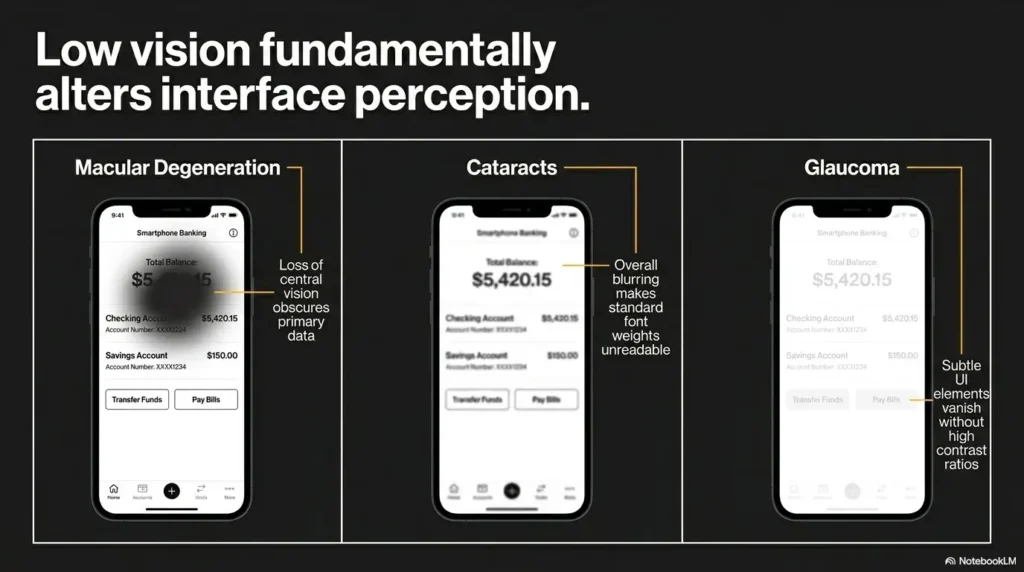
Near vision is not only about size. Contrast, brightness, glare, and visual clutter can make a readable screen feel exhausting. This matters especially for older adults with cataracts, macular degeneration, glaucoma, dry eye, light sensitivity, or contrast sensitivity problems.
A phone screen can be technically bright and still hard to read. Brightness is volume. Contrast is diction. You need both, but shouting does not make blurry words clearer.
Use high contrast like a reading lamp
Look for display settings that increase contrast, darken text, reduce transparency, or make buttons easier to distinguish. On many phones, these settings sit under Accessibility, Display, or Vision.
A few practical tests:
- Can your parent read app names on the home screen?
- Can they tell which button is selected?
- Can they read gray text inside menus?
- Can they see the keyboard letters without squinting?
If gray-on-gray text is the problem, brightness alone will not solve it. You need stronger contrast.
Turn off “pretty but slippery” visuals
Modern phones love polish: transparent panels, motion effects, soft gradients, busy widgets, and wallpaper photos under app icons. These can look elegant to a younger eye and become visual oatmeal to someone with poor near vision.
Reduce motion if animated transitions are disorienting. Reduce transparency if menus blend into the background. Use a plain wallpaper if icons disappear over a family photo. The family photo can still live in Photos, where it can be enjoyed full-screen instead of serving as camouflage for the Phone app.
Here’s what no one tells you…
A plain wallpaper may be one of the most helpful accessibility changes you can make. It sounds too simple, almost rude in its simplicity. But a solid dark or light background can make icons easier to spot, labels easier to read, and the screen less tiring.
If your parent wants a family photo, set it as the lock screen instead of the home screen. That way they still get the emotional warmth without losing icon clarity.
Money Block: Display Setting Decision Card
Choose larger text when: words are the main problem, messages are hard to read, or app labels look tiny.
Choose higher contrast when: gray text blends into the screen, buttons are hard to identify, or wallpaper hides icons.
Choose magnification when: small labels, menus, medication bottles, or receipts need temporary enlargement.
Choose a plain wallpaper when: your parent says, “I know it’s there, but I can’t find it.”
Neutral action line: Pick the setting that matches the failure point, not the one that sounds most advanced.
Build a Home Screen That Works Like a Kitchen Counter
The first home screen is prime real estate. Treat it like a kitchen counter before breakfast: only what is needed, placed where hands naturally go, with no mystery gadgets blocking the coffee.
For poor near vision, home screen simplicity may matter more than any single accessibility setting. If your parent cannot find the Phone app, it does not matter that the phone can edit video, scan documents, and predict rain in twelve-minute increments.
Keep only the essential apps on page one
Start with a short list. Common first-screen apps include:
- Phone.
- Messages.
- Contacts.
- Camera.
- Photos.
- Maps.
- Weather.
- Calendar.
- Pharmacy, health portal, or medication app if truly used.
Everything else can move to the second screen or app library. This is not deletion. It is traffic control.
If your parent reads medicine bottles, receipts, or mail using the phone camera, consider pairing this setup with practical reading habits from how to read labels aloud with low vision and reading medicine leaflets with low vision.
Use folders carefully
Folders can reduce clutter, but they add another tap and another small label. For an older parent with poor near vision, folders can become tiny locked rooms.
Use folders only for apps that are not urgent. A “Utilities” folder on page two is fine. A folder called “Health Stuff” containing the pharmacy app, patient portal, emergency card, and medication list may be too much if those tools are needed quickly.
Put emergency tools where the thumb already goes
Emergency contacts, Medical ID, or emergency calling shortcuts should not be buried behind swipes, folders, and memory tests. Set them up where your parent can reach them calmly.
Also consider a physical backup. A wallet card or paper note can be more reliable than a phone during stress. If your parent has low vision, a simple wallet card emergency info template for low vision can support the phone setup without requiring another app.
Make text and touch targets readable.
Remove clutter, busy wallpaper, and visual noise.
Keep daily apps and favorite contacts in front.
Repeat calls, texts, magnifier use, and emergency steps.
Short Story: The Weather App That Ate the Phone
My friend once helped her father “clean up” his phone and found five weather apps on the first screen. Five. One had radar. One had pollen. One had hourly wind. One seemed to exist only to send dramatic alerts about drizzle in another county. Her father did not want meteorological poetry. He wanted to know whether to bring a jacket to the mailbox.
They removed four apps, enlarged the remaining weather widget, moved Phone and Messages to the bottom row, and added three family contacts with photos. The next week, he called without asking where the call button went. Nobody clapped. Nobody made a speech. But the phone had become quiet enough to use. That is the practical lesson: simplification is not about taking away independence. It is about removing the little traps that make independence feel harder than it needs to be.
Contacts Are the Hidden Accessibility Feature
Contacts rarely get treated as accessibility tools, but they should. For many older adults, finding the right person is the whole point of the phone. If calling family requires reading a long list of tiny names, the phone is already failing.
Add photos to favorite contacts
A face is often easier to recognize than a small name. Add clear photos to favorite contacts, especially family members, close neighbors, doctors, caregivers, and the pharmacy.
Use simple, recognizable images. A bright vacation photo with sunglasses, hats, and twelve people in the background may be charming but useless as a contact photo. Choose a close face, plain background, and good lighting.
Rename contacts with plain labels
Names can be confusing when a phone contains “Lisa,” “Lisa Work,” “L. Smith,” and “Smith Family.” Use labels that match how your parent thinks.
Examples:
- Daughter – Lisa.
- Son – Michael.
- Doctor – Eye Clinic.
- Pharmacy – Main Street.
- Neighbor – Mark.
- Caregiver – Angela.
This is not childish. It is good interface design. Labels should reduce thinking, not show off the address book’s dramatic range.
Make one-tap calling boringly obvious
Set up Favorites or pinned contacts if the phone supports it. Test the call process from the home screen. Your parent should know exactly how to call the most important people without searching.
For low vision households, pairing phone contacts with a simple paper contact list can help. If appointments and medical details often scatter across texts, voicemails, and sticky notes, a doctor appointment note-taking system can keep the phone from becoming the only memory vault.
- Use photos for recognition.
- Use relationship labels for clarity.
- Put urgent contacts in Favorites.
Apply in 60 seconds: Add photos to the three people your parent calls most.
Use Magnification Without Making the Phone Feel Strange
Magnification is a rescue tool. It helps when text is small, a label is stubborn, or a menu looks like it was designed for a hummingbird. But it should not be the only solution. A phone that requires constant magnification can feel like navigating a hallway through a keyhole.
Set up iPhone Zoom or Android Magnification
iPhone and Android both support magnification features. Depending on the device, your parent may be able to zoom the screen, use a magnifier app, enlarge selected areas, or use the camera as a reading tool.
On iPhone, Magnifier can help with small print, labels, menus, and packaging. Features such as larger text, zoom, display adjustments, and accessibility shortcuts can work together. If pill bottles are a major problem, iPhone Magnifier filters for pill bottles can be a helpful next step.
On Android, Magnification and Select to Speak can help with menus and text. Some Android phones also include assistant features that read text aloud or identify items through the camera. For menu reading, Android Select to Speak for menus may fit naturally into the same setup.
Practice the gesture three times
Do not just turn on magnification and declare victory. Practice matters.
Have your parent try:
- Turning magnification on.
- Moving around the enlarged screen.
- Turning magnification off.
Repeat those steps three times. If the gesture is too hard, use a shortcut button, accessibility shortcut, Back Tap, side button shortcut, or voice command if available. The best shortcut is the one your parent can remember on a Tuesday afternoon when nobody is standing beside them.
Don’t make magnification the only solution
If your parent needs magnification for every task, go back and simplify the layout. Increase text size. Reduce clutter. Use contact photos. Remove unnecessary widgets. Magnification should be the flashlight in the drawer, not the electrical system for the whole house.
Money Block: Magnification Mini Test
Use this quick test to decide whether magnification is ready for daily use.
- Input 1: Can your parent turn it on without help?
- Input 2: Can your parent move around the enlarged screen?
- Input 3: Can your parent turn it off without getting stuck?
Output: If all three are yes, the feature is ready for light daily use. If any answer is no, simplify the shortcut or practice again later.
Neutral action line: Keep magnification only if it reduces stress during a real task.
Simplify Messages Before Scams Find the Doorbell
Messages are useful, intimate, and occasionally chaotic. For an older parent with poor near vision, tiny links, urgent language, unread badges, and unknown senders can become a bad little carnival.
The goal is not to frighten your parent. The goal is to build a calm filter before trouble arrives.
Pin trusted conversations
Pin family members, caregivers, close friends, and essential contacts at the top of the Messages app if the phone allows it. This reduces scrolling and makes trusted people easier to find.
Also remove or mute threads that create noise but do not matter. Old delivery messages, expired appointment reminders, and one-time verification texts do not need to live at the top forever, wearing tiny hats and demanding attention.
Teach the “pause before tapping” rule
Scam messages often rely on urgency. They claim a package is delayed, an account is locked, a prize is waiting, a payment failed, or a grandchild needs help immediately.
Teach one family rule:
Any message about money, passwords, prizes, delivery problems, account trouble, or urgent help gets verified before tapping.
Verification can mean calling the person directly using a saved contact, opening the official app independently, or asking a trusted family member. It should not mean tapping the link inside the suspicious message.
Let’s be honest…
The smallest button on the phone is often the one that causes the biggest family group-chat drama. One accidental tap can send a thumbs-up to a funeral notice, a question mark to the dentist, or a string of mysterious stickers to the grandchildren.
That is not a moral failure. It is a design problem meeting real human fingers.
Reduce notification clutter. Turn off app badges that create pressure. Pin trusted threads. Keep messages readable. A calmer Messages app lowers both scam risk and family comedy risk.
- Pin family and caregivers.
- Verify urgent money or password messages outside the text thread.
- Reduce badges and alerts that create rushed tapping.
Apply in 60 seconds: Pin two trusted conversations and delete one old message thread that causes clutter.
Camera, Photos, and Magnifier: Turn the Phone Into a Reading Helper
A phone can be more than a communication device. For poor near vision, it can become a portable reading helper for mail, menus, medication labels, thermostat screens, appointment cards, receipts, and tiny serial numbers hiding under appliances like secret government codes.
Show how to enlarge mail, menus, and labels
Teach your parent to use the camera or magnifier tool for small print. This can help with:
- Pill bottles.
- Restaurant menus.
- Mail and bills.
- Thermostat displays.
- Food labels.
- Appointment cards.
- QR codes.
For food and mail tasks, related habits matter too. A good phone setup pairs well with systems for reading expiration dates with low vision, reading glossy mail without glare, and QR code scanning for low vision.
Save useful screenshots
Screenshots can reduce repeat confusion. Teach your parent how to save:
- Appointment instructions.
- Parking lot locations.
- Medication directions.
- Travel confirmations.
- QR codes for events.
- Important text messages.
Then teach them where those screenshots go. Otherwise, screenshots become a shoebox of digital receipts. Useful, yes, but only to future archaeologists.
Create a “Read This Later” album
Make one photo album called “Read This Later” or “Important.” Add screenshots and photos of labels, instructions, and documents there.
Keep the name plain. Avoid clever names. “Tiny Print Dungeon” may be emotionally accurate, but “Important” is easier to find.
If your parent uses the phone to manage prescriptions, consider connecting this with low vision medication safety, large print prescription labels, and a simple one-page medication list template.
Common Mistakes That Make the Phone Harder to Use
Most phone simplification mistakes come from love moving too fast. A caregiver sees the struggle, wants to fix everything, and accidentally creates a new interface before lunch.
Go slower. The phone should become more familiar, not less.
Mistake 1: Installing a “senior launcher” too soon
Some simplified phone launchers can help. They may offer giant buttons, simpler menus, and easier calling. But do not start there unless your parent clearly needs it.
Built-in iPhone and Android accessibility settings may solve the problem while preserving familiar habits. Familiarity has value. A phone your parent already understands is often better than a new interface that looks simple to you but alien to them.
Mistake 2: Leaving tiny app badges everywhere
Unread badges can create pressure. A red number on an app says, “Something is unfinished.” Multiply that by mail, messages, pharmacy, weather, news, social apps, and games, and the home screen begins to look like a dashboard in a submarine movie.
Turn off badges for nonessential apps. Keep truly important alerts visible. Let the rest be quiet.
Mistake 3: Using a busy wallpaper
A patterned background can camouflage icons. A family photo may make the phone feel personal, but if faces sit behind app labels, readability suffers.
Use a plain home screen wallpaper. Put meaningful photos on the lock screen or in a favorites album instead.
Mistake 4: Explaining everything in one sitting
One setup session can help. One marathon can melt everyone’s patience into soup.
Teach three tasks at a time:
- How to call.
- How to read and send a text.
- How to use the magnifier or camera.
Then stop. Let the new layout become familiar before adding another lesson.
Money Block: Setup Time Budget
| Time | Best Use | Avoid |
|---|---|---|
| 5 minutes | Increase text and turn on bold text | Explaining every setting |
| 10 minutes | Clean the first home screen | Deleting unfamiliar apps without asking |
| 15 minutes | Add favorite contacts and practice | Turning it into a tech lecture |
Neutral action line: Stop while the session still feels successful.
Privacy, Banking, and Passwords Need a Gentle Guardrail
A simplified phone should not become an unlocked front door. Ease and privacy have to sit at the same table.
This is especially important if your parent uses banking apps, pharmacy apps, patient portals, insurance apps, payment tools, or email on the phone. Larger text helps them see. Guardrails help them avoid costly taps.
Reduce financial app clutter
Keep only the financial apps your parent truly uses and understands. If an old bank app, payment app, shopping app, or credit card app is no longer needed, remove it from the home screen. You do not always have to delete it immediately, but you can stop it from sitting in the front row.
For active banking apps, make sure your parent knows:
- What the app is for.
- What it should never ask through a text message.
- How to contact the bank using a trusted number.
- When to ask for help before moving money.
The Federal Trade Commission regularly warns consumers about scams involving impersonation, urgent payment requests, fake prizes, and account problems. The practical family rule is simple: urgency is not proof.
Set up password recovery before there is a crisis
Password recovery is boring until it becomes the whole afternoon. Set up recovery options while everyone is calm.
Check:
- Device passcode.
- Recovery email.
- Trusted phone number.
- Account recovery contact if available.
- Where emergency instructions are written.
A written backup can help, but it must be stored safely. Do not tape the phone passcode to the phone case. That is not a backup. That is a tiny welcome mat for trouble.
Don’t share the passcode casually
Some family support requires shared access. But casual passcode sharing can create confusion, privacy issues, and security risk.
Decide who is trusted to help, what they can access, and when. If several family members are involved, agree on one phone helper so settings do not change every weekend like furniture in a restless hotel lobby.
- Keep only necessary financial apps visible.
- Prepare recovery options before lockout.
- Verify urgent requests through trusted channels.
Apply in 60 seconds: Remove one unused banking, shopping, or payment app from the first home screen.
When to Seek Help Instead of Tweaking Settings
Sometimes the phone is not the problem. It is the place where the problem becomes visible.
If your parent used to manage calls, texts, appointments, and bills but now struggles constantly, pay attention. It may be the screen. It may be eyesight. It may be hearing, memory, medication side effects, sleep, depression, dexterity, tremor, or stress. A phone can reveal the crack in the teacup before the handle breaks.
Sudden vision changes need urgent care
Do not wait on sudden vision changes. Seek urgent help for:
- Sudden loss of vision.
- New flashes or floaters.
- A curtain-like shadow.
- Sudden blurry vision.
- Eye pain with vision change.
- Sudden double vision.
- Vision changes after a fall or head injury.
Phone settings cannot safely explain those symptoms. They need professional evaluation.
Frequent mistakes may signal more than font size
Repeated missed calls, wrong payments, wrong contacts, getting lost, unsafe driving, falling for suspicious messages, or confusion with medication reminders may point to something beyond near vision.
Consider patterns. One wrong tap is human. Repeated unsafe mistakes deserve a wider look.
If home safety is also becoming a concern, connect the phone cleanup with practical environmental supports such as aging vision fall prevention at home, home safety for glaucoma field loss, and low vision bedside organization.
Schedule a comprehensive eye exam
Adults over 50 often benefit from comprehensive dilated eye exams because eye diseases can develop quietly. The National Eye Institute and other major eye health organizations emphasize early detection, especially for conditions such as glaucoma, diabetic eye disease, cataracts, and age-related macular degeneration.
If your parent has diabetes, a family history of eye disease, prior eye surgery, sudden symptoms, or trouble with daily activities, do not let the phone setup become the only intervention. Use it as a bridge to better support.
Helpful next reads include senior vision changes warning signs, how often seniors should get dilated eye exams, and how to tell normal aging from serious eye disease.
FAQ
What is the easiest phone setup for an older parent with poor near vision?
The easiest setup usually combines large text, bold text, high contrast, a plain wallpaper, fewer first-screen apps, favorite contacts with photos, and a practiced magnification shortcut. The phone should open quickly to the tasks your parent uses most: calls, texts, camera, photos, maps, weather, calendar, and emergency contacts.
Is iPhone or Android better for seniors with poor eyesight?
Both can work well. The better choice is often the phone your parent already knows. iPhone has strong built-in accessibility features such as Display & Text Size, Zoom, Magnifier, and accessibility shortcuts. Android also offers font size, display size, magnification, bold text, spoken feedback, and helpful device-specific tools. Familiarity matters because stress can make even a “simple” new phone feel complicated.
Should I buy a special senior phone?
Maybe, but not first. Try built-in accessibility settings before replacing the device. A special senior phone may help if your parent needs very large buttons, a simplified interface, loud audio, or fewer features. But if they already know their current phone, changing devices can create a new learning curve.
How large should the text be on an older parent’s phone?
Text should be large enough to read comfortably at normal holding distance, but not so large that buttons disappear, menus become awkward, or messages require constant scrolling. Increase text gradually, test real tasks, and stop at the point where reading improves without navigation getting worse.
How do I stop my parent from tapping scam links?
Make trusted messages easier to find, pin family conversations, reduce notification clutter, and teach a pause rule. Any text about money, passwords, prizes, delivery problems, urgent account trouble, or family emergencies should be verified through a trusted contact or official app before tapping links.
Can a phone help read small print?
Yes. Camera zoom, iPhone Magnifier, Android Magnification, and text-reading tools can help enlarge labels, menus, mail, medication bottles, and instructions. The key is practice. Your parent should know how to open the tool, enlarge the item, and exit the tool without getting stuck.
What should be on the first home screen?
Most older adults with poor near vision need only the essentials on the first home screen: Phone, Messages, Contacts, Camera, Photos, Maps, Weather, Calendar, and one or two health or pharmacy tools if they are used often. Move rarely used apps away from the first screen.
When is poor near vision not just a phone problem?
It may be more than a phone problem if vision changes suddenly, worsens quickly, causes falls, affects driving, leads to repeated medication confusion, or makes normal daily tasks unsafe. Sudden flashes, floaters, curtain-like shadows, eye pain, sudden blur, or sudden vision loss need urgent professional attention.
Next Step: Do a 15-Minute Phone Cleanup Together
The phone does not need to become perfect today. Perfect is where good intentions go to overheat.
Start with one short session. Sit beside your parent, not across from them. Let them hold the phone. Let them test each change. Your job is not to perform a dazzling tech rescue. Your job is to make the phone feel a little more trustworthy in the hand that uses it.
The small action that changes everything
Set a timer for 15 minutes and do only this:
- Increase text size and turn on bold text.
- Use a plain home screen wallpaper.
- Move Phone, Messages, Contacts, Camera, Photos, and Magnifier where they are easy to find.
- Add three favorite contacts with photos.
- Practice one call, one text, and one magnifier use.
That is enough for one sitting. More can wait.
Leave a paper backup
Write the three most important steps on an index card. For example:
- Call Lisa: tap Phone, then Favorites, then Lisa.
- Read tiny print: tap Magnifier.
- Suspicious text: do not tap links; call Lisa first.
The cloud is lovely, but paper does not require a password. Sometimes the humblest tool wins the day.
When the phone is calmer, your parent does not just see the screen better. They regain a little room to breathe. The call button is where expected. The message thread is readable. The magnifier is not a mystery. The emergency contact is not hiding in a digital attic.
That is the quiet victory: not a smarter phone, but a kinder one.
- Change only what improves daily use.
- Practice the most important actions immediately.
- Leave a paper backup for stressful moments.
Apply in 60 seconds: Choose the three contacts that belong in Favorites before opening settings.
Last reviewed: 2026-05.