
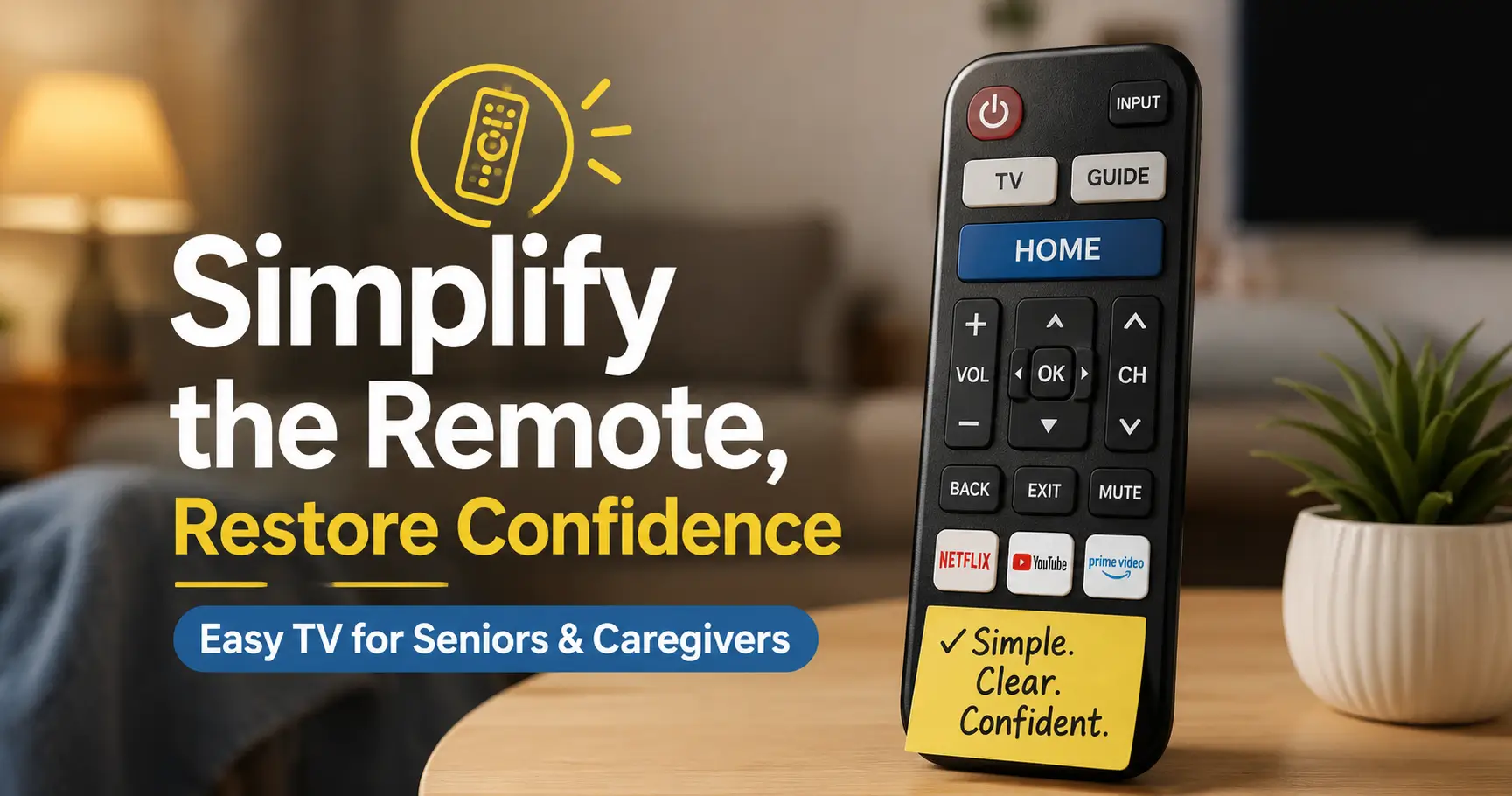
The TV Remote Dilemma: Restoring Independence in a World of Too Many Buttons
The TV remote looks harmless until it becomes a tiny plastic maze at 7:42 p.m., right when the weather report starts and the screen suddenly says “HDMI 2.” For many families, how to prevent seniors from pressing the wrong TV remote button is not a cute little household puzzle. It is a daily friction point involving smart TVs, cable boxes, streaming apps, tiny labels, low contrast, glare, and a table full of nearly identical black rectangles.
The real loss is not only missed shows. It is confidence. A senior who used to enjoy the evening news may start avoiding the TV because every mistake feels public, annoying, or embarrassing.
Good news: the best fix is usually simple. Not fancy. Not expensive. Not a “miracle remote” with a heroic product photo and 93 reviews written by someone’s nephew.
- • Fewer buttons.
- • Clearer labels.
- • One rescue step.
- • A room that helps instead of heckles.
This guide walks through a practical caregiver-tested method: audit the remote, block the traps, label the true daily buttons, simplify inputs, and build a calm TV rescue card that works when the screen has already wandered into the digital woods.
Remote Rescue Snapshot
The goal is not to teach every button. The goal is to make the right buttons obvious and the wrong buttons harder to press by accident.
- Best first move: identify the 5 buttons used every day.
- Best low-cost fix: cover input, settings, source, and app buttons.
- Best confidence tool: a one-page card with photos of the actual remote.
- Best product timing: buy a senior-friendly remote only after simplifying the setup.
Table of Contents

Start With the Real Problem: It’s Usually Not “Bad Memory”
When an older adult presses the wrong TV remote button, families often jump to the most painful explanation: “Mom is forgetting things.” Sometimes memory is part of the story. But very often, the remote itself is the little gremlin wearing a customer-service badge.
Modern remotes cram power, input, source, menu, settings, voice search, app shortcuts, playback controls, numbers, arrows, colored buttons, and tiny symbols onto a device that is used in dim light from a recliner. That is a design problem before it is a memory problem.
The remote is a tiny control panel pretending to be friendly
A TV remote asks the user to understand a hidden system. One button changes volume. Another changes channels. Another opens a menu. Another changes the entire signal source. A fourth may wake a streaming platform that looks nothing like regular television.
For a person with slower hand movement, reduced contrast sensitivity, arthritis, tremor, cataract-related glare, macular degeneration, or simple evening fatigue, the button field becomes noisy. It is not a remote anymore. It is a cockpit with crumbs.
Why streaming, cable boxes, and smart TVs create button traps
Older TV setups usually had one path: power on, channel up, channel down, volume. Modern setups may require a chain: TV power, cable box power, correct HDMI input, streaming home screen, profile selection, app selection, and a back button that behaves differently depending on the device.
That chain creates traps. Press the wrong input button and the screen may show “No Signal.” Press the wrong home button and the senior lands inside a streaming menu. Press a voice button by mistake and the TV starts listening like a suspicious parrot.
The three most common failure points: input, menu, and mute
Most wrong-button incidents cluster around three areas:
- Input/source: the TV changes away from cable, Roku, Fire TV, DVD, or antenna.
- Menu/settings: the screen opens an unfamiliar panel that feels impossible to escape.
- Mute: the picture works, but the sound disappears, leading everyone to suspect the cable company, the TV, the moon, or all three.
- Start with the device layout before blaming memory.
- Look for repeated trouble buttons.
- Fix the setup around the person’s real habits.
Apply in 60 seconds: Ask, “Which screen do you get stuck on most often?” and write down the exact answer.
Who This Is For, and Who Needs a Different Plan
This guide is for practical home caregiving. It is not a medical diagnosis tool. Still, remote trouble can sometimes point toward vision changes, hearing issues, medication side effects, dexterity problems, or cognitive changes. The remote may be the smoke, not the fire.
Best fit: seniors who can watch TV independently but get stuck often
The best fit is someone who can enjoy TV independently once it is on the right screen. They may confuse the input button, press settings by mistake, turn on captions accidentally, or call for help after landing in a streaming app.
This person does not need a lecture. They need friction removed.
Good fit: caregivers managing cable, Roku, Fire TV, Apple TV, or smart TVs
This guide also works for adult children, spouses, home-care aides, and senior-living helpers who manage mixed setups. Maybe Dad watches cable news, Mom uses Netflix, and the grandkids left the TV on a gaming console. The living room becomes a small technology treaty negotiation.
If vision is part of the challenge, pair this article with practical setup guidance such as large-button TV remote options for seniors and common senior near-vision problems.
Not ideal: sudden confusion, major vision loss, or repeated unsafe behavior
If the remote problem appears suddenly, happens alongside new confusion, sleepiness, falls, weakness, slurred speech, severe headache, fever, medication changes, or major behavior shifts, treat it as a health clue. Call a clinician, urgent care, or emergency services depending on severity.
Remote mistakes alone do not mean something serious is happening. But sudden change deserves attention, especially in older adults.
When “remote trouble” may be a clue, not the whole story
Watch for patterns. Does the senior press the wrong button only at night? Lighting and glare may be the issue. Does trouble worsen after new medications? Ask the pharmacist or prescriber. Does the senior hold the remote very close? A vision check may help.
The National Institute on Aging notes that older adults and caregivers should pay attention to changes in memory, mood, movement, and daily function, especially when changes are new or disruptive.
The Button Audit: Find the 5 Buttons That Actually Matter
The button audit is the quiet superhero of this whole process. Before you buy anything, take inventory. Sit with the senior during a normal TV routine and observe which buttons are truly needed.
Most seniors do not use 47 buttons. They use five or six. The rest are decorative hazards, tiny black speed bumps on the road to Jeopardy.
Power, volume, channel, home, and back: the usual core set
For a basic cable or antenna setup, the core buttons are usually:
- Power: TV on and off.
- Volume up/down: sound control.
- Channel up/down: simple browsing.
- Mute: useful, but risky if pressed accidentally.
- Guide: helpful for cable users who browse listings.
For a streaming setup, the core buttons may include:
- Home: return to the streaming start screen.
- Back: step out of a menu.
- Directional arrows: move around the screen.
- OK/select: choose an item.
- Play/pause: control shows.
The sneaky buttons that cause chaos
The usual villains are input, source, settings, menu, app shortcuts, voice, sleep timer, captions, picture mode, and colored buttons with no plain-language meaning. These buttons are not evil. They simply do too much damage when pressed by accident.
If your senior never uses the input button independently, that button is a candidate for covering. If they always land in settings, cover settings. If the Netflix button starts a maze they cannot exit, cover it too.
Let’s be honest: nobody needs 47 buttons for the evening news
A remote should match the task. If the task is “watch the same three channels,” a remote with streaming shortcuts, gaming modes, TV apps, input cycling, and voice search is overbuilt. A butter knife can open a letter. You do not need a drawer full of swords.
Money Block: 5-Button Audit Checklist
Use this yes/no check before changing anything.
- Power: Does the senior turn the TV on and off independently? Yes / No
- Volume: Do they adjust sound without help? Yes / No
- Channel or navigation: Do they browse channels or menus? Yes / No
- Home or guide: Do they need a main starting point? Yes / No
- Back or exit: Do they know how to recover from a wrong screen? Yes / No
Neutral action line: Circle only the “Yes” buttons with removable tape or a washable marker dot before adding labels.
Cover the Wrong Buttons Before You Buy Anything
Covering confusing buttons is one of the cheapest fixes, and it often works faster than a new remote. The idea is simple: make the wrong action harder and the right action easier.
This is not about treating the senior like a child. It is about redesigning the tool so it stops ambushing them.
Use removable tape, silicone covers, or button guards
Start with reversible materials. Try painter’s tape, removable label tape, small silicone button covers, or a remote sleeve that exposes only certain buttons. Avoid anything permanent until you know the setup works for at least a week.
Do not use tape that leaves sticky residue or blocks battery compartments. Also avoid thick materials that press buttons continuously. A covered input button should be hidden, not held down like it owes rent.
Block input, settings, source, apps, and voice buttons first
These buttons commonly create the most confusing screens. For many homes, the first round of covering should include:
- Input/source: prevents “No Signal” screens.
- Settings/menu: prevents accidental system menus.
- App shortcut buttons: prevents sudden streaming launches.
- Voice button: prevents accidental listening screens.
- Sleep timer: prevents surprise shutoffs.
Keep the buttons caregivers need accessible. You can cover a button with a flap of tape that a caregiver can lift but a casual thumb press will not trigger.
Keep emergency access possible for caregivers
Never seal the remote so tightly that no one can troubleshoot. Put a note on the back of the remote: “Caregiver: lift blue tape for input.” If a paid helper comes in, that tiny note prevents a small evening drama.
For tactile marking, compare bump dots versus tactile tape. Raised markers can help seniors find power or volume by touch, especially when lighting is low.
- Target input, settings, source, app shortcuts, and voice.
- Use removable materials first.
- Leave a caregiver-access method.
Apply in 60 seconds: Put removable tape over the input button and test the TV routine tonight.
Label the Remote Like a Kitchen Drawer, Not a Spaceship
Labels work when they are plain, large, high-contrast, and placed where the hand actually lands. They fail when they are tiny, shiny, cryptic, or designed by someone who still believes “AV” is a friendly word.
Use large-print labels with plain verbs
Use verbs instead of technical names. Write “TURN ON,” “LOUDER,” “QUIETER,” “GO BACK,” “TV GUIDE,” or “START SCREEN.” Keep labels short. The remote is not a novel. It is more like a spice jar: useful only if you can read it before dinner burns.
Use large print, matte tape, and strong contrast. Black text on white tape often works well. If the remote is black, avoid dark labels. If the label shines under a lamp, switch to matte.
Color cues work best when paired with words
Color alone can fail for people with low vision, color vision changes, or dim lighting. Pair color with words. For example:
- Green label: “TURN ON”
- Blue label: “LOUDER”
- Yellow label: “GUIDE”
- Red label: “DO NOT PRESS” or “HELPER ONLY”
If the senior uses tactile cues well, add one raised dot to the power button and two raised dots to volume up. Keep the system simple. Too many bumps turn the remote into a miniature Braille hedgehog.
Why “Netflix” may be clearer than “Home”
Label the button according to the senior’s goal, not the manufacturer’s vocabulary. If the person presses “Home” only to get to Netflix, the label “NETFLIX START” may be clearer. If the guide button opens cable listings, “CHANNEL LIST” may make more sense than “Guide.”
For seniors with near-vision difficulty, use the same practical thinking you would use for mail, pill bottles, or appliances. The guide to reading labels aloud for low-vision routines can also inspire a caregiver script for remote labels.
Don’t Do This: Remote Fixes That Make Seniors More Confused
Some remote fixes are well-meant little traps. They look helpful in the store or in a product listing, then become one more object on the coffee table that nobody fully understands.
Don’t add a universal remote without removing old remotes
If you add a universal remote but leave the TV remote, cable remote, soundbar remote, and streaming remote beside it, you have not simplified the system. You have created a remote bouquet. It will not smell like roses.
Store backup remotes in a labeled drawer or basket that only caregivers use. Keep one daily remote within reach.
Don’t teach five different ways to do the same thing
Many caregivers accidentally overteach. They say, “You can press home, or back, or exit, or input, or just use the TV remote if the cable remote does not work.” That may be technically true. It is also cognitively expensive.
Pick one path. Repeat that path. Write that path on the rescue card.
Don’t rely on tiny stickers that disappear at night
Tiny stickers may look tidy in daylight. At night, they vanish. Use large labels, high contrast, matte finishes, and good lamp placement. If the senior cannot read the label from normal sitting distance, the label is decoration.
The “helpful upgrade” that becomes a button jungle
A new smart TV may add apps, ads, menus, profiles, software updates, and pop-ups. A new voice remote may add microphones and pairing steps. A new universal remote may need programming codes. Do not upgrade unless the new system removes more complexity than it adds.
Money Block: Decision Card, Cover Buttons vs Buy a New Remote
| Choose this | When it fits | Trade-off |
|---|---|---|
| Cover buttons | The remote mostly works, but a few buttons cause trouble. | Low cost, but may look homemade. |
| Label buttons | The senior uses the right buttons when they can identify them. | Fast, but labels must be readable. |
| Buy big-button remote | Cable or basic TV watching is the main routine. | Simpler buttons, but setup may require programming. |
| Simplify TV setup | Input, streaming, or device switching causes most calls for help. | Best long-term payoff, but takes caregiver time. |
Neutral action line: Try the lowest-cost reversible fix for seven days before buying a replacement.
Choose a Senior-Friendly Remote Only After Simplifying the Setup
A senior-friendly remote can help a lot. But buying one too early is like buying new shoes before removing the pebble. First, reduce the number of devices, inputs, and daily choices. Then choose the remote that matches the simplified routine.
Big-button remotes: best for cable and basic TV watching
Big-button remotes are often best for seniors who mainly watch cable, antenna TV, or a small number of familiar channels. Look for large buttons, strong contrast, simple layout, easy battery replacement, and only the controls needed daily.
Some models allow caregivers to program favorite channels or limit available functions. That can be useful, but only if someone in the home can maintain it. A remote that requires a secret sequence every time the cable box hiccups may not be the friendly village elder it claims to be.
Voice remotes: useful, but not always simpler
Voice remotes can help people who struggle with small buttons. A senior may say, “Open PBS,” “Turn volume up,” or “Find western movies.” But voice controls may fail with background noise, soft speech, accents, unclear commands, or hearing-related feedback issues.
Voice is best when the senior is comfortable speaking to devices and the device responds reliably. It is not best when accidental voice screens cause anxiety.
App-based remotes: usually better for caregivers than seniors
Phone-based remote apps can be useful for caregivers who need to fix the TV without hunting for the physical remote. But they usually add steps for seniors: unlock phone, find app, connect device, navigate touchscreen. For many older adults, that is not simplification. That is a small software obstacle course.
Here’s what no one tells you: the TV setup matters more than the remote
A beautiful big-button remote will still fail if the TV defaults to the wrong HDMI input, the cable box sleeps separately, the streaming stick opens profiles, or the soundbar has its own remote. The remote is the handle. The setup is the door.
For TV viewing comfort, consider related environmental fixes like TV glare reduction for seniors and low-vision movie subtitles settings.
Stop the Input Button Spiral Before It Starts
The input button is one of the biggest remote troublemakers. One accidental press can move the TV from cable to HDMI 2, HDMI 3, antenna, screen mirror, or a blank port. Then the screen says “No Signal,” which sounds vaguely accusatory.
Disable unused HDMI inputs when possible
Many TVs allow you to hide or skip unused inputs in settings. If only HDMI 1 is used for cable, hide HDMI 2, HDMI 3, AV, antenna, and screen mirroring where possible. Not every TV supports this, but it is worth checking.
If the TV cannot hide unused inputs, rename the active one clearly and make a rescue card for returning to it.
Rename inputs in plain English: Cable, DVD, Roku
Most smart TVs allow input names. Change “HDMI 1” to “Cable,” “HDMI 2” to “Roku,” or “HDMI 3” to “DVD.” Plain language reduces panic. “Cable” says what to choose. “HDMI 1” says, “Please remember a detail no human should have to cherish.”
Tape a tiny “wrong screen” rescue step near the TV
Use one sentence. Not a paragraph. For example:
If the screen says No Signal, press INPUT once, then choose Cable.
Better yet, include a photo of the input screen with the correct choice circled. Place it near the TV, not in a drawer. A rescue instruction that cannot be found is just a diary entry.
Show me the nerdy details
Remote errors increase when a control changes “mode” instead of changing only one visible thing. Volume buttons have a direct effect: louder or quieter. Input buttons change the system state: the TV starts listening to a different device. That makes recovery harder because the screen no longer matches the viewer’s mental model. A good senior-friendly setup reduces mode changes, hides unused modes, and gives one clear recovery path.
Build a One-Page TV Rescue Card
A TV rescue card is a single page that answers the most stressful question: “What do I do when the screen looks wrong?” It should be boring, visible, and specific. Boring is good. Boring is a handrail.
What to write: “If the screen looks wrong, press this”
Use plain rescue lines:
- If there is no sound: press MUTE once, then press VOLUME UP.
- If the screen says No Signal: press INPUT and choose Cable.
- If apps appear: press BACK twice, then press Cable.
- If nothing works: call or text this person.
Keep it to one page. Large print. High contrast. No technical lecture. No “as previously discussed in the living-room seminar.”
Use photos of the actual remote, not generic icons
Take a photo of the real remote. Circle the correct buttons. Print it large. Generic icons are less useful because every remote looks slightly different, and button placement matters more than button theory.
If printing is hard, draw a simple remote outline with the correct buttons boxed. The card does not need to win a design award. It needs to help at 9 p.m.
Place the card where the problem happens
Place the rescue card near the TV, on the side table, or in a clear stand beside the remote. Do not put it on the refrigerator unless the TV is in the refrigerator, in which case you have bigger appliance questions.
Pattern interrupt: make the card boring on purpose
Use the same words every time. “Wrong screen” is better than “input source mismatch.” “Sound gone” is better than “audio output issue.” The card should feel like a calm neighbor, not a technical manual wearing cologne.
Short Story: The Weather Report Rescue
Elaine called her son three nights in a row because the TV “turned itself into blue snow.” The TV had not broken. Her thumb was brushing the input button when she reached for volume. Her son first tried explaining HDMI. This went about as well as teaching a goldfish tax law. Then he changed the plan.
He covered the input button with removable tape, labeled volume up with a raised dot, and placed a card beside the lamp: “If screen says No Signal, press the gray button marked Cable.” The next week, Elaine called once. Not because she was stuck, but because she fixed it herself and wanted credit. She deserved it. The lesson was simple: confidence returned when the rescue step became visible, short, and repeatable.
The 4-Step Remote Rescue Flow
1
AuditFind the few buttons used every day.
2
BlockCover input, settings, app, and voice traps.
3
LabelUse large plain words and tactile cues.
4
RescueWrite one calm step for wrong screens.
Fix the Room, Not Just the Remote
Sometimes the remote is innocent-ish. The room may be making every button harder to see. Low light, glare, clutter, low contrast, and multiple remotes can turn a simple action into a guessing game.
Better lighting reduces wrong-button presses
Place a lamp so light falls on the remote without shining into the senior’s eyes or reflecting off the TV. A side-table lamp with a warm bulb and shade often works better than overhead glare.
If the senior is glare-sensitive, test lamp position during the actual viewing time. Afternoon daylight, evening lamps, and nighttime darkness create different problems. For nearby lighting decisions, see red versus amber night light choices and what to do when a motion sensor light feels too bright.
Contrast matters: black buttons on black plastic are tiny villains
Many remotes have black buttons on a black body with dark gray lettering. This is legal, apparently. Helpful, not always.
Add white labels, raised dots, or a light-colored remote sleeve. If the senior has low vision, strong contrast helps more than decorative color. Matte materials reduce glare better than shiny labels.
Store only one remote within easy reach
Keep the daily remote in one consistent place: a tray, basket, side-table pocket, or remote holder. Remove unused remotes from the coffee table. Label the storage spot “TV REMOTE” if needed.
For a broader home organization pattern, the same idea appears in low-vision bedside organization: predictable placement reduces searching, frustration, and dropped items.
Reduce glare, clutter, and “where did I put it?” moments
Clutter creates visual competition. If the remote sits among mail, pill bottles, snack wrappers, glasses, and three mystery cables, the senior has to search before they even start watching. Clear the side table. Use a tray. Put the remote in the same direction every time.
- Improve light on the remote without adding glare.
- Use high-contrast labels and tactile cues.
- Keep only one daily remote within reach.
Apply in 60 seconds: Put the remote in a small tray beside the usual chair and remove every backup remote.
Common Mistakes Caregivers Make With TV Remote Help
Caregivers usually mean well. Still, a rushed fix can create tomorrow’s confusion. The goal is not to prove you understand the TV. The goal is to help someone else use it calmly when you are not standing there.
Explaining too much in one sitting
A long explanation can feel like fog. Instead of teaching the whole system, teach one action. “This button turns it on.” Later: “This button makes it louder.” Later: “This card helps if the screen looks wrong.”
Small lessons stick better than a full remote sermon.
Changing the setup without telling the senior
If you rename inputs, remove remotes, change app order, or cover buttons, explain it briefly. Better yet, do it with the senior present. A surprise change can feel like the TV has betrayed them overnight.
Leaving three remotes on the table “just in case”
Backup remotes belong in a caregiver drawer, not on the daily table. “Just in case” often becomes “which one is the real one?” The remote table should not look like a tiny electronics yard sale.
Solving today’s problem but creating tomorrow’s mystery
When you fix the TV for someone, narrate the recovery in one simple sentence. “The TV was on the wrong input. I put it back on Cable.” Then write that same sentence on the rescue card. Repetition turns a rescue into a routine.
Money Block: Caregiver Quote-Prep List Before Buying a Remote
Gather these details before comparing remotes, installers, or TV help services.
- TV brand and model if visible.
- Cable box, streaming stick, or satellite provider name.
- Photos of every current remote.
- The senior’s top 3 daily TV tasks.
- The exact screen where they get stuck most often.
- Vision, hearing, dexterity, or tremor concerns that affect button use.
Neutral action line: Take phone photos of the TV inputs, remotes, and wrong-screen message before shopping or calling support.
A Calm Training Routine That Actually Sticks
Training works best when it protects dignity. The senior is not a student failing a remote exam. They are a person trying to relax in their own home.
Teach one action per day: power, volume, channel, home
Choose one action and practice it three times. Then stop. For example:
- Day 1: turn TV on and off.
- Day 2: volume up and down.
- Day 3: channel guide or streaming home.
- Day 4: back or exit.
- Day 5: rescue card for wrong screen.
This pacing may feel slow to a caregiver. But slow is often the fastest path when confidence has been dented.
Practice during calm moments, not during the big game
Do not train during a live sports event, breaking news, a favorite show, or when dinner is cooling on the table. Practice when nothing important is at stake. Anxiety makes buttons blur together.
Use the same words every time
Choose consistent phrases: “Start screen,” “wrong screen,” “sound gone,” “go back,” “helper button.” Avoid switching between “input,” “source,” “HDMI,” and “TV mode” unless the senior already uses those terms comfortably.
Celebrate recovery, not perfection
The win is not never pressing the wrong button. Everyone presses wrong buttons. I once muted a meeting while trying to look competent, which is a very modern form of slapstick.
The real win is recovery: noticing the problem, using the card, pressing the rescue button, and returning to the show without shame.

FAQ
What is the easiest TV remote for seniors to use?
The easiest TV remote for many seniors is a large-button remote with only power, volume, channel, mute, and possibly guide controls. But the easiest option depends on the TV setup. A simple remote can still confuse someone if the TV has multiple inputs, streaming profiles, a separate soundbar, or several remotes on the table.
How do I stop my elderly parent from changing the TV input?
First, hide or disable unused HDMI inputs in the TV settings if possible. Rename the correct input as “Cable,” “Roku,” or “DVD.” Then cover the input button with removable tape or a button guard. Add a rescue card that says what to do if the screen says “No Signal.”
Can I disable buttons on a TV remote?
Some remotes and TVs allow limited button control, but many standard remotes do not let you disable individual buttons through software. Practical workarounds include removable tape, silicone covers, remote sleeves, button guards, or switching to a simplified remote after the setup has been tested.
Are big-button remotes better for older adults?
Big-button remotes can be better for older adults with low vision, arthritis, tremor, or reduced hand precision. They work best for basic TV watching. They may be less helpful if the real problem is device switching, streaming menus, HDMI inputs, or a confusing smart TV home screen.
Is a voice remote helpful for seniors?
A voice remote can help some seniors avoid tiny buttons, especially if they speak clearly and the device responds reliably. It may not help if background noise, soft speech, accents, hearing feedback, or accidental microphone activation creates frustration. Test voice commands before making it the main method.
What should I do if my parent keeps getting stuck on streaming apps?
Reduce app clutter, move the most-used app to the first position, remove unused apps when possible, and write a rescue card with photos of the actual remote. If streaming is rarely used, consider making cable or antenna the default startup experience and keeping streaming access caregiver-assisted.
Why does my elderly parent suddenly struggle with the TV remote?
Sudden remote trouble can come from a changed TV setup, new remote, low batteries, poor lighting, glare, vision changes, hand pain, hearing issues, medication changes, fatigue, or cognitive changes. If the change is abrupt or comes with other symptoms such as confusion, weakness, falls, or sleepiness, contact a clinician promptly.
Should I replace the TV, the remote, or the cable box?
Start with the lowest-cost fix: simplify the current setup, remove extra remotes, cover confusing buttons, and create a rescue card. Replace the remote if buttons are too small or confusing after simplification. Replace the TV or cable box only if the system itself keeps creating unavoidable menu or input problems.
Next Step: The 10-Minute Remote Rescue
The remote problem that looked like “bad memory” at the start is often a system problem: too many buttons, too many screens, too little contrast, and no simple recovery path. When you reduce choices and protect the senior’s dignity, the evening TV routine can become calm again.
Pick up the remote and circle the only buttons used daily
Use removable tape or a washable marker dot. Identify power, volume, channel, guide, home, back, or select. Ignore everything else for now.
Cover two confusing buttons today: input and settings
Do not remodel the entire system in one heroic burst. Cover the two buttons most likely to create panic. Test the setup during a normal TV session.
Write one rescue sentence and place it beside the TV
Use one sentence: “If the screen looks wrong, press BACK twice, then choose Cable.” Or: “If there is no sound, press MUTE once, then VOLUME UP.” Put it where the mistake happens.
That is the 15-minute win: one remote, fewer traps, one rescue sentence, and a little more peace in the room.
For families dealing with broader vision-related home setup questions, the same method applies beyond TV remotes: simplify the object, improve contrast, reduce glare, and create a repeatable rescue step. Helpful next reads include bedroom safety for seniors with poor vision, anti-glare screen protector tips, and questions to ask a low-vision occupational therapist.
Last reviewed: 2026-05.