
Calm phone help for caregivers and older adults
How to Set Up Larger Keyboard Buttons for Older Adults
Without Making the Phone Harder to Use
A tiny phone keyboard can turn a simple text into a little glass maze. One missed letter becomes three corrections, then autocorrect gallops in wearing a cape, and suddenly “I’m home” has become “I’m honey.” For an older adult who already feels a bit watched by technology, that moment can be frustrating, embarrassing, and oddly tiring.
The good news: you usually do not need to install a strange new keyboard app first. The better starting point is built-in accessibility and display settings. Larger display size, keyboard height, bold text, landscape typing, voice typing, and a few thoughtful caregiver habits can make texting feel less like threading a needle in a moving car.
This guide shows you how to make phone or tablet typing easier while keeping the device familiar. The goal is not a dramatic phone makeover. It is fewer mistakes, less hesitation, and one small message sent with a little more confidence.
Start with the right fix
Separate tiny keys from vision strain, hand pain, screen confusion, or autocorrect trouble.
Keep the phone familiar
Use built-in iPhone and Android settings before adding unfamiliar keyboard apps.
Test with real life
Check texting, names, numbers, passwords, and verification codes before calling it done.
✨ The best setup is not the biggest keyboard. It is the keyboard that lets someone send a message without feeling hunted by the screen.
Snapshot: This guide is for caregivers, adult children, spouses, and older adults who want texting, contacts, codes, and short forms to feel easier on a phone or tablet. You will learn how to test the real typing problem, adjust iPhone and Android settings, avoid common setup traps, and decide when voice typing, a stylus, or professional support may be the better path.
Table of Contents
Start With the Real Problem: Is It Tiny Keys, Shaky Hands, or Screen Confusion?
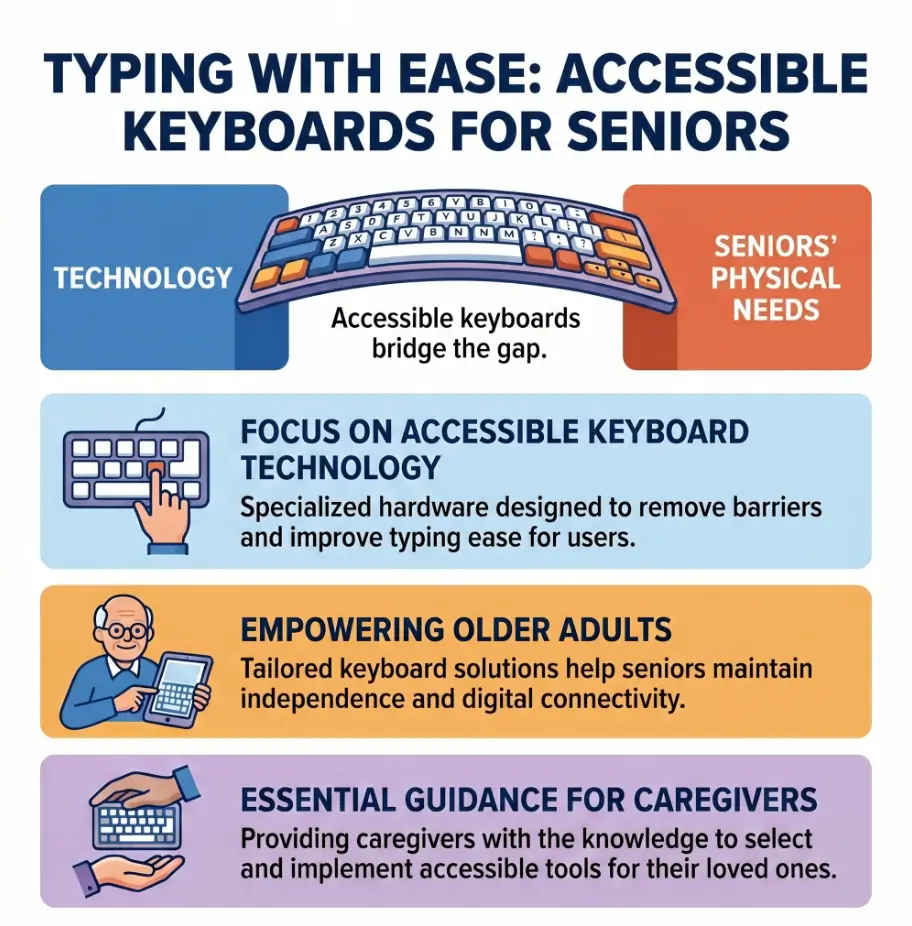
Before you make a keyboard larger for an older adult, pause for one quiet minute. The problem may not be “the keyboard is too small.” It may be a mix of small key targets, low contrast, dry fingertips, hand stiffness, tremor, unfamiliar icons, or anxiety about sending the wrong message.
That difference matters. If the real issue is contrast, bigger gray letters on a gray keyboard are still a fogbank. If the real issue is autocorrect, larger keys may help a little, but the phone may still turn a simple sentence into a tiny administrative scandal.
Why “make the keyboard bigger” is often only half the fix
Typing is not one skill. It is a bundle of small actions: seeing the target, reaching the target, tapping the target, noticing the result, correcting mistakes, and deciding whether the message is safe to send.
For many older adults, one weak link in that chain can make the whole process feel sour. A person with arthritis may know exactly what they want to type but struggle with thumb movement. A person with low vision may tap correctly but cannot read the suggestion bar. Someone with mild memory strain may lose their place when a keyboard toolbar opens unexpectedly.
So the first job is not to redesign the phone. The first job is to identify the friction. Think of it as listening to the hinge before oiling every door in the house.
The 3-message test before changing anything
Ask the older adult to type three real examples. Keep the tone casual. You are observing, not grading.
- A short text: “I’m home now.”
- A name: “Mary Johnson” or another real contact name.
- A number or code-style phrase: “The code is 482913.”
Watch for missed taps, repeated backspacing, accidental punctuation, trouble finding the spacebar, confusion about shift or numbers, and whether the person gives up before finishing. Also watch their face. A wince, sigh, or small apology often tells you more than the settings screen.
Key takeaway
- Do one short typing test before changing settings.
- Look for the pattern: vision, reach, tremor, confusion, or autocorrect.
- Change only one or two things at a time.
Apply in 60 seconds: Ask them to type “I’m home now” and watch where the struggle begins.
Let’s be honest: settings menus can feel like a junk drawer with a password
Caregivers often feel tempted to tap quickly through settings because they “know phones.” Older adults may nod along while quietly feeling that their own device has been borrowed by a raccoon with a software degree.
Slow the pace. Say what you are changing, why you are changing it, and how to reverse it. The phone is personal territory. Treat it less like a gadget and more like someone’s front door.
Safety / Practical Note Before You Change the Phone
Larger keyboard buttons can make texting easier, but technology settings are not a medical explanation. Sudden trouble typing, new hand weakness, new numbness, confusion, vision loss, severe pain, or a quick decline deserves attention beyond the phone.
This article is general usability guidance. It is not medical, vision, occupational therapy, or emergency advice. When a typing problem appears suddenly or comes with other changes, pause the setup and help the person contact a clinician, eye doctor, occupational therapist, or emergency service as appropriate.
For gradual difficulty, the most respectful approach is practical and calm: improve the device, reduce pressure, and keep an eye on whether the person still struggles even after the setup is easier.
Bigger Buttons First: Built-In Settings Worth Trying
The safest first move is usually not a new keyboard app. It is the phone’s built-in display and accessibility settings. They are more familiar, less likely to show ads, and easier to reverse if something feels wrong.
Increase display size before downloading a new keyboard
Display size changes the scale of items across the phone. Depending on the device and app, it can make menus, buttons, contact names, and keyboard areas feel easier to reach. That matters because typing rarely happens alone. Someone may need to open Messages, find a contact, read the conversation, type a reply, and tap send.
If only the keyboard changes but everything else stays tiny, the person may still struggle before they even reach the text box. Display size gives the whole phone a little more breathing room.
Raise keyboard height if the keyboard app allows it
Many Android keyboards, including common default keyboards, offer a keyboard height or resize setting. Samsung phones and Pixel phones may place the option in different spots, and the exact menu names can change. That is why the best instruction is to open the active keyboard settings and look for words such as “Preferences,” “Layout,” “Size,” “Height,” or “Resize.”
Do not raise it to the maximum immediately. Oversized keyboards can crowd the message area, hide the conversation, and make the screen feel cramped. Try one step larger, then test.
Turn on bold text or larger text for better visual confidence
Text size may not always enlarge keyboard keys directly. Still, it can help the person read what they typed, see contact names, understand menus, and check messages before sending.
Bold text can also help when letters look thin or faint. For many people, readability is not just about size. It is about shape, weight, contrast, and whether the screen feels steady enough to trust.
The larger-keyboard setup flow
1. Watch
Test one real message before touching settings.
2. Enlarge
Try display size, text size, or keyboard height.
3. Simplify
Reduce extra symbols, toolbars, or confusing shortcuts.
4. Test
Send one real text, enter a number, and review.
iPhone Setup: Make the Keyboard Easier Without Overcomplicating iOS
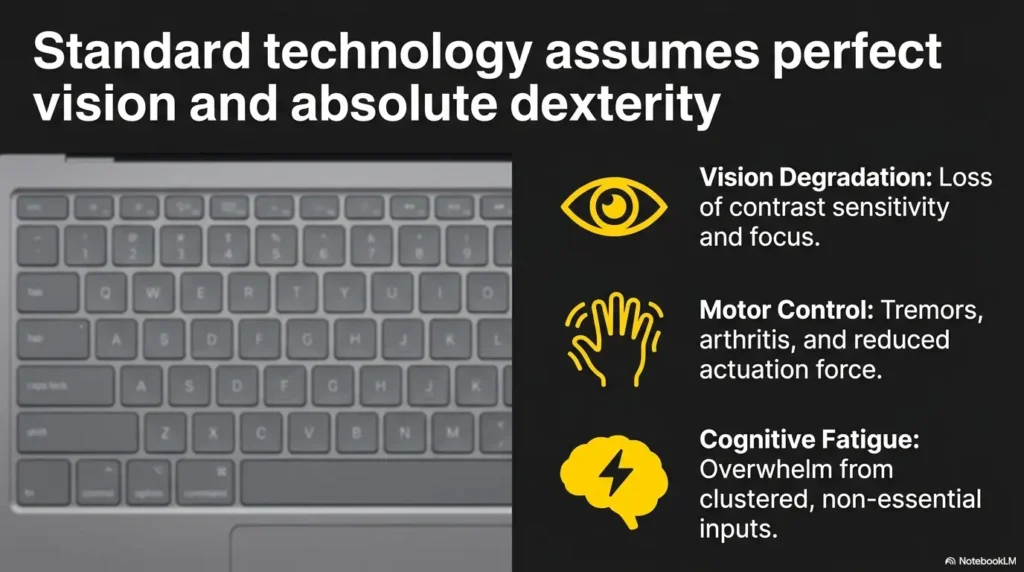
On iPhone, the main keyboard is tightly connected to the system. You may not see a simple “make keyboard keys huge” slider in the way some people expect. That is not failure. It means the best iPhone setup often uses display settings, text readability, orientation, and careful testing.
Use Display Zoom as the first iPhone-friendly move
Display Zoom can make screen elements feel larger across iPhone. It is often a good first experiment because it keeps the phone familiar while giving icons, menus, and typing areas a larger presence.
After turning it on, do not judge from the settings screen. Open Messages. Ask the person to type a real sentence. Then open Contacts and a simple website or email. The phone should feel easier overall, not just dramatic for five seconds.
Adjust text size and bold text for better readability
Larger text helps the person read messages, menus, and typed words. Bold text can make screen labels more legible, especially when the older adult has trouble with faint lettering or glare.
This is especially useful for someone who says, “I can type, but I can’t tell what I typed.” The keyboard may not be the only villain. The preview line, message bubble, and contact name may be doing a quiet little sabotage act.
Try landscape typing for longer messages
Turning the iPhone sideways may create a wider typing area in many apps. This can help with longer messages, especially for people who use two hands or rest the phone on a table.
It is not perfect for everyone. Some people dislike the screen rotating, and some apps behave differently. But it is free, reversible, and worth testing before installing a new keyboard.
Don’t do this: installing three keyboard apps in one afternoon
Third-party keyboard apps can be useful for some people, but they can also create confusion. The keyboard may look different in every app, request permissions, show extra features, or make the older adult wonder where the “normal keyboard” went.
Try built-in settings first. If you later test an outside keyboard, test only one, explain how to switch back, and remove it if it does not clearly help.
Android Setup: Keyboard Height, Display Size, and Touch Comfort
Android phones vary more than iPhones. A Samsung phone, Google Pixel, Motorola, or budget Android device may use different menus and a different keyboard app. That variety can be wonderful, and also mildly soup-like.
The rule is simple: check both the phone display settings and the active keyboard settings. The keyboard may have its own size controls separate from the main Android accessibility menu.
Change keyboard height inside the active keyboard app
Open a text field so the keyboard appears. Look for a settings gear, four-square menu, toolbar icon, or keyboard preferences link. Depending on the phone, you may find keyboard height, resize, one-handed layout, floating keyboard, theme, or number row settings.
Make one change at a time. Raise the height one level, then ask the person to type the same short message again. If errors drop and the message area still feels comfortable, you may have found the sweet spot.
Increase display size for bigger tap targets across the phone
Android display size can help far beyond the keyboard. Contacts, call buttons, app icons, confirmation screens, and settings labels may become easier to tap and read.
This is important because an older adult may not say, “I have trouble with small touch targets across the operating system.” They may say, “This phone is annoying.” Translation: the whole glass rectangle needs kinder proportions.
Use one-handed mode carefully, or avoid it entirely
One-handed mode often shrinks the keyboard to one side. That can help someone with a small phone and excellent thumb control. It usually does not help someone who needs larger keys.
If one-handed mode is on by accident, turn it off and test again. Sometimes the “keyboard is too small” problem is really “the keyboard is hiding in a corner like a nervous cat.”
Here’s what no one tells you: bigger is not always easier
A huge keyboard can create new problems. It may cover too much of the conversation, hide form fields, make scrolling awkward, or force the person to move their hand more.
The target is comfortable accuracy, not maximum size. Think “well-lit walkway,” not “airport runway in the living room.”
Key takeaway
- On Android, check the keyboard app and the display settings.
- Turn off one-handed mode if it makes keys smaller.
- Stop increasing size once accuracy improves.
Apply in 60 seconds: Open a text box, find the keyboard settings icon, and look for height or resize.
The Best Keyboard Layout Is the One They Already Trust
A larger keyboard is not automatically a better keyboard. Familiarity is a form of accessibility. If the older adult has spent years using a standard QWERTY layout, switching to a giant unfamiliar layout may feel like someone moved every drawer in the kitchen overnight.
Keep QWERTY unless there is a strong reason to change
The standard keyboard may look ordinary, but ordinary is powerful. A familiar layout reduces mental effort. The person knows roughly where letters live, even if tapping them has become harder.
Only change the layout if the current one clearly fails and the person is willing to practice. A senior-friendly keyboard that looks helpful to a caregiver may feel alien to the person using it.
Turn off extra symbols if they cause accidental taps
Many keyboards include emoji buttons, clipboard panels, GIF shortcuts, language switchers, voice icons, punctuation shortcuts, and toolbars. These can be useful. They can also become tiny traps.
If the person keeps opening emoji panels by mistake or landing in a toolbar they do not understand, simplify the keyboard. Remove optional shortcut rows where possible. Keep the features they actually use.
Keep predictive text only if it helps, not if it embarrasses them
Predictive text can save typing. It can also create a feeling that the phone is correcting, judging, and occasionally improvising a family drama.
Ask directly: “Do these word suggestions help you, or do they get in your way?” If they help, keep them. If they make the person nervous, reduce or disable them. Confidence matters more than cleverness.
Keyboard simplification checklist
- Keep the standard letter layout if the person already knows it.
- Remove or hide shortcut rows that cause mistakes.
- Check whether the emoji, GIF, clipboard, or language buttons are useful.
- Ask whether autocorrect feels helpful or stressful.
- Leave voice typing visible only after the person understands it.
Short Story: Martha’s Two-Word Victory
Martha did not hate her phone. She hated the moment before sending a text, when every word looked slightly suspicious. Her daughter had installed a large-key keyboard app, but the new layout made Martha pause even longer.
They started over. First, Martha typed “Call me” on the original keyboard. She missed the C twice and opened emojis once. Her daughter increased display size, made text bold, removed an extra toolbar, and raised the keyboard height one step.
Then Martha typed the same two words again. Not perfect. Better. She smiled because the phone still looked like her phone.
The lesson was small but sturdy: the right setup does not show off. It disappears into the task.
Common Mistakes That Make Larger Keyboard Buttons Worse
It is easy to overhelp. The caregiver means well, the phone offers a buffet of settings, and suddenly the older adult is holding a device that looks familiar only in the way a cousin looks familiar at a reunion.
Mistake 1: Changing every accessibility setting at once
If you change display size, text size, contrast, keyboard app, predictive text, icon layout, and screen timeout in one sitting, you will not know what helped. Worse, the person may feel that their phone has been taken over.
Change one or two settings. Test. Write them down. Then stop unless there is a clear remaining problem.
Mistake 2: Choosing a keyboard because it looks “senior-friendly”
Some large-key keyboard apps may help. Others can be cluttered, ad-heavy, outdated, or visually loud. A keyboard that screams “simple” on a download page may behave like a carnival booth once installed.
Before installing anything, check reviews, permissions, update history, and whether the person can easily switch back. Privacy matters because keyboard apps may interact with sensitive text.
Mistake 3: Ignoring contrast, not just size
Large keys with low-contrast letters can still be hard to use. Look at the keyboard in normal lighting, not just under perfect kitchen-table conditions. Glare, dark mode, pale themes, and screen protectors can all affect readability.
If the person has glare sensitivity or low vision, you may also find useful ideas in guides such as choosing an anti-glare screen protector or understanding senior near vision problems.
Mistake 4: Forgetting to test calls, passwords, and verification codes
Typing is not just friendly texts. It is pharmacy portals, hospital reminders, bank codes, Wi-Fi passwords, contact names, and “reply YES to confirm.” These are the moments when pressure rises and mistakes multiply.
After changing the keyboard, test a number, a name, and a short code-style phrase. The keyboard should work when the moment is boring and when the moment is mildly bossy.
Mistake checklist: stop before the phone gets harder
- Did you change more than two settings without testing?
- Did the keyboard become larger but the message area became too small?
- Did a new app ask for permissions you cannot explain?
- Did the older adult lose a familiar button or layout?
- Did you test a password or verification code, not just a casual text?
Add Voice Typing Without Making It Feel Like a Tech Test
Voice typing can be a relief for older adults with hand pain, fatigue, tremor, or longer messages to send. But it should not be introduced as a magic trick during an already confusing setup session.
Let the keyboard feel stable first. Then show the microphone button as an option, not a replacement. The sentence “You can also speak a message when your hands are tired” lands better than “Here, use dictation now.”
Show the microphone button only after the keyboard feels stable
If the person is still unsure where letters are, adding voice typing may feel like one more unfamiliar demand. Once the keyboard is readable and the person has sent a test message, point out the microphone button.
Explain it plainly: “When you tap this, you can say the message. Then we read it before sending.” That last sentence matters. Voice typing is not send-by-magic. It is speak, review, correct, send.
Practice with low-stakes sentences
Start with simple phrases: “I’m on my way,” “Please call me,” “Thank you,” or “I’ll be there at three.” Avoid banking portals, medical messages, or passwords during the first practice.
Voice typing can mishear names, medications, and addresses. Begin where mistakes are harmless, then build confidence slowly.
Teach the correction habit
The important skill is not speaking perfectly. It is reviewing before sending. Voice typing can turn “bring soup” into a tiny domestic opera, and the phone will not blush on your behalf.
Teach a simple rhythm: tap microphone, speak, stop, read, fix, send. Put it on a small note if needed.
Key takeaway
- Voice typing is best introduced after the keyboard setup feels stable.
- Practice with harmless everyday messages first.
- Always teach review before send.
Apply in 60 seconds: Dictate “Thank you, I’ll call later,” then read it aloud before sending.
Make Passwords, Codes, and Forms Less Frustrating
The hardest typing moments are often not messages. They are passwords, verification codes, forms, appointment links, and tiny boxes that vanish behind the keyboard. The phone seems calm. The human is doing a silent juggling act with seconds ticking away.
Increase success on verification codes
Verification codes are stressful because they combine small numbers with time pressure. When possible, use autofill features from trusted messages, copy and paste codes carefully, or keep the code visible on another device while entering it.
Also consider increasing screen timeout so the phone does not lock mid-task. This one change can prevent the classic “I almost had it” moment.
Save trusted contacts and common phrases
Reduce typing by saving important contacts, pinning frequent conversations, and using simple text replacements where appropriate. A caregiver might help create shortcuts for phrases such as “Please call me,” “I arrived safely,” or “I need help with my appointment.”
For appointment-related texting, internal organization matters too. A related guide on helping seniors find hospital appointment texts can pair nicely with a larger keyboard setup.
Don’t do this: making the keyboard huge but leaving the lock screen impossible
A larger keyboard does not help much if the person cannot unlock the phone, find emergency contacts, or recover from a failed passcode attempt. Check the whole path from lock screen to sent message.
If face unlock, fingerprint unlock, or passcode entry is causing stress, simplify that workflow within safe limits. Do not remove security casually, especially on a phone with banking, health, or private family information.
Caregiver Setup Script: How to Help Without Taking Over
The emotional part of phone help is easy to underestimate. A caregiver may see a settings problem. The older adult may feel loss of independence. Both can be true in the same room.
Ask permission before touching the phone
Start with: “Would it be okay if I try one setting that may make the keyboard easier?” This small sentence changes the whole temperature of the room.
A phone contains messages, photos, money apps, health reminders, and private worries. It is not a toaster. Ask first.
Narrate each change in plain English
Use calm narration: “I’m making the buttons a little larger. Then we’ll test one message. If it feels worse, I’ll put it back.”
Avoid jargon. “Display scaling” may be accurate, but “making the screen elements larger” is kinder.
Write down the changes you made
Make a simple note. Include the date, the setting changed, where it lives, whether it helped, and how to reverse it. This is not overkill. It is a breadcrumb trail through the settings forest.
If another family member helps later, they will not have to guess. If the older adult dislikes the change tomorrow, the path back is clear.
Let them do the final test
The older adult should send the test message themselves. Do not finish the task for them unless they ask. Confidence is the real installation.
A good final test is one real message to someone safe: “Testing my bigger keyboard. Please ignore if this looks odd.” It is practical, low stakes, and slightly charming.
Caregiver setup script
- “Can I try one setting to make typing easier?”
- “I’ll change only this one thing first.”
- “Now you type the same short message again.”
- “Does this feel better, worse, or just different?”
- “I’ll write down what we changed so we can undo it.”
Show me the nerdy details
Keyboard comfort depends on target size, spacing, motor control, visual contrast, attention, and error recovery. A key can be visually large but still difficult if it is crowded by nearby keys, if the user cannot see the pressed result, or if the device changes context unexpectedly.
That is why real-world testing beats settings-only setup. A person may perform well in a blank note but struggle in a login field, where the keyboard changes to numbers or symbols. Another person may type fine in portrait mode but improve in landscape because the horizontal spacing feels more forgiving.
The practical takeaway: measure success by task completion, not by how impressive the settings look. Fewer corrections, lower hesitation, and easier recovery from mistakes are better indicators than maximum key size.
When to Seek Help or Stop Changing Settings
Sometimes the kindest tech support is knowing when to stop. If the phone setup is becoming stressful, or if typing trouble seems connected to health changes, step away from settings and widen the circle of help.
Sudden typing trouble deserves attention
Seek prompt medical guidance if typing problems appear suddenly or come with new weakness, numbness, facial drooping, confusion, severe headache, vision loss, dizziness, or trouble speaking. Do not keep adjusting keyboard size while a possible health issue is waving a red flag.
For gradual changes, an eye exam, primary care visit, or occupational therapy evaluation may help identify whether vision, hand comfort, dexterity, cognition, or fatigue is part of the issue.
Major vision changes may need more than larger keys
If the person cannot comfortably read messages, contacts, or forms even after increasing text size and contrast, consider low vision support. Screen readers, magnification tools, better lighting, contrast changes, and low vision occupational therapy may help more than another keyboard tweak.
You may also want to review practical home and device ideas such as how to simplify an older parent’s phone or hands-free texting for low vision.
Questions to ask a professional
- Could vision changes be making phone use harder?
- Could hand pain, tremor, numbness, or medication effects affect typing?
- Would a stylus, tablet, voice typing, or switch access be appropriate?
- Are there safer ways to handle passwords and verification codes?
- Would occupational therapy help with phone routines?
Key takeaway
- Sudden typing trouble is not a settings problem until health concerns are ruled out.
- Major vision or motor changes may need professional support.
- Stop changing settings if the phone becomes more confusing.
Apply in 60 seconds: Ask, “Is this a gradual annoyance, or did this change suddenly?”
FAQ
How do I make keyboard buttons bigger on an iPhone for an older adult?
Start with Display Zoom, larger text, and bold text. Then test typing in Messages. For longer messages, try turning the phone sideways. Avoid installing multiple keyboard apps at once, because that can make the phone feel unfamiliar.
Can I make the Android keyboard keys larger?
Often, yes. Look inside the active keyboard app for keyboard height, resize, layout, or preferences. Also check Android display size, which can make buttons and interface elements easier to use across the phone.
Is there a special senior keyboard app?
Some large-key keyboard apps exist, but built-in settings should usually come first. They are more familiar, easier to reverse, and less likely to introduce ads, permission concerns, or a confusing new layout.
What keyboard size is best for seniors?
There is no universal best size. The best keyboard size reduces mistakes without crowding the screen or hiding important content. Increase size gradually, then test real messages, names, and numbers.
Should older adults use voice typing instead of larger keys?
Voice typing can help with hand pain, fatigue, or longer messages. It works best when the person knows how to review and correct the text before sending. It should be an option, not a forced replacement.
Why does my parent still mistype after I made the keyboard bigger?
The issue may involve contrast, tremor, dry fingertips, a screen protector, autocorrect, unfamiliar layout, vision changes, or cognitive overload. Return to the 3-message test and watch where the problem begins.
Can a stylus help older adults type better?
A stylus can help some people with precision, especially on tablets or larger phones. It may not help if the main issue is vision, confusion, or hand fatigue. It can also be easy to misplace, so test before relying on it.
When should typing problems be checked by a professional?
Seek help if typing trouble is sudden, rapidly worsening, or paired with weakness, numbness, vision loss, confusion, pain, or speech changes. For gradual problems, an eye doctor, clinician, or occupational therapist may help identify practical supports.
Next Step: Change One Setting, Then Send One Real Text
The cleanest way to set up larger keyboard buttons for an older adult is also the least dramatic: change one setting, test one real task, and stop when the phone becomes easier.
Choose one starting point. On iPhone, try Display Zoom or larger text. On Android, try keyboard height or display size. Then ask the person to send one short message to someone they trust.
Success is not perfect typing. Success is fewer corrections, less hesitation, and a person who feels a little less cornered by their own screen. In the small theater of daily independence, that is not a tiny win. That is the curtain lifting.
Key takeaway
- Pick one setting: display size, keyboard height, or Display Zoom.
- Test with one real text, one name, and one number.
- Write down what changed so it can be reversed.
Apply in 60 seconds: Send this test text: “Trying my easier keyboard now.”
Last reviewed: 2026-05